A quick introduction to Movaro
Movaro turns activity footage into an edited video with live activity data, multiple camera views, and opening highlights. You can also create a project from an activity alone and export its overlays for another video editor.
Updated for Movaro 1.4.3. Race position, Highlights, Cutaways and additional camera tracks require Creator, Studio or Founder.
Click or tap an image to open it at full size.
Controls and shortcuts: button names below also refer to tooltips shown when hovering over icons. Ctrl/Cmd means Ctrl on Windows or ⌘ Command on Mac. These are the default shortcuts. Settings → Keybindings lists them by area and lets you edit configurable bindings. Select the relevant canvas or timeline before using editing shortcuts, and leave text fields when you want to control the editor.
1. Overlays and layouts
Overlays are graphics and text displayed over your footage: speed, distance, elevation, heart rate, power, route maps, and more. Activity readings update as the video plays. A layout defines their appearance and arrangement.
- Choose or edit a layout: in the project sidebar, open Overlays → Overlay Layouts → Active layout. Select a layout, then click Edit layout below the selector. For a built-in or managed layout, use Duplicate & edit layout. To start from scratch, open the Layouts tab in the shared Projects and Layouts workspace and click New layout.
- Add and customize elements: in the layout editor’s right panel, open Add → Add elements. Click an element or drag it onto the canvas. Select it, then open Edit → Properties to change its data and appearance. For text, use Typography → Font Family / Size / Color.
- Select an element inside a group: open Edit → Layers, expand the group and select the element. You can then change its properties individually.
- Edit text directly: double-click a text element on the canvas to edit it in place. For text linked to activity data, double-click opens its label. Text and number fields update the preview as you type; Esc restores the field’s previous value. Map elements offer marker styling and separate styling for the travelled and remaining route.
- Move, duplicate, or remove: drag the selected element to move it and use its resize handles where available. Arrow keys move the selection, Shift+arrows move it farther, Ctrl/Cmd+D duplicates it, and Delete/Backspace removes it.
- Save: click Save or press Ctrl/Cmd+S, then return to the project. The saved layout’s live overlay refreshes automatically, including while paused.

2. Activity data, videos, and the map
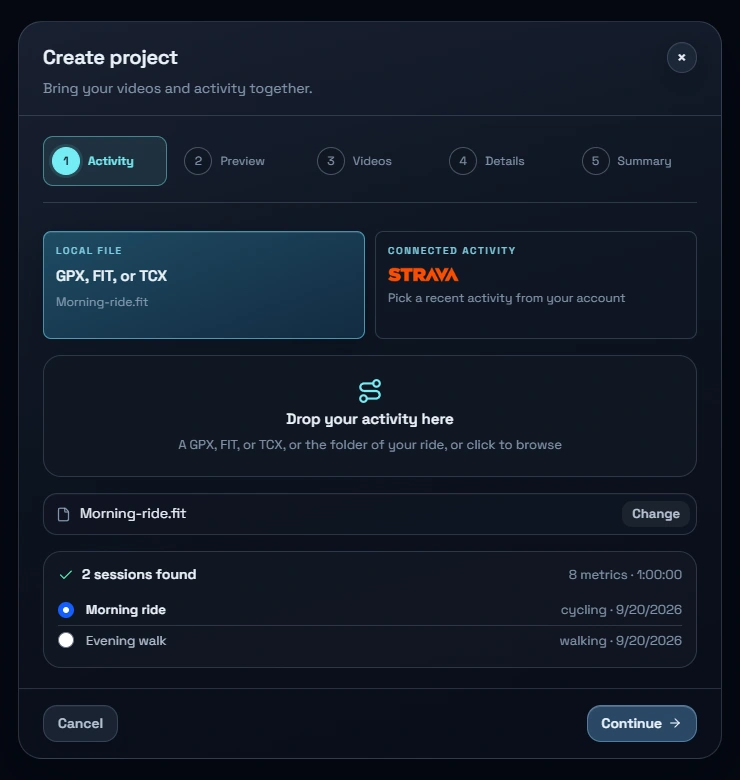
- Click New project in Projects. Start with Activity: choose GPX, FIT, or TCX → Browse, drop an activity file or its folder, or choose Strava. Continue to Preview to review and optionally trim the activity. In Videos, browse or drop footage, review the inspected files, then complete Details and the optional Summary.
- Videos are optional. Choose Skip — overlay only on the Videos step to create one overlay for the full activity or the range you trimmed.
- To add footage later, use Import videos in the Videos panel or drop files or folders there. Use group checkboxes to select related recordings; right-click a group header for group actions.
- If footage moves, change the project’s videos folder and review the relink summary. Movaro reconnects existing videos and their edits, then offers to add new videos it found.
- Projects imported from Strava retain the activity’s name and a View on Strava link.
- Movaro uses recording timestamps to match videos with activity data. Available readings depend on what your device recorded.
- The map shows your route and the location corresponding to the current video moment. Use it to identify landmarks and check synchronization. Route maps require GPS data.

3. Syncing and time offsets
A time offset corrects a timing mismatch—for example, when the map reaches a junction five seconds before the video does.
- Select a video, then open Tools → Sync video and route. Pause at a recognizable place and click Mark video moment.
- Move the activity’s time slider until the map marker reaches the same place. Use Fine control for precision, then click Mark track moment.
- Choose Project to correct all videos, or apply the correction only to videos selected with checkboxes. Click Apply offset, then play or scrub around the marked moment and another later moment to check the alignment. Overlays refresh automatically. Project and individual offsets add together, so apply the same correction only once.
If you enter a project-wide offset directly in Overlays, commit it with Apply or Enter; Revert discards the pending change.


4. Race position
Tools → Race position guides you through Start, Count, Review and Display. You can record events at a moment in a source video or on the timeline. This tool requires Creator, Studio or Founder.
- Start: enter Starting position and Field size. Choose Exact, About or At least for each. Starting values save automatically at the beginning of your first recording. You can also enter a Text label if a number would be misleading.
- Count: review footage in chronological order. Click Passed someone or press P when you overtake someone; click Was passed or press O when someone overtakes you. These shortcuts work while Count is open and keep playback running.
- Correct and review: use Set position, Adjust by… or Set field size at the current moment. Use Show text label for a temporary label such as “Leading group”; use Show numeric position or set a position to return to the count. Open Review to correct saved events. Account for changes in skipped footage or recording gaps.
- Display: enable Show race position, choose a starting style and text format, then adjust font, background, outline and shadow. Drag and resize the display on the preview; placement is remembered for each aspect ratio.
The race display updates live and appears in overlay, clip and timeline exports. It can use a style from your layout or its own project style. Recorded events stay attached to their original source moments through cuts and highlights. Replaying footage does not count passes twice.
5. Editing the main video
Open Main edit above the timeline. In the Videos sidebar, click the + beside a video (Add to timeline), or select several videos and click Add to timeline.
Click a clip or the time ruler before using timeline shortcuts. The playhead marks the current playback position. Space plays or pauses the current preview, whether it shows a source video or the timeline.
| Action | UI control | Shortcut |
|---|---|---|
| Play/pause | Playback button | Space |
| Move backward/forward by one second | Click or drag along the time ruler to seek freely; arrow keys nudge a selected trim handle by one frame | ← / → |
| Previous/next frame | Frame buttons beside Play | , / . |
| Seek five seconds | Jump during playback or review | Shift+← / Shift+→ |
| Split at the playhead | Edit → Split Active Clip | Ctrl/Cmd+B |
| Remove a clip | Edit → Delete Active Clip | Delete¹ |
| Fit the whole timeline | Zoom → Fit Timeline | F |
| Zoom in/out | Zoom In / Zoom Out | + / −² |
| Undo/redo | History → Undo / Redo | Ctrl/Cmd+Z / Ctrl/Cmd+Shift+Z |
| Select all clips / clear selection | Use while the timeline is focused | Ctrl/Cmd+A / Esc |
| Open context menu | Right-click a clip or selection | Shift+F10 |
¹ On compact Mac keyboards, use Fn+Delete for forward delete.
² The default zoom-in combination is Shift+=.
Drag a clip’s edges to trim its beginning or end; drag its body to change its order. Later clips shift to keep the main sequence together. Undo/redo also works in the layout editor.
For precise cuts, use the buttons beside Play or , / . to step one frame backward or forward. Arrow keys move a selected trim handle by one frame; hold Shift while dragging for finer control.
Right-click a clip or selection for its available actions. To turn one segment 180°, choose Turn upside down from its menu. Select its track and press R to turn the clip under the playhead. This also works on picture-in-picture and Cutaway tracks, and in Highlights, where turning a clip leaves its Main edit original as it is. Right-click a highlight to turn all of its clips at once.
Settings → Timeline controls the speed or elevation line on Main clips and whether the timeline follows the playhead during playback.
6. Additional video tracks
In Main edit, click + beside Track, then choose:
- Picture in picture: shows another camera in a smaller window. Choose the footage, click Review videos → Position PiP, adjust the frame, then click Add picture in picture. Timestamp-matched footage is placed automatically; other footage needs manual placement. Aligning camera footage is separate from synchronizing activity data.
- Cutaway: adds full-screen footage such as intros, outros, sponsor clips, memes, B-roll, or moments from previous activities. Follow the setup and click Add cutaway track. Open the track’s tab in Videos, then drag footage onto its timeline track or use + → Add to track.
To adjust an existing track, open its tab in Videos, click the Track settings gear, and finish with Save track.
In picture-in-picture settings, adjust Crop, shape, soft edge, border and shadow. Drag and resize the picture directly on the timeline preview, including partly beyond the frame. You can use rounded, circular or custom shapes, including your own PNG or SVG. Check each track’s visibility and audio before exporting.
7. Opening highlights
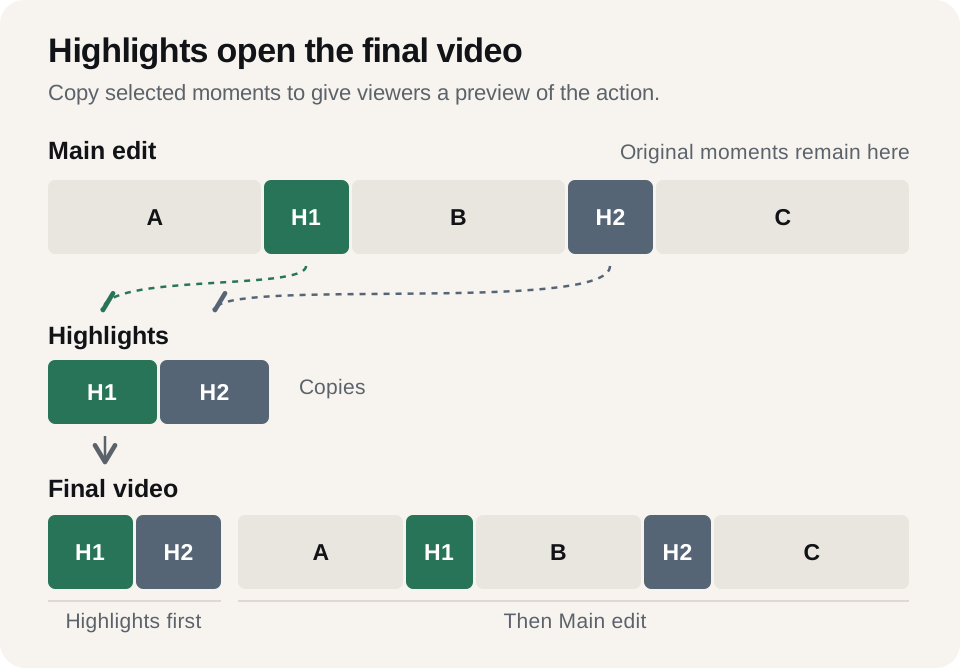
Highlights are copies of selected moments placed at the beginning of the final video to catch the viewer’s attention.
- In Main edit, move to the beginning of a moment and click Start highlight or press Shift+I. Move to its end and click End highlight or press Shift+O. Shift+C cancels an unfinished selection.
- Open the Highlights tab to edit these copies separately. The original sections remain in Main edit.
8. Review and export
- Open Final video to review the assembled result. This view supports playback and navigation; edit in Main edit or Highlights. Check the opening, cuts, transitions, camera views, audio and overlays.
- Layout, synchronization and Race position changes refresh the preview automatically. Play or scrub to check them before exporting.
- Click Export on the timeline toolbar. Review the settings, then follow Choose destination → Review export → Export timeline.
- For separate files, open Exports and choose Clips for footage with overlays or Overlays for use in another editor. An activity-only project exports one overlay for the activity or its trimmed range.
- Overlay exports can use a transparent background or a green, blue or custom solid colour for chroma key. Match source resolution is available for individual video and overlay files; a timeline uses a common output canvas. Preview quality settings do not change export quality.