Add telemetry to action camera video.
A camera records the trail. A bike computer, watch or phone records where you went and how you moved. Movaro combines those recordings so speed, route and other activity data appear at the right moment in your video.
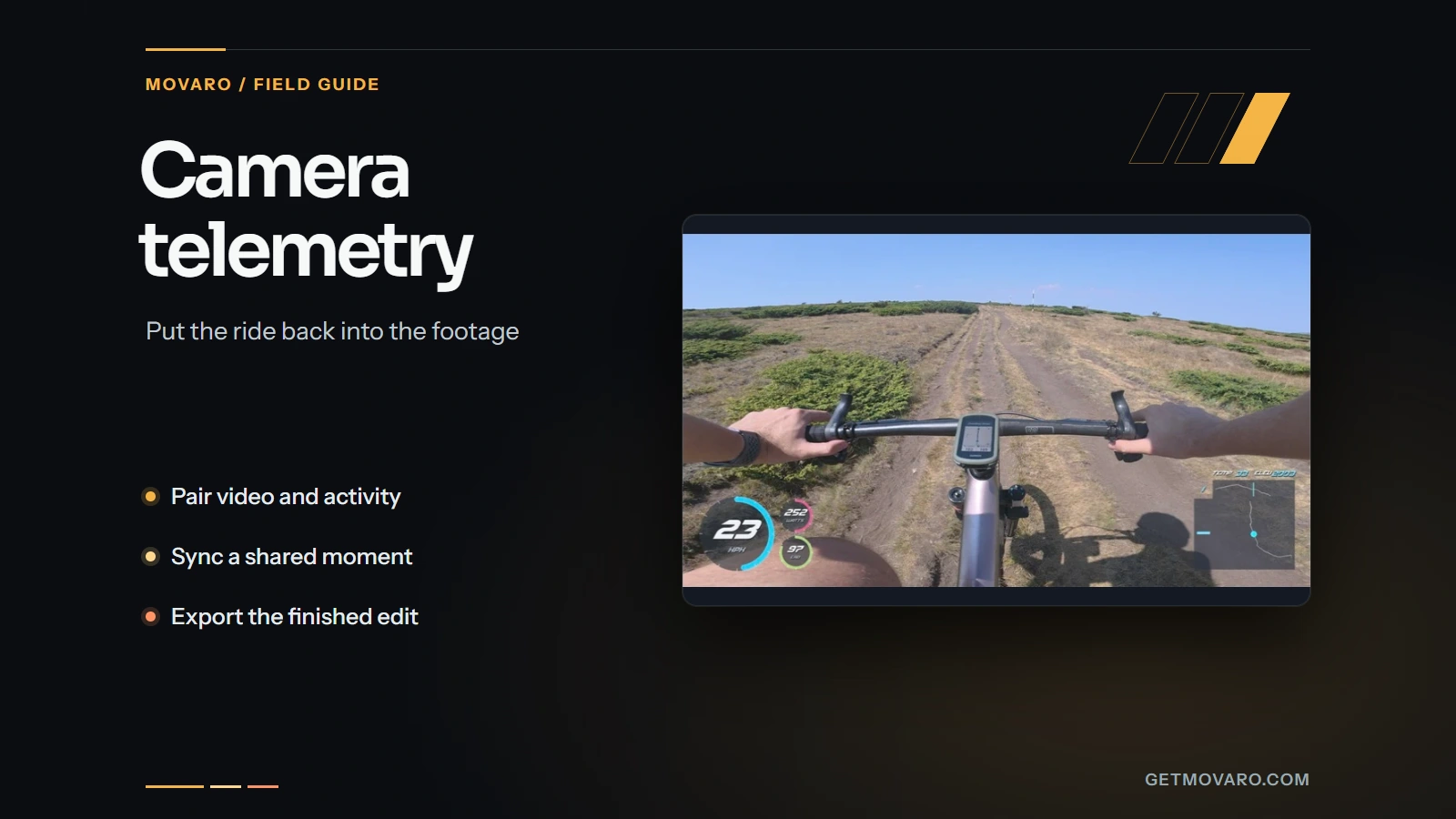
Start with video and a recording of the same activity.
Your camera does not need GPS. Record the activity separately, then bring its GPX, FIT or TCX file into Movaro alongside the camera clips. You can also connect an activity from Strava.
Before heading out, start the activity recorder and check that any sensors you want to show are connected. Save the completed activity when you finish. Keep the original video files and activity file; a map of a planned route does not describe when you reached each point.
- Video: the original clips from the activity, in a format Movaro can open.
- Activity: timed samples covering the section you filmed. GPS positions drive maps; other recorded channels supply the available metrics.
- A reference moment: a turn, junction or landmark you can recognize in both the footage and the route. This helps if the recording clocks disagree.
If you are filming with a new camera or format, import a short original clip and make a test export before preparing a long edit. The container and codec matter as well as the camera model.
Choose the source that contains the data you want.
| Source | Use it for | Check before import |
|---|---|---|
| GPX | Recorded GPS positions, timing and available altitude. | Use a completed recording with timestamps. |
| FIT or TCX | Activity data plus recorded sensors, such as heart rate, cadence or power. | The file must actually contain the channels you need. |
| Strava | Selecting a GPS activity through your connected account. | Heart rate, cadence and power can be included when Strava supplies them. Check the imported channels. |
Follow the GPX import guide or connect an activity from Strava. If your telemetry is embedded in the camera’s video file, export it as a compatible GPX, FIT or TCX recording before importing it into Movaro.
Build the overlay around a short clip first.
Import the footage and activity.
Choose New project and start on Activity. Select a local GPX, FIT or TCX recording, or choose Strava. If the file contains several sessions, pick the one that covers the footage. On Preview, check the activity and optionally trim its start and end. Add your footage on Videos, review the recording-time results, then complete Details and the optional Summary. You can also drop a ride folder on the Activity step so Movaro finds the activity file and nearby videos.
Videos are optional. Choose Skip — overlay only to make a project from the activity alone, export one overlay for its full or trimmed range, and add footage later with Import videos.
Open a clip and inspect the timing.
Play a recognizable section. Compare a turn in the video with the route, or compare setting off with the speed readout. If the two recordings are offset, use Tools → Sync video and route. The manual synchronization walkthrough explains how to mark both moments and check the updated preview.
Choose a layout, then adjust it on the footage.
Open Overlays and choose a layout for the canvas you are using. A built-in layout or a Community layout is a useful starting point. Choose Edit layout to place and style the readouts against the footage. The live overlay updates as you change the layout or settings, including while paused.

Start with speed and a small map. Add elevation for terrain, or recorded power and cadence when those explain the sequence. The cycling metrics guide shows how to make that choice. Play a short section after changing the layout or timing, then watch it at the size people will actually see.
Trim and arrange the clips.
Build the sequence in Main edit, then trim and arrange the useful sections. Step through frames with , and . when setting a precise cut. If a camera was mounted upside down, use Upside down; split a clip first when only one segment needs turning. Mark selections for Highlights on any plan. Creator or above adds camera tracks for picture in picture and external footage as Cutaways, intros or outros. You can drag, resize and crop picture-in-picture views on the timeline preview, then adjust their shape, border or shadow. Add music, voice-over, titles, transitions, colour looks and effects in Main edit on any plan; Creator and above unlock the full libraries and video layers. Open Final video to review the assembled result. Check the overlay after a crop: a landscape layout can cover the subject in a vertical frame. The first-video walkthrough covers the basic editing flow.
Find moments to review with Highlights explorer.
With Creator, Studio or Founder, open Tools → Highlights explorer to look for efforts, climbs, descents and other activity events with matching footage. Click a suggestion to watch it, adjust its trim, then add individual moments or a selection to Highlights. You choose what goes into the edit.
For activity files you upload (GPX, FIT or TCX), AI review ranks the suggestions using numeric activity and footage measurements; your video, GPS coordinates and file names aren't sent. Creator includes AI review for 5 activities per rolling 30 days, and Studio and Founder include 60. Activities imported from Strava are analyzed on your device only; to use AI review for one, upload your own recording of it in Highlights explorer.
Compare a past effort or another recording.
Creator, Studio and Founder include Tools → Ghosts. Add up to five GPX, FIT or TCX recordings, or activities from your connected Strava account. Choose Same event for recordings made together or Past effort for another day. Movaro lines the recordings up automatically; check each rider's timing and course match in the Align step. Show the participants on a map or elevation profile, or add a leaderboard, head-to-head comparison or gap bar. Comparisons stay with the original activity moment through cuts, highlights and exports. Time and distance gaps need matching course coverage.
Choose what you want to take out of Movaro.
Check the assembled edit in Final video, then open Exports or choose Export from the timeline. Projects with videos offer three output types. A project made from an activity alone offers Overlays for the activity or its trimmed range.

| Choose | What you get | When it fits |
|---|---|---|
| Timeline | One movie from Final video, including the main edit and placed highlights and Cutaways. | You have reviewed the assembled result and are ready to share it. |
| Clips | Video files with telemetry baked in. | You want finished clips for a later edit. |
| Overlays | Overlay assets with transparency or a solid-colour background. | You want to combine telemetry with footage in another editor. |
Continue through settings, destination and review. Confirm the canvas, layout and overlay frame rate, then check the export destination. For individual files, Match source resolution can keep each video's original dimensions. For overlay exports, choose transparency or a green, blue or custom background for chroma key. Test a short asset in your other editor first. Standard-quality solid-colour exports are available on every plan; High quality requires Creator, Studio or Founder.
Questions before you start
Can I add a speedometer when the camera has no GPS?
Yes, when a separate activity recording covers the footage and supplies suitable timing and movement data. A video by itself does not provide a measured speed channel in this workflow.
Why is a heart-rate or power readout missing?
Check the imported recording, not just the charts on the recording service. Strava can supply heart rate, cadence and power, but availability varies by activity. An original FIT or TCX file is another source when the connected import lacks a needed channel; choosing a different overlay style cannot add a missing reading.
Does the footage need to be uploaded?
With footage and activity data already imported, you can edit and export offline. Strava authorization and activity import require a connection, as do connected features such as Community browsing and license verification.
What should I send if a clip fails to import?
Note the camera model, file extension, codec if you know it, Movaro version and the exact error. Contact support with those details; keep the original recording available for diagnosis. In Send feedback, you can select Attach latest logs to include recent app, engine and export logs.
Try it with a short clip.
Import your footage and activity, check the timing, and make an export. Movaro is available for macOS, Windows and Linux.
Free includes timeline editing and exports, manual highlights, basic metrics, maps, manual sync, colors, gradients, icons, arcs, formatting, elevation fill and static slope figures at 3 fps overlay refresh. Creator adds graphs, images, compass, animated figures, race-position tools, Cutaways and shared overlay presets through 60 fps. The video frame rate is separate.
Download Movaro