
Add a GPX recording to your video.
Put speed, a route map and elevation on your footage using a GPX activity recording. Import the file alongside your camera clips, align the two recordings at a recognizable point, then build and export the overlay.
Use a completed activity with timestamps.
A GPX file is a container for geographic data. It might hold a route you planned to follow, or a track recorded as you moved. For a video overlay, choose the recorded activity: its timestamps connect positions on the route to moments in your footage.
Export the activity from the device or service that recorded it and keep the original file. Check that its date, duration and route cover the section you filmed. A planned route without recorded timing cannot tell you your actual speed through a corner.
| To show | The recording needs |
|---|---|
| A route map | GPS positions with timing that covers the footage. |
| Speed and distance | Suitable timed movement data or recorded channels. GPS-derived values depend on the quality of those samples. |
| Elevation and gradient | Usable altitude samples alongside the activity. |
| Heart rate, cadence or power | The corresponding sensor channel in the file. Keep the original FIT or TCX recording when available. |
The camera can record video independently. See the action camera guide if you are still choosing how to record the two sources.
Choose the activity, then add your footage.
- Choose New project. On Activity, select GPX, FIT, or TCX and browse to your recording. You can also drop the activity file or its folder onto this step.
- If the file contains more than one Activity session, choose the one matching your footage. Check the available metrics and warnings, then choose Continue.
- On Preview, inspect the activity and optionally trim its start and end. Speed and elevation profiles help locate the section you want.
- On Videos, choose or drop your footage. If Movaro found videos beside the activity, Use these selects that folder. Review the scanned files and remove any you do not want.
- On Details, set the project name, category and location. Review the optional summary, then create the project.
Videos are optional. Choose Skip — overlay only on the Videos step to export one overlay for the activity's full or trimmed range, with a transparent or solid-colour background. Videos outside the trimmed range are marked and skipped, so widen the trim if it excludes footage you intended to use.
Movaro reports available metrics and duration during activity selection. A sensor recording without GPS can still be useful, but it will not provide a route map. If the result does not resemble the activity you filmed, check the file and session before editing the overlay.
Match a place in the video to the same place on the route.
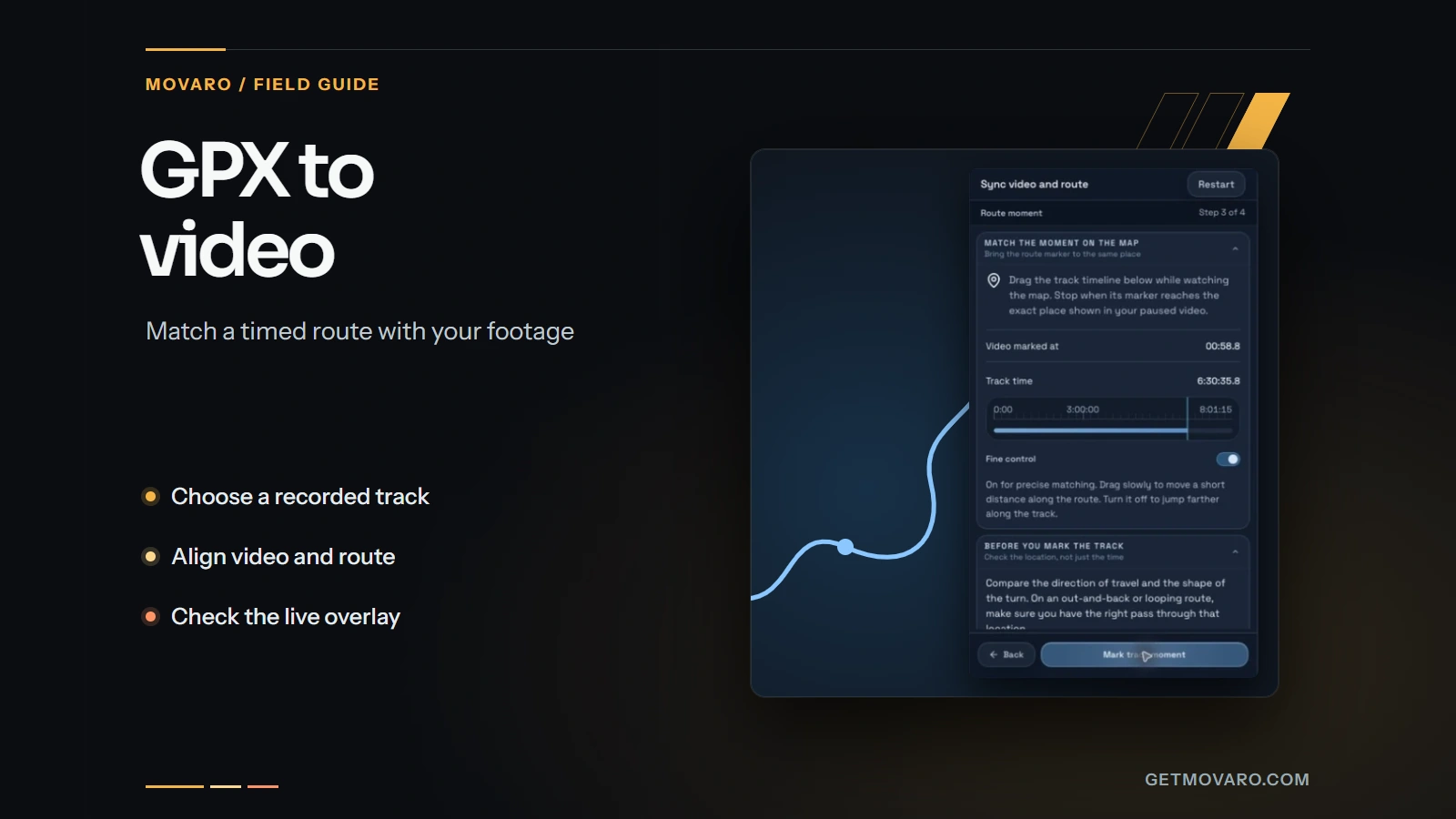
Start with the automatic alignment and preview a recognizable turn or junction. If the map marker gets there too early or too late, open Tools → Sync video and route and follow these four steps.
1. Select the video.
Choose the clip from the Videos list. Find a place you can identify on the map: a sharp turn, bridge or junction is usually easier than a long straight path. On a loop or an out-and-back route, check that you are looking at the right pass through that location.
2. Mark the video moment.
Play or scrub the source preview and pause when you reach the reference point. Choose Mark video moment. Movaro keeps this mark while you find the corresponding position on the track.

3. Mark the track moment.
Move along the track timeline while watching the route marker. When it reaches the same place, choose Mark track moment. Fine control helps with small movements; turn it off to travel farther along the recording.

4. Review and apply.
Review the two marked moments and the proposed timing adjustment. Use the 0.1-second controls for a small correction. Under Where to apply the offset, choose Project to adjust every video, or choose the selected-video option for videos checked in the Videos list. Then choose Apply offset.
Check which videos are selected. Opening a video in the preview makes it the sync reference; it does not select its checkbox. Project adjustments preserve individual video corrections. If only one camera or clip is misaligned, check the affected videos and apply the correction to that selection. Videos without embedded recording times may need individual sync.
If you enter a project-wide offset directly in Overlays, choose Apply or press Enter to save it. Revert discards an unapplied change.
Check the live overlay after changing sync.
Overlays refresh automatically when you apply an offset or change the layout and settings, including while paused. Play or scrub around the marked moment to check the alignment. There is no preview-generation step.
Replay the marked location, then check another clear point later in the clip. If both line up, continue through the rest of the footage. If the difference grows or changes suddenly after a pause, inspect the source recording and correct affected videos separately where appropriate. An offset cannot fill missing activity data.
Choose a layout with the metrics your file supplies. The ride data guide explains which readouts suit different cycling sequences and how to keep the footage readable.
In Movaro 1.4.3, route and elevation maps can use a dot, ring or direction arrow with adjustable marker size and outline. You can style the travelled and remaining route separately to help viewers follow the activity.
Make a short export before rendering the full edit.
Trim and arrange the clips in Main edit, then inspect Final video before opening Exports. Choose Timeline for the assembled movie, including placed highlights and Cutaways; Clips for separate videos with telemetry; or Overlays for assets with a transparent or solid-colour background. An activity-only project offers Overlays for its full or trimmed range. The export guide compares the three outputs.
A green, blue or custom background is useful when another editor needs chroma key instead of transparent video. Standard-quality solid-colour exports are available on every plan; High quality requires Creator, Studio or Founder.
Watch the exported file in a video player. Check the timing, units and readability, including any portrait crop. The overlay refresh rate controls how often the telemetry is redrawn; it does not create extra samples in the original GPX recording.
When the result does not look right
The GPX imports, but there is no useful timing.
Check whether it is a planned route or a completed activity. Export the recorded activity with timestamps. If multiple sessions are available, select the one that covers the footage.
The map looks right, but speed spikes.
Inspect the activity around the same moment. Gaps or wandering GPS positions can affect values derived from that track. Correct the source recording where possible; a visual style change will not fix the measurements.
I applied sync, but the timing still looks wrong.
Overlays update automatically after Apply offset. Check whether you applied the adjustment to the project or to checked videos, and confirm the intended video was included. Then check that both marks refer to the same location and the same pass through it.
Heart rate or power is missing from my GPX export.
Use the original FIT or TCX file if it contains those recorded channels. A format name does not guarantee the data is present. If the activity is already on Strava, the Strava guide explains the connected import and its data limits.
Try it with a short clip.
Import your footage and activity, check the timing, and make an export. Movaro is available for macOS, Windows and Linux.
Free includes timeline editing and exports, manual highlights, basic metrics, maps, manual sync, colors, gradients, icons, arcs, formatting, elevation fill and static slope figures at 3 fps overlay refresh. Creator adds graphs, images, compass, animated figures, race-position tools, Cutaways and shared overlay presets through 60 fps. The video frame rate is separate.
Download Movaro