Use a Strava activity with your video.
If your activity is on Strava, select it on Movaro’s Activity step instead of browsing for a local file. Add your original camera clips when you need them, then sync the recording, design the overlay and edit on your device. You can also export overlays from an activity-only project.

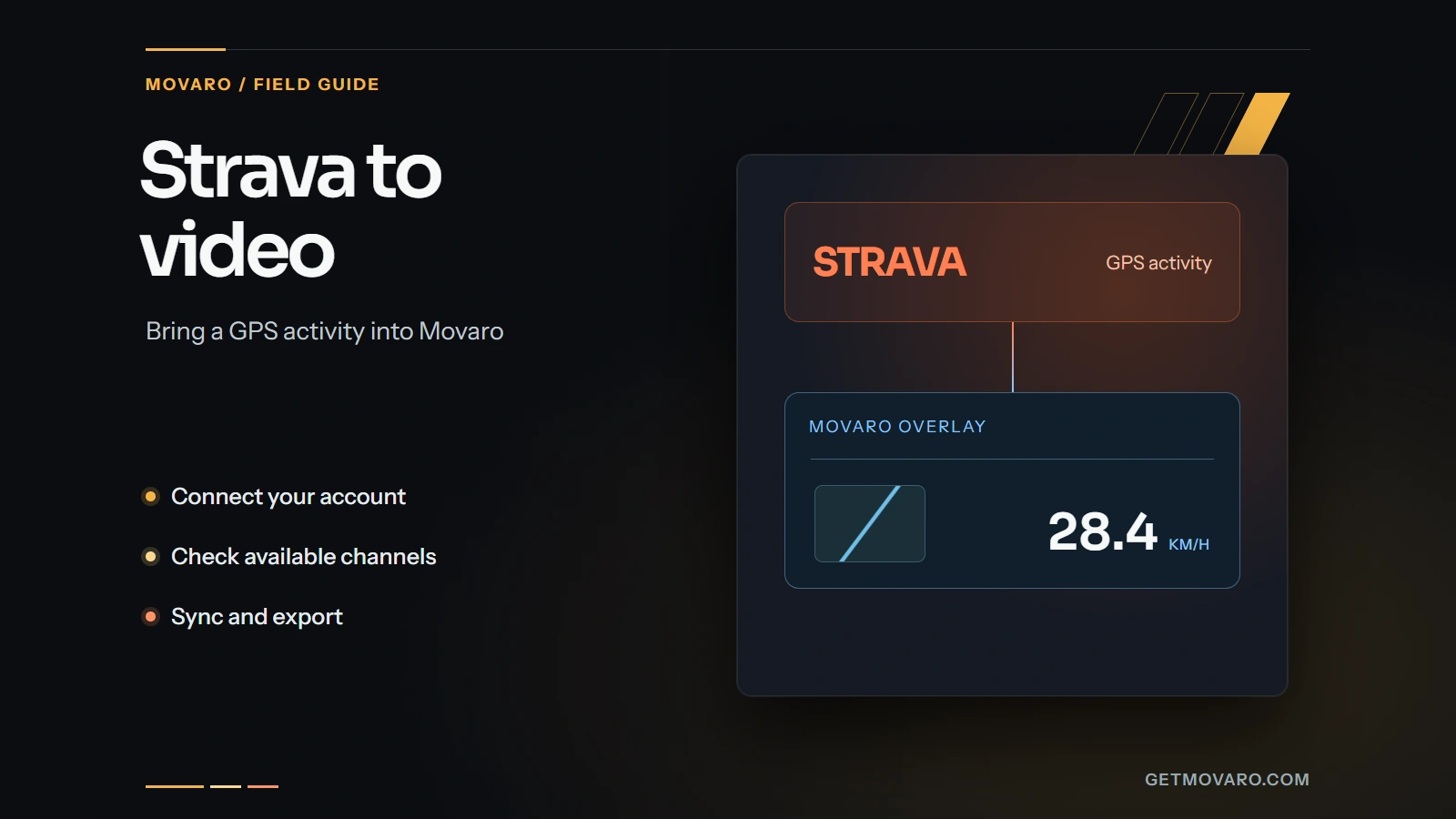
Connect Strava on the Activity step.
Make sure the activity has finished uploading to Strava. The connection brings in activity data; it does not bring in camera footage. You can add videos later or make an overlay-only project.
- Choose New project and select Strava on Activity.
- Choose Connect with Strava if needed and complete authorization in your browser. Return to Movaro afterward.
- Check the connected account, then select the activity covering your footage. Use Refresh activities if a new upload has not appeared.
- Choose Continue to download the selected activity and open Preview.
Use the local-file workflow instead when you already have the original recording or want to avoid connecting an account.
Find the recording that covers your footage.
In Recent activities, compare each recording’s name, date, distance and duration with your footage. A similar name from another day can produce a plausible route with the wrong timing.
The Name, sport, date search field filters activities already loaded in Movaro. To find older recordings, clear the filter, choose Load more, then filter the expanded list. Use Refresh activities after a new upload.
Choose a GPS activity for this connected import. On Preview, inspect and optionally trim the recording. Continue to Videos to add footage, then set the name, category and location on Details. Review the optional summary and create the project. For an activity-only overlay, choose Skip — overlay only on the Videos step.
For an indoor or sensor-only activity: keep the original FIT or TCX file and use the local importer. Available sensor measurements can be useful without a GPS map.
Strava imports the channels available for that activity.
Movaro saves the selected Strava activity as a GPX recording inside the project. Import requires GPS positions and timing, and can include altitude, temperature, heart rate, cadence and power when Strava supplies those streams. Check the imported activity before choosing overlay elements; a chart on Strava does not guarantee every channel will be available in Movaro.
| Your goal | Start with |
|---|---|
| A route and GPS-based movement overlay | A connected GPS activity with timing that covers your footage. |
| Elevation or gradient | A recording with usable altitude. Confirm it before choosing those elements. |
| Heart rate, cadence, power or temperature | The connected activity when Strava supplies that channel; otherwise, a suitable original local recording. |
| Sensor data without a GPS route | A local activity file. Leave map elements out when there are no positions. |
If a needed measurement is missing, inspect the original FIT or TCX recording from the device. Create a project from that file when it contains the channel you need. A project imported from Strava stays linked to that activity and cannot have its activity replaced with a local file. The ride data guide helps you choose useful measurements.
Check the activity against a recognizable video moment.
Open a clip and find a turn, junction or other place you can also locate on the route. Preview the initial alignment. If the marker and footage disagree, open Tools → Sync video and route.
Mark the video moment, move along the track to the same place and choose Mark track moment. Review the adjustment, choose Project or the videos checked in the Videos list, then choose Apply offset. Opening the reference video does not automatically check it. Live overlays update afterward, so play or scrub to check the timing.

The illustrated synchronization steps cover each control. Check another moment later in the clip, including after a camera pause, before accepting the alignment.
Choose a layout using the channels the activity supplies. Live previews update as you change the layout or settings. Choose a map or elevation-profile Look on any plan, then adjust the markers and style the travelled and remaining route. You can browse Community layouts or follow the broader action camera workflow.
With Creator, Studio or Founder, use Tools → Ghosts → From Strava to compare one of your other activities on the same course. You can add up to five ghosts using your connected activities or shared GPX, FIT or TCX files. Choose Past effort for a different day and check the timing and course match before displaying the comparison.
Finish the edit on your device.
The project shows the activity's Strava name and View on Strava, which opens the original activity. With footage imported, arrange and trim clips in Main edit, add music, titles and transitions, and mark highlights. Creator and above add camera tracks, picture in picture and Cutaways. Keep the overlay clear of the action and check any portrait crop. Editing and rendering happen locally; connected features may still need internet access.
Inspect the assembled result in Final video, then open Exports. Timeline produces that movie, including placed highlights and Cutaways; Clips produces separate videos with telemetry baked in; and Overlays produces assets with a transparent or solid-colour background for another editor. An activity-only project exports one overlay for the full or trimmed activity. See the export choices for more detail or follow the first-video walkthrough.
Connection and activity questions
My older ride does not appear in search.
Clear the filter so Load more is available, load older activities, then search the expanded list. For a new activity, wait for its Strava upload to complete and choose Refresh activities.
The connection expired or authorization failed.
Reconnect through Movaro and complete the browser flow with the intended Strava account. If it still fails, note the exact error and contact support. You can continue through the local importer if you have a compatible activity file.
Can I import an activity marked No GPS?
The connected import currently requires GPS streams. An activity marked No GPS can appear in the picker, but it cannot be imported through this workflow. For an indoor or sensor-only activity, import a suitable original FIT or TCX file locally. Available sensor data can still drive an overlay, but it cannot provide a route map without positions.
Can I disconnect Strava afterward?
The connected-account panel provides Disconnect. Existing imported projects use their saved activity recording; importing another Strava activity requires reconnecting. Disconnecting also clears Strava activity files cached for layout previews.
Movaro says its Strava connection is full.
Follow the notice in the connection panel. You can continue with a compatible local GPX, FIT or TCX recording while connected import is unavailable.
Try it with a short clip.
Import your footage and activity, check the timing, and make an export. Movaro is available for macOS, Windows and Linux.
Free includes timeline editing and exports, manual highlights, basic metrics, maps, manual sync, colors, gradients, icons, arcs, formatting, elevation fill and static slope figures at 3 fps overlay refresh. Creator adds graphs, images, compass, animated figures, race-position tools, Cutaways and shared overlay presets through 60 fps. The video frame rate is separate.
Download Movaro