Your first video with activity overlays in Movaro
Start with a timed GPX, FIT, TCX or Strava activity, add a matching clip, check the live overlay, and export your first short video in Movaro.
 Georgi Kostadinov Founder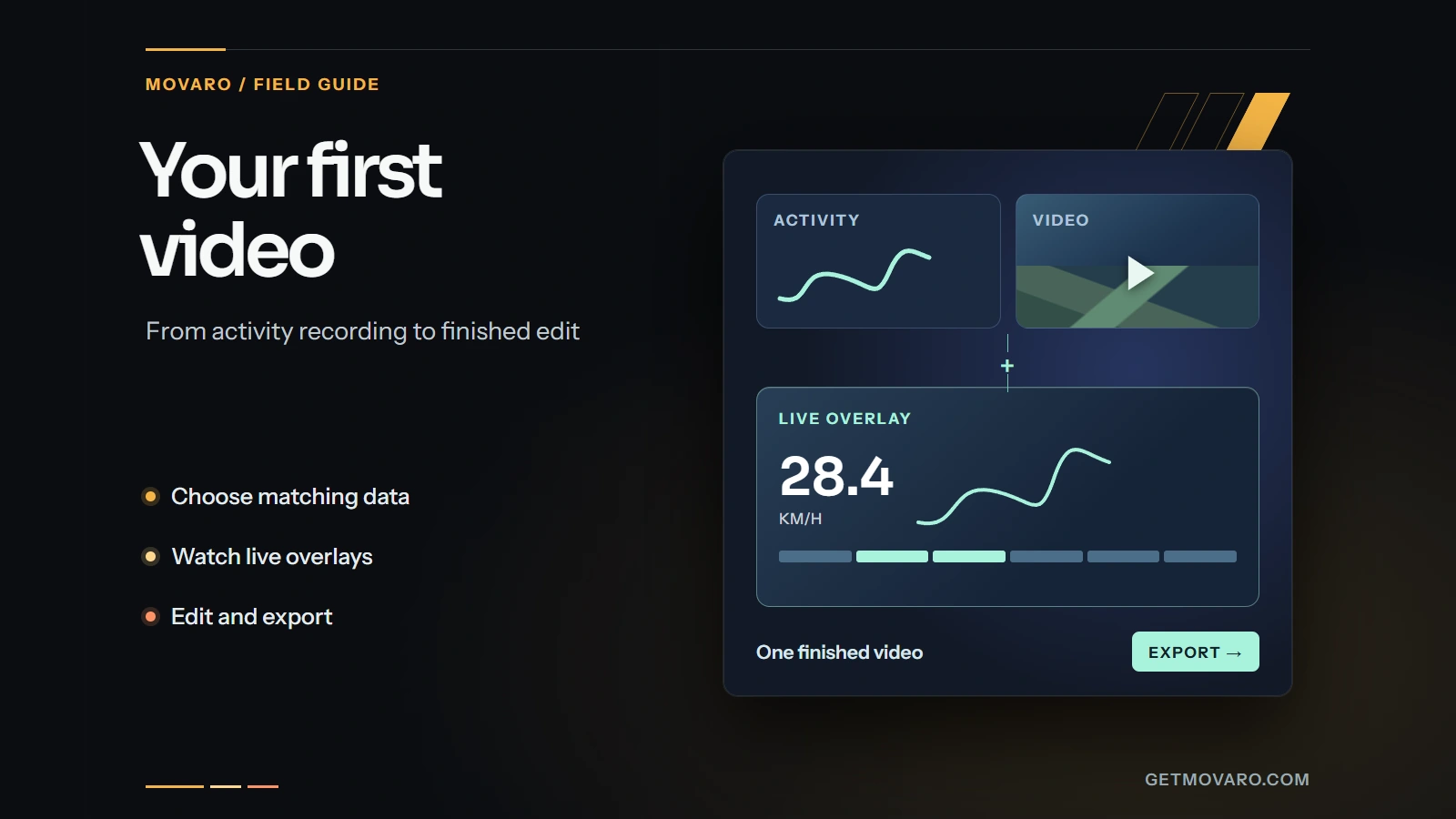
Start with a short clip and the activity you recorded while filming it. A hike, ski day, trail run or bike ride is enough for a first project. Choose a moment you can recognize in both the footage and the route, such as a clear turn or crossing a bridge.
This walkthrough follows Movaro 1.4.3: import your recording, check the timing, choose an overlay and export a short video. Live overlays let you see your changes as you work.
Bring your activity recording and footage
Choose New project and start with your activity. Select Local file — GPX, FIT, or TCX, or connect Strava and choose the matching GPS activity. If a file contains several sessions, select the one you recorded while filming. Check its date and duration before continuing.
On the Preview step, review the activity and optionally trim its start and end. For your first project, you can keep the whole recording.
Next, add your footage on the Videos step. Drop in your clip or its folder, or browse to the videos folder. If Movaro finds videos beside your activity file, you can choose Use these. Under Details, give the project a name, choose its category and check where it will be saved. Review the summary and create the project.
Use a recorded activity rather than a planned route: the recording needs timestamps to connect places and measurements to moments in the video. Maps need GPS coordinates; heart rate, power and cadence need those measurements in the activity. Adding an overlay cannot supply data that was never recorded.
Check the timing before editing
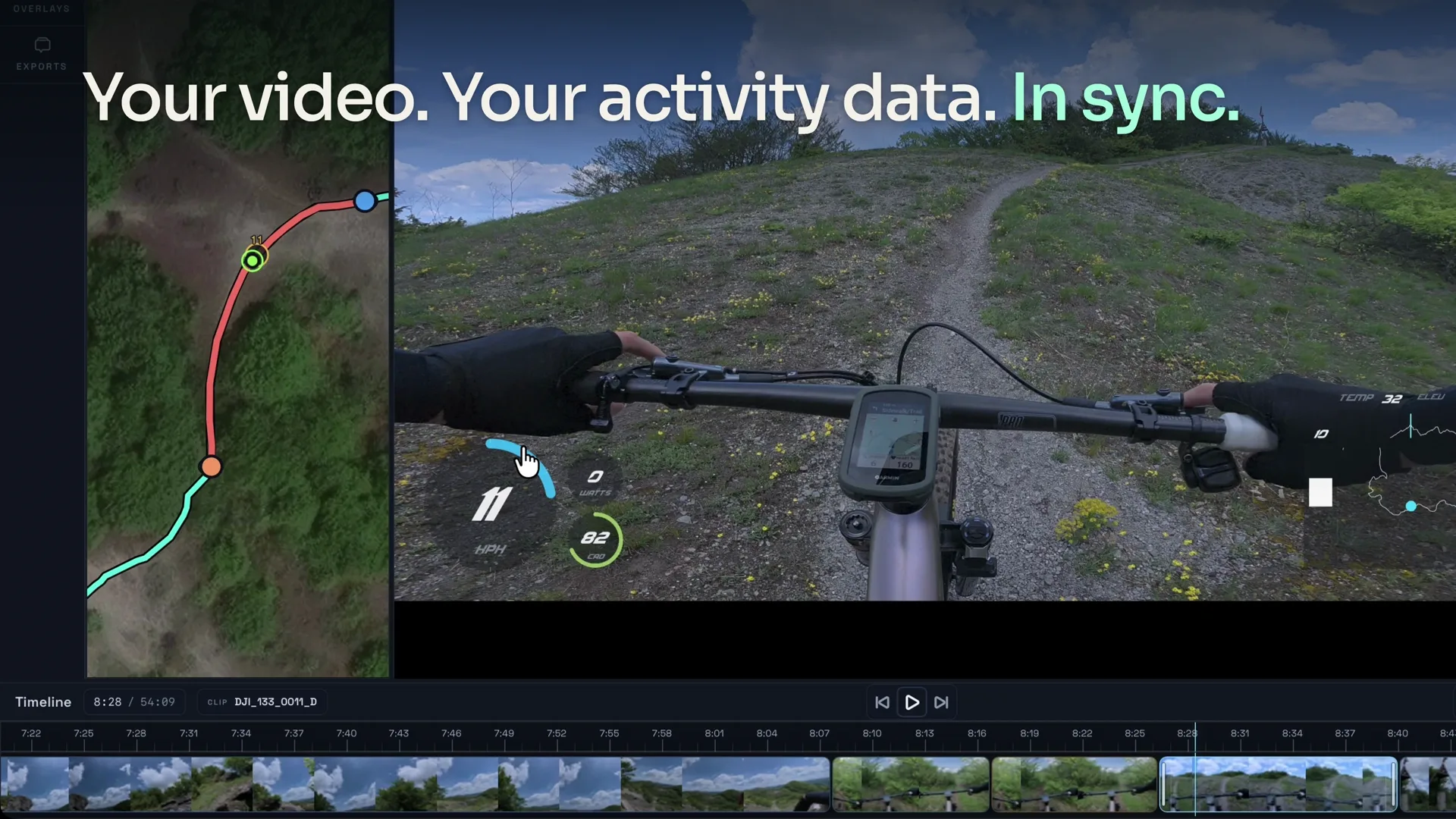
Open your clip and play it alongside the map. Watch the route marker as the camera reaches your chosen turn or landmark, then check another recognizable moment later in the clip.
If they do not line up, open Tools → Sync video and route. Pause the clip at the recognizable point and choose Mark video moment. Move the track marker to the same place and choose Mark track moment. Use Fine control for small movements. On a loop or an out-and-back route, check that you have the right pass through the location.
Review the two moments and the calculated adjustment. Under Where to apply the offset, choose Project to adjust every video, or apply it only to videos selected with the list checkboxes. Opening a video in the preview does not automatically check its box.
Choose Apply offset. The overlays refresh automatically. Replay the marked moment and another point later in the clip to check the result.
Choose your first overlay
In Overlays, choose a layout that suits your video's proportions and the data you want to show. Elevation can help explain a climb; speed can show how a ski run changes through a turn. Start with a built-in design and keep the first version simple.
Play or scrub the clip to check the live overlay. Layout and timing changes appear automatically, including while paused. Look for text you can read against both bright and dark scenery, and keep the overlay clear of the action.
For an optional edit, choose Duplicate & edit… for a built-in or Community layout. Adjust the copy's colors or element positions, save it and select it in your project.
The first-project guide can also walk you through choosing a layout, checking the live overlay, building your timeline and preparing an export.
Build and export a short edit
Choose Add to timeline, or drag the clip onto the timeline. Trim away an uneventful start or finish, then play the edit. Check that the beginning and ending feel right and that the route and measurements still match the footage.
Open Exports and choose Timeline to make one video from your edit. Review Export settings, then choose Choose destination and Review export. Check the output, layout and destination before choosing Export timeline.
When it finishes, choose Open output folder and watch the exported file. Check your sync point and the overlay's readability once more. Use that short result to decide what to adjust before taking on a longer video.
Explore these overlays
Choose a design from Movaro Community and make it your own.
Your footage is waiting.
Put your last ride, run or ski day on the video tonight. Free.
Georgi Kostadinov
Founder at Movaro. Building tools for adventurers who want to share their stories.