Movaro 1.4: live previews, activity-only projects and picture-in-picture styling
Check overlay changes as you edit, export an entire activity without adding videos, and give a second camera view its own shape, crop and style.
 Georgi Kostadinov Founder
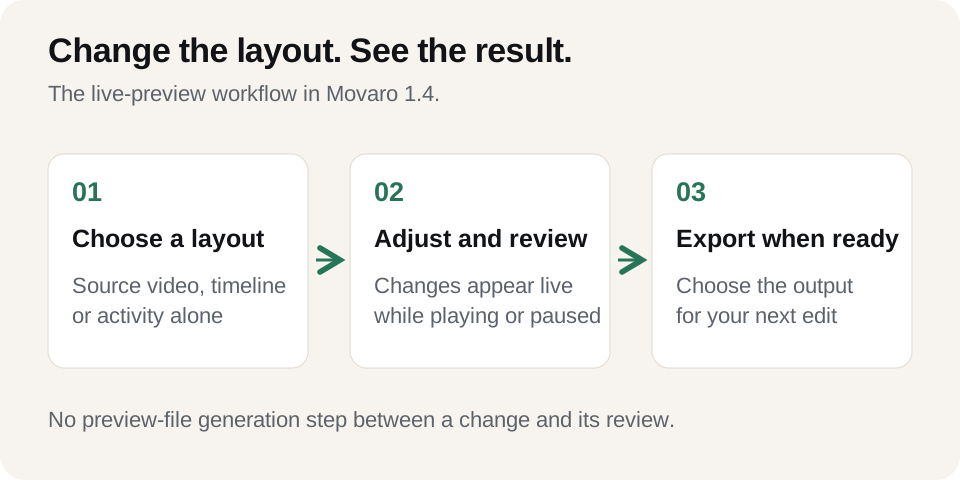
Movaro 1.4 is available for Mac and Windows. Your activity data now appears over the footage as you edit, with live overlay previews that update when you change a layout or adjust the timing. You can check the result while playing or paused, without generating preview files first.
The release also lets you make an overlay from an activity alone, gives picture in picture more control over shape and placement, and makes Race position easier to show and style. These changes help with both ways of working: finishing a video in Movaro, or preparing activity overlays for another editor.
See your changes in the preview
Choose a layout, open a source video or play your timeline, and the overlay appears with the activity data for that moment. Change the layout or timing and Movaro updates the preview automatically. If a reading covers the action or the route doesn't match the footage, you can make a correction and review it without a separate preview-generation step.
Live previews also work in projects without videos. You can move through the activity and check how the chosen layout presents the data before exporting it.
Preview resolution now adapts to the size of the player and playback performance. While you scrub, Movaro uses lighter frames, then restores the preview quality when you stop. You can choose a resolution yourself in Settings, too. These preview settings don't change export quality. Timeline thumbnails give playback priority by pausing their generation while you play or scrub.
Start with an activity, with or without footage
Project creation now starts with the activity. Import a GPX, FIT or TCX file, or choose a Strava activity, then add the videos that belong with it. If your recording and footage are in the same folder, dropping that folder onto the Activity step lets Movaro find them together.
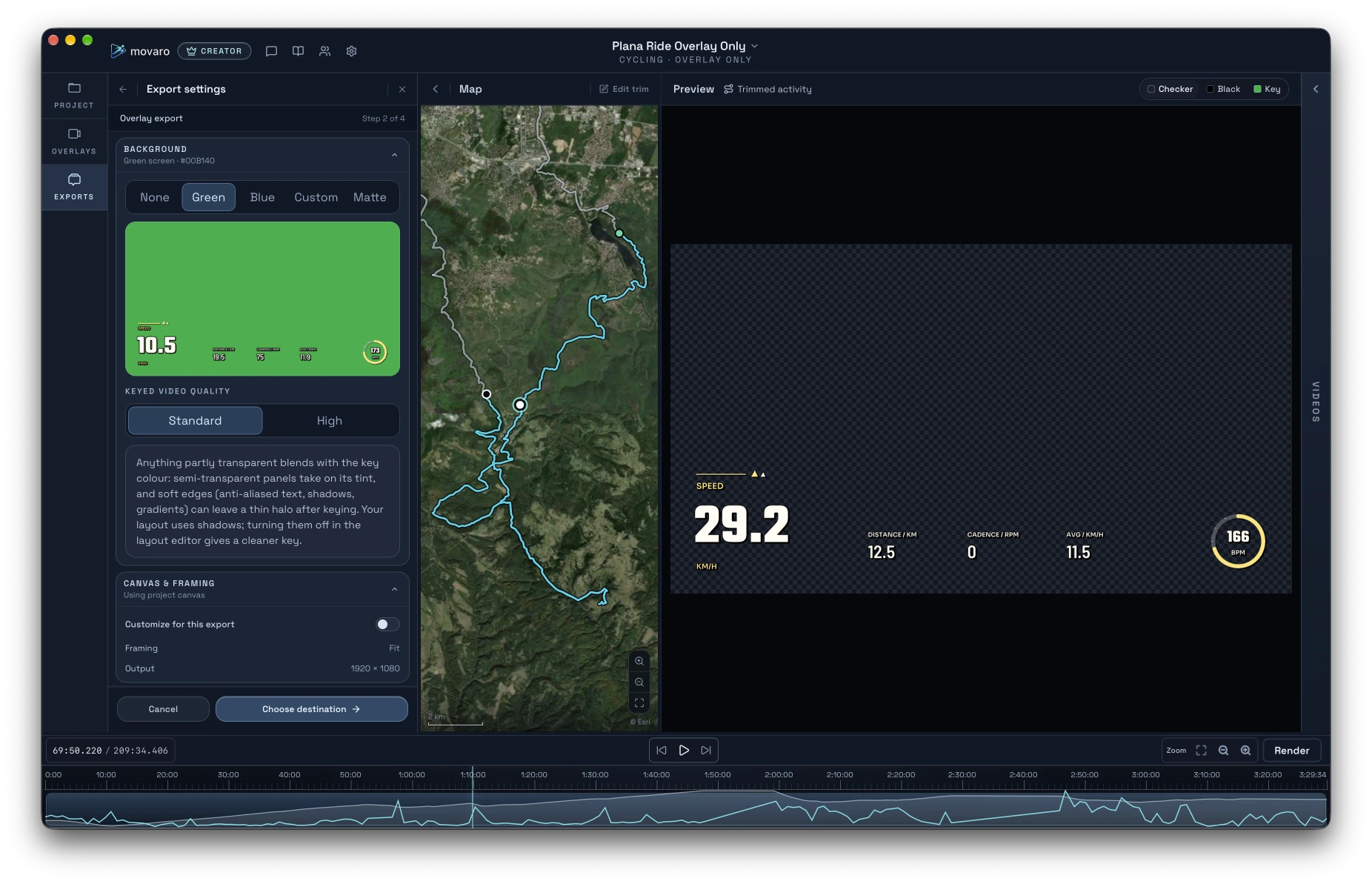
Adding footage is optional. Choose Skip — overlay only on the Videos step to build a project around the activity itself. You can design and export one continuous overlay for a hike, run, ride or race, then combine it with footage in another video editor.
You can also trim the activity before creating the project or later from inside it. Speed and elevation profiles help you find the section you want to keep. For a project with videos, recordings outside the trimmed range are marked and skipped; for an overlay-only project, the export follows the trimmed activity.
Transparent export remains an option. If your other editor can't read transparent video, export the overlay on green, blue or a custom solid color, then remove that background using the editor's chroma key. Standard-quality solid-color exports are included on every plan; High quality is available on Creator, Studio and Founder.
The recording still determines which metrics you can show. A route file without heart rate or power won't acquire those readings when you add them to a layout.
Shape the second camera view
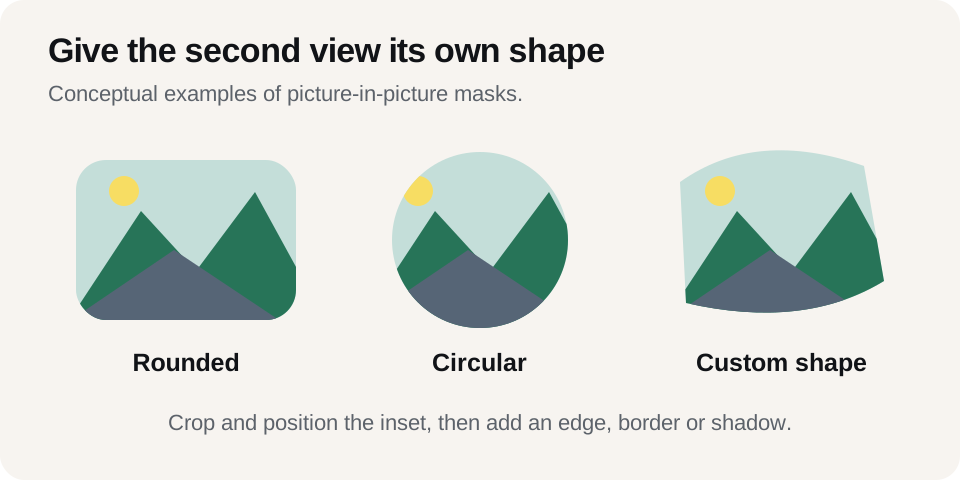
Picture in picture now has its own styling controls. Give the inset rounded corners, make it circular, or choose a custom shape. Add a border or shadow to separate it from the main shot, soften the edge, or import a PNG or SVG to use as its shape.
You can crop, drag and resize the inset directly on the timeline preview, including placing it partly beyond the edge of the frame. This gives you more room to fit a second angle around the action and your readings. A rear-facing view can stay tucked into a corner; a closer shot can take more space when it helps explain what's happening.
The shared controls also let you type an exact value or adjust it with the keyboard. Hold Shift for finer adjustments when a small change is enough.
Put Race position where it belongs
You no longer need to add Race position to a layout before showing it on the video. Open Tools → Race position and follow Start, Count, Review and Show. Set the starting information, record passes while watching the footage, review the count, then turn on the display.
Choose a starting style and adjust the text format, font, color, background, outline and shadow. Drag and resize it on the preview; Movaro remembers its placement for each aspect ratio. If your layout already contains Race position text, you can use that look and placement as the starting point, then change it for this project without editing the layout.
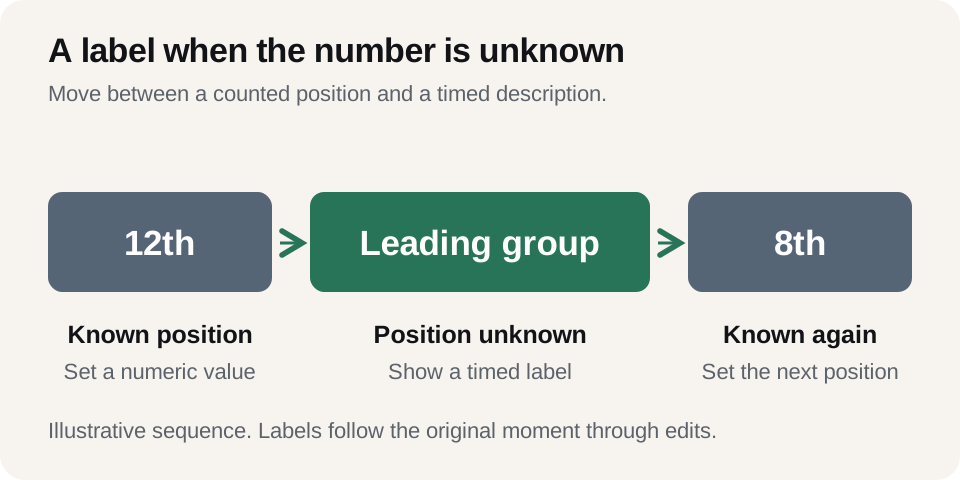
When you don't know the exact position, a timed label such as “Leading group” can take its place. Set a known position later to return to the numeric display, or end the label without changing the count. Labels and positions stay tied to the original race moment through cuts, replays and exports.
Counting is still manual. The new guide and display controls help you review and present the events you record; they don't detect overtakes for you. Race-position tools and exports are available on Creator, Studio and Founder.
Get the frame and size right
Frame controls beside Play let you step through a video one frame at a time. You can also use the , and . keys. Dragging a trim handle shows the frame at that point, arrow keys nudge the selected handle by one frame, and holding Shift while dragging slows the movement for a finer trim.
For a camera mounted upside down, choose Upside down in the video's menu. The correction carries through to previews, finished clips and timeline exports.
Movaro now suggests a project resolution based on your footage. For individual video and overlay exports, Match source resolution keeps each video's own dimensions, including sizes such as GoPro 2.7K and 4:3 recordings. Matching a 1080p source also avoids making an unnecessarily large overlay. Source matching is available on every plan.
Find and reuse your work
Projects and Layouts now share one tabbed workspace, with larger preview tiles, search, sorting and filters. Projects without footage show a frame of their overlay, so you can recognize them in the gallery too.
Duplicate a project or use Save As when you want to make another version. In the layout editor, text can now have a background panel with adjustable padding and rounded corners, plus an outline. When a layout is read-only, Movaro explains that and offers to duplicate it so you can make changes.
The update also fixes video probing and export failures on macOS 27, playback resuming from the wrong point after pausing, and project windows sometimes staying open after saving and closing.
Picture-in-picture editing is part of the multicamera tools on Creator, Studio and Founder. Creator includes two additional camera tracks; Studio and Founder have no plan-imposed camera-track limit. See the plan comparison for the full feature breakdown.
Read the complete release notes, then open an activity and choose a layout to try the live preview. Add your footage if you're making the edit in Movaro, or skip the videos to prepare an overlay for your other editor.
Your footage is waiting.
Put your last ride, run or ski day on the video tonight. Free.
Georgi Kostadinov
Founder at Movaro. Building tools for adventurers who want to share their stories.