Movaro 1.6: edit the sound and pace of your action videos
Give a key moment more time on screen and its own soundtrack. Add animated titles from your activity data, then match the colour across your clips.
 Georgi Kostadinov Founder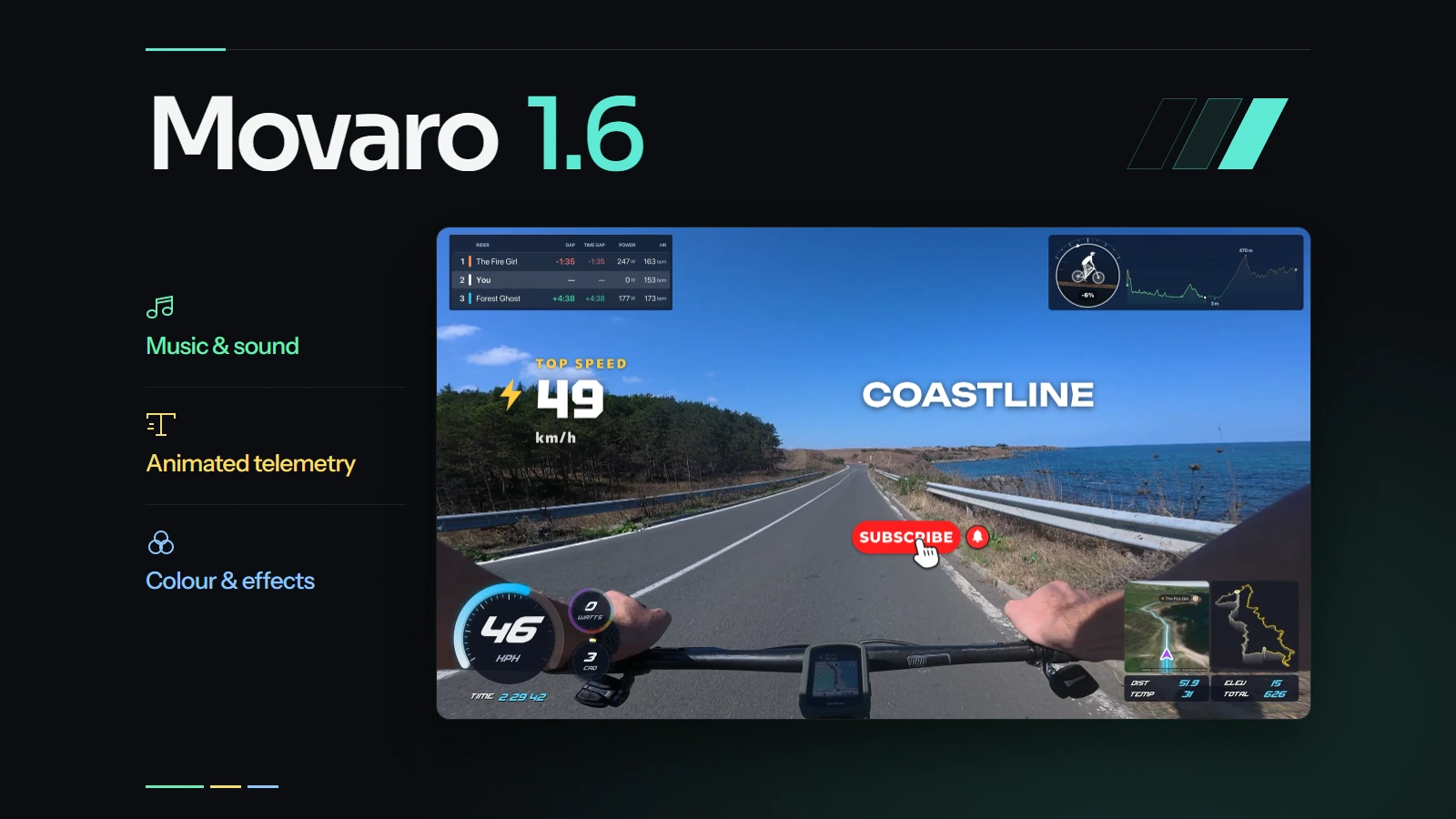
Movaro 1.6 is now available for macOS, Windows and Linux. It brings editing to the footage behind your activity overlays: put music and sound under the picture, add titles that carry your activity readings, join clips with transitions, give them a colour grade and effects, and set the pace with clip speed and freeze frames.
The release also adds stickers, video layers with chroma key and edit recipes, puts Community layouts inside the app and lines up ghosts automatically. Clip speed, freeze frames, the grading sliders, all 48 text styles and the twelve sound effects are on every plan.
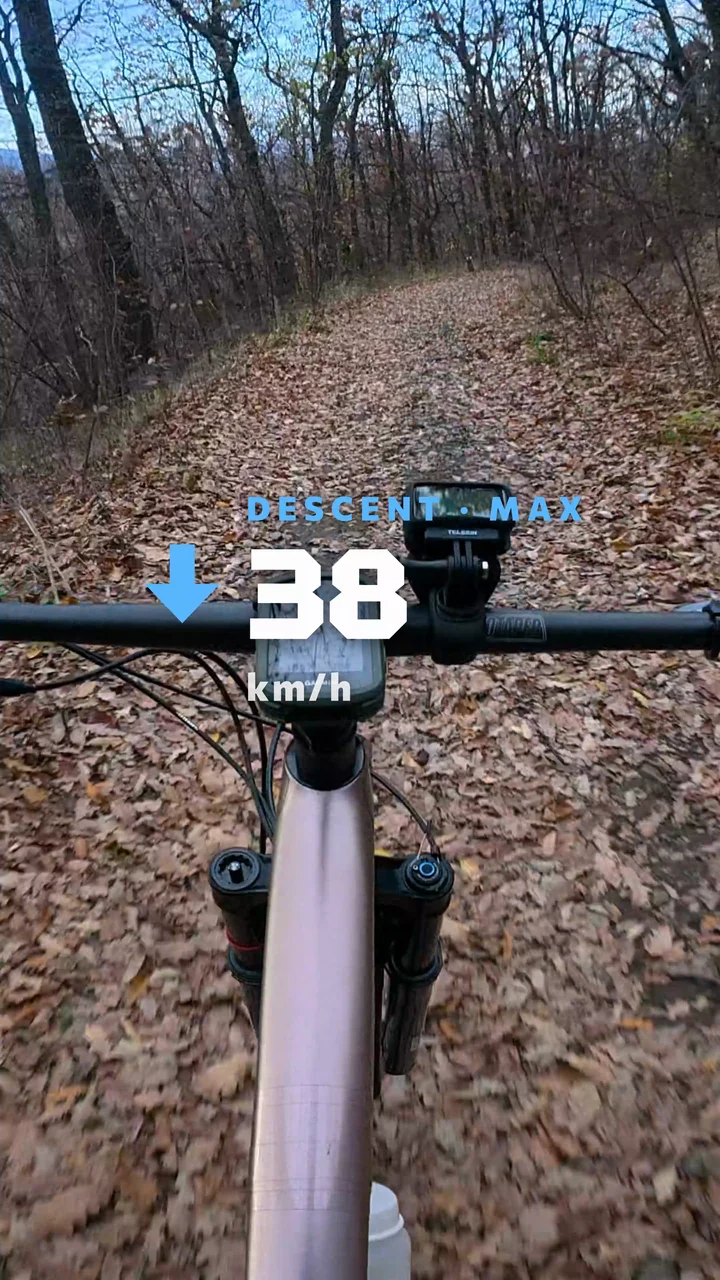
For a whole edit, watch Autumn Installed a Slippery Update, a short mountain-bike film made with Movaro 1.6 from one descent: the Movaro intro, a Subscribe sticker, a Descent max title counting up to the top speed, the ride's data overlay, a glitch at the fall and a game-over end card.
Give the moment enough time
A climb, a jump or a fast descent often passes too quickly to read on video. Arrange your clips in Main edit as before, select one and change its Speed from 0.1× to 4×. A slower clip gets longer and the clips after it move to make room. The activity data stays matched to the source footage, so the reading on screen still belongs to the moment you're watching.
To hold a moment, use Freeze on the timeline or press Shift+F. It holds a frame from the clip next to it, black or a colour for 0.2 to 30 seconds, and a clip's menu can freeze its first or last frame. A held frame keeps that moment's readings and the clip's look while the music continues. Trim, move or split it like any clip, and put a title over it when the viewer needs a name or a number before the next scene.
Put music and sound under the footage
Import a song, a voice-over or a sound effect onto an Audio track in MP3, M4A, AAC, WAV, AIFF, CAF or FLAC. Mark each clip as Music, Voice or Sound effect, then set its volume from −60 to +12 dB, its fades and volume keyframes. Music drops automatically under voice clips and under any clip you mark Lower music under this clip. It keeps playing through cutaways in Final video and fades at the joins of a Highlights reel.
Turn on Show beats to mark the beats in a song, and cuts and transitions snap to them as you drag. Twelve sound effects are built in, from whooshes and impacts to a camera shutter. Trim an imported song or a sound effect in Library → Audio before adding it, so only the part you want lands on the track. If a sound file goes missing, the picture keeps playing while you Relink it.
The camera's own sound is part of the mix too. Main, picture-in-picture, cutaway and video-layer clips show a waveform and a volume line you can drag. Choose Extract audio to move a clip's sound onto an Audio track and cut it separately; deleting the last extracted copy gives the clip its sound back.
Let the readings tell the story
A speed gauge can follow the whole video. A title gives one reading its own moment. Add a Text track and pick one of 22 templates: ten of them use activity readings, such as Top speed, Distance, Elevation gain and Climb. To put a number into your own words, use Insert data; with Race position, it can also show your place. Live readings change as the footage plays; for totals and peaks, Totals and peaks over sets the part of the recording they describe. Heart rate, cadence, power and other readings depend on what your activity file contains.
For plain words, Library → Text has 48 text styles in eight families, from Captions to Neon and Sport. Add one at the playhead or apply it to text you've already placed; the words, data, timing and animations stay. Titles can enter and leave with 32 animations, such as a typewriter, a pop or a counting number. On the paused preview, click a title to select it, drag it, use its handles to scale or rotate it, and double-click to change the words. Save to Library keeps a title and its styling for your next project.
With ghosts in the project, the Leaderboard results template writes each rider's place and gap to the leader as editable text when you choose Use Ghosts at playhead, and Insert data → Ghost standings does the same in any title. Move the playhead and use it again to refresh it. Ghost standings are on Creator, Studio and Founder.
Stickers go on the same Text tracks: arrows, outdoor icons, shapes, callouts and animated social buttons whose labels you can change. You can recolour and animate them, or import PNG, GIF, WebP and animated PNG files. And for a clip where the data overlay gets in the way, such as a café stop, turn off Show data overlay in its Clip settings or right-click menu, or lower its Opacity. Titles and picture-in-picture tags keep showing.
Join the clips
Press + at a cut or drag an item from Transitions. There are thirty, from dissolves, dips and wipes to pushes, zooms, spins and glitch cuts, with direction and easing controls. Drag a transition's edges to change its length, or use Apply to all cuts. Transitions also work at cutaway edges and between Highlights. They use the footage around the join without changing the length of the timeline and crossfade the sound when both sides have it. When a cut doesn't have enough footage for the transition, Trim clips to fit shortens each side only as much as it needs.
Eight transitions are on every plan, including Cross dissolve, Wipe, Push and Whip pan; Creator, Studio and Founder have all thirty.
Carry a look through the edit
Open Color on a clip for exposure, contrast, highlights, shadows, whites, blacks, temperature, tint, saturation and vibrance. If your camera records in a supported log profile, choose its Input transform first. You can also start from one of sixteen looks in Filters and lower its intensity. When the next clip from the same camera needs the same treatment, use Copy grade and Paste grade, or Apply to all clips from this camera.
The sliders, log transforms and six looks, including Natural+, Vivid and Teal & orange, are on every plan. Creator, Studio and Founder have all sixteen and can Import .cube… LUTs, each with its own intensity.
Frame a scene with effects
Effects stack on a clip, each with its own strength and its own range within the clip. Keep a vignette across a scene, add a letterbox to one section, punch in on a jump or fade the last shot to black. The seventeen include blur, grain, moving crops, shake, glitch, RGB split and flashes. Seven are on every plan, among them Letterbox, Film grain, Vignette and Fade to black.
Start from a recipe
If you'd rather adjust an edit than build one, open Recipes and choose Ride highlight, Cinematic, Fast & punchy, Vlog or Non-riding cinematic. A recipe adds transitions, a look, effects, titles and sound together, in one undo step. Applying it again replaces what it added, and you can change any clip afterwards.
Recipes that pick activity moments use recorded speed, and Apply look to non-riding clips uses it to find slower or unbound footage; it doesn't recognize what the camera is filming. Recipes are on Creator, Studio and Founder.
Put another video on top
Creator, Studio and Founder can place logos, animations or other videos over the main footage. Tools → Add video layer walks you through it; then add clips from the track's Videos tab with Add at playhead, or drag them onto the timeline. A layer doesn't need to share the activity's recording time. Chroma key removes a green or blue screen with Auto or the eyedropper, and it works on picture-in-picture tracks too. Keyframes in Transform move, scale, rotate or fade a layer over time.
Also in 1.6
- Library and Clip. The new Library tab holds audio, text, stickers, effects, transitions, filters and recipes. Selecting a clip opens its Clip settings, with a trash button to delete it. Deleting a Main clip also removes the titles, stickers, sound effects and video layers that start on it, and cuts its footage out of music, voice-over and highlights, which move up with the rest of the edit.
- Join clips. Join two pieces of the same video back into one Main clip from its right-click menu, or select both and choose Join in the Edit tools (Cmd/Ctrl+J).
- Intro and outro. The export wizard can add a Movaro Frame or Rev intro or outro, at the start or the end, with or without its sound. It's on every plan and can always be turned off; Free starts with it on until you choose otherwise.
- Community layouts in the app. The Layouts tab opens with From the Community: featured and popular layouts for the selected ratio, with one-click Install and a details sheet that plays each layout's demo. A project's layout picker offers Discover more. No sign-in is needed.
- Change a layout's ratio. Switch a layout between 16:9, 4:3, 1:1 and 9:16 with Canvas ratio in Canvas settings, or copy it at another ratio with Duplicate as. Movaro refits the layers and lists any left outside the canvas.
- Automatic ghost alignment. Imported ghosts line up on their own, even when a recording's clock is off by a time zone, and real race gaps are kept. In the Align step, review riders one at a time, use Auto align all riders, or adjust one with Match a place or Change timing.
- Race finish. On a Ghost Comparison leaderboard, riders who have finished are marked FINISHED, show their finishing time and keep their place until the footage ends. The race ends where your activity trim ends, unless you pause somewhere else and choose Set finish here in Tools → Ghosts.
- Faster seeking. Clicking and scrubbing a source video responds as quickly as the timeline, including 4K HEVC footage on a network drive, and timeline clicks land on the exact frame.
- 3D maps load in the background. While a 3D map on real ground loads, the preview shows the rest of the layout at once.
- Exact trim times. Type an activity trim's Start and End as seconds, m:ss or h:mm:ss. The trim map keeps your zoom while you move the handles.
- Roomier timeline. Timeline lane size now defaults to Comfortable, with room for clip audio, keyframes and effect ranges.
- Learn as you go. Nine feature chapters, project and layout-editor guides, and what's new after an update, under Help in a project or Settings → Learning.
- Windows export recovery. If the graphics device fails during an export, Windows can finish the new editing tools on the processor.
- New default font. Overlays now default to Commissioner. Saved layouts that used SF Pro render with Commissioner, so check their text spacing after updating.
What's on each plan
Every plan, including Free, has one Audio track and one Text track, clip speed, freeze frames, the per-clip data overlay controls, the grading sliders and log transforms, all 48 text styles and all twelve sound effects. Free also includes six looks, eight transitions, seven effects, six title templates, ten animations and the free built-in stickers, Subscribe among them.
Creator, Studio and Founder add the full libraries, imported LUTs and stickers, the other social buttons, Leaderboard results, recipes and video layers, with up to eight tracks each for audio, text and video layers. Ghosts are on the same plans. The plans page has the full comparison.
Using a 1.6 editing feature saves the project in a newer format and keeps a backup of its previous files. Earlier versions of Movaro can't open the upgraded project, so check which version a collaborator has before sharing one.
See the complete release notes for the fixes in this release. To try it, pick a short stretch of footage you know well: slow down the moment that matters, add a title with its reading, put a song under it and export.
Your footage is waiting.
Put your last ride, run or ski day on the video tonight. Free.
Georgi Kostadinov
Founder at Movaro. Building tools for adventurers who want to share their stories.