Movaro 1.3: multitrack editing, race position and animated overlays
Build across cameras and Cutaways, turn highlights into an opening, track race position, and style overlays with animation and gradients.
 Georgi Kostadinov Founder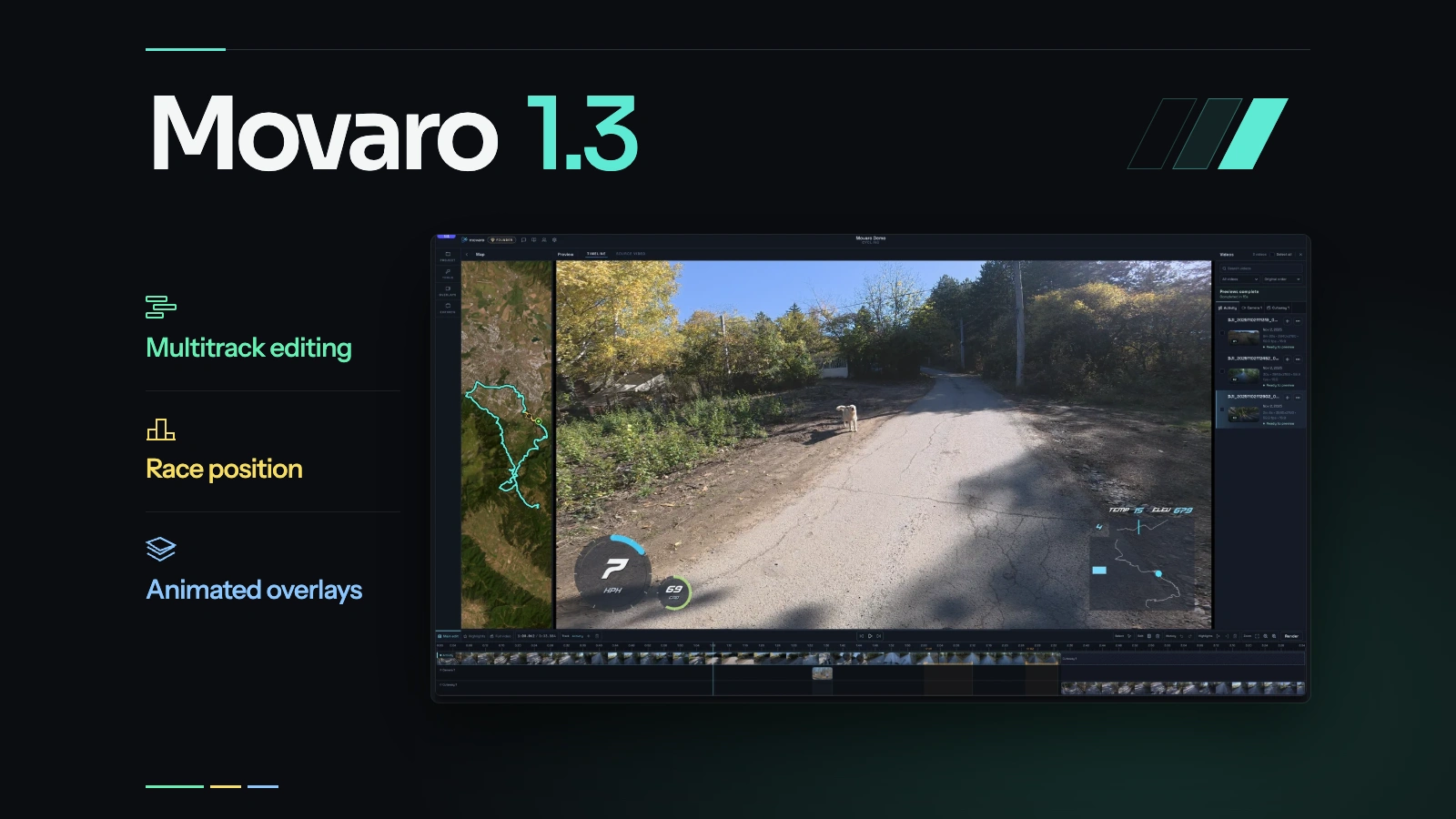
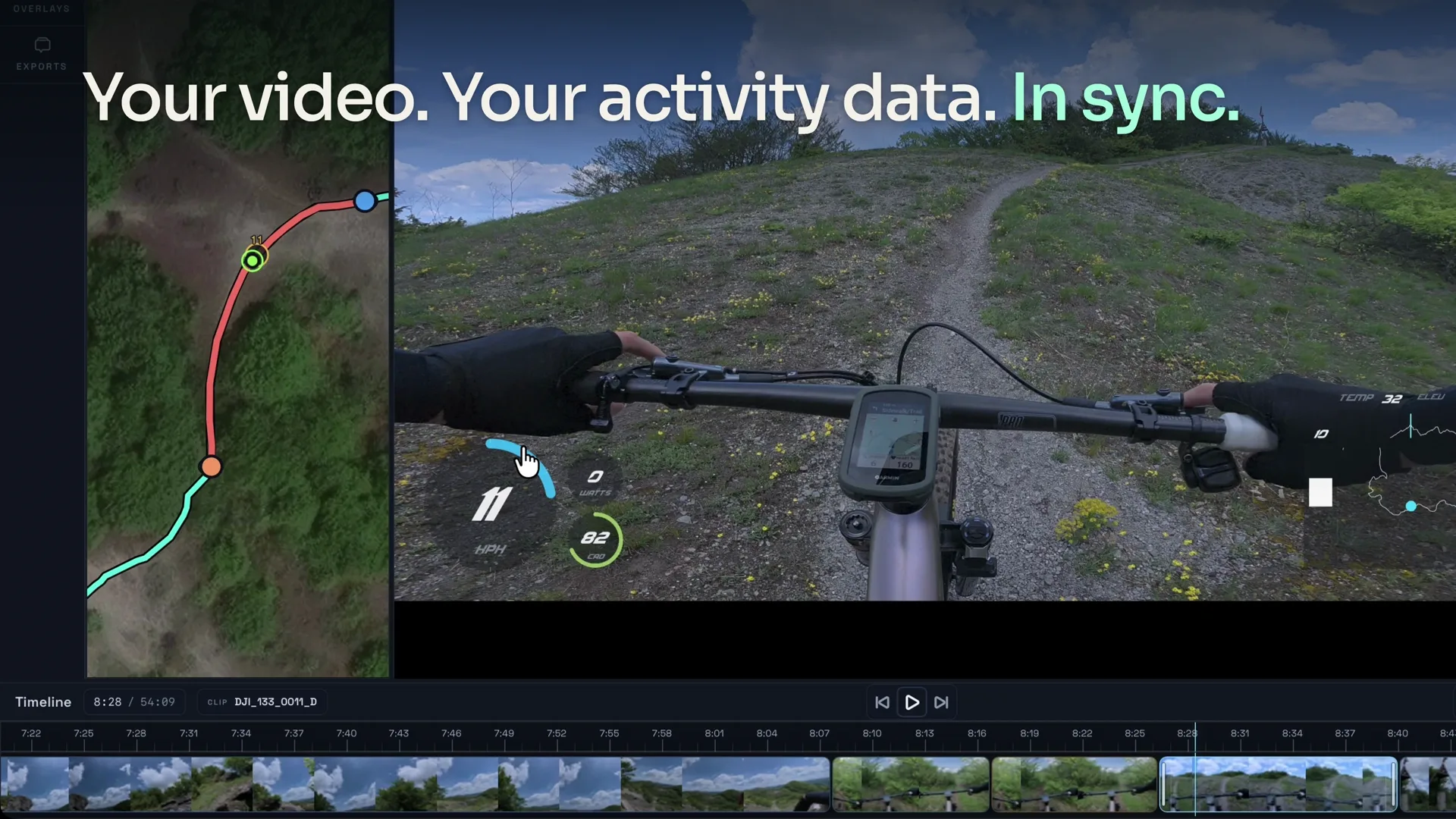
Movaro 1.3 is available for Mac and Windows, with a new multitrack timeline, race-position tools and more ways to style your overlays. You can cut between cameras, build an opening from your favorite moments, or show an extra angle in picture in picture while keeping the activity data connected to the footage.
The update also makes project setup clearer, gives individual videos their own sync corrections, and improves the details you rely on while editing—from precise trims to consistent previews and exports.
Edit across multiple tracks
Keep your main camera view and add another perspective: a rear-facing camera, a view from beside the course, or the person filming. Show the extra angle full frame or place it in picture in picture, then drag and resize the inset around the action and your overlays.
The Picture in picture tool guides you through choosing footage, reviewing timestamp matches and positioning the second view. When camera timestamps line up, Movaro places the matching footage. When the clocks disagree, you can adjust the alignment. Each track has separate visibility and audio controls, so changing the picture doesn’t have to change what the viewer hears.
Three timeline views help you shape the result. Build the sequence in Main edit, then mark sections to use as opening highlights. Each highlight copies the selected footage with its camera views, timing and audio. In Highlights, trim those copies and choose their order without changing the original passages. Full video gives you a read-only review of the assembled result before export.
Cutaways make room for footage around the activity: an introduction, a shot from the sidelines, an outro or credits. Insert a clip to add time to the sequence, or use it to cover the current picture. Trim it independently and choose its audio and telemetry visibility.

Show how the race unfolded
An overtake is easier to follow when the viewer can see what it changed. Open Tools → Race position, set a known position, and record passes as you watch. Passed someone and Was passed work without interrupting playback; their default shortcuts are P and O while the tool is open.
You count the passes yourself. You can correct an event, add a known position later, or set the participant total when you have it. Add the race-position element to your overlay and use the text controls to style it.
Positions stay tied to the original moment in the footage through cuts, reordering and replays. Replaying an overtake shows the position from that moment without counting the pass twice. After changing the race data, use Generate Preview to refresh the styled overlay; exports use the updated race data too.

Put movement and color into your overlays
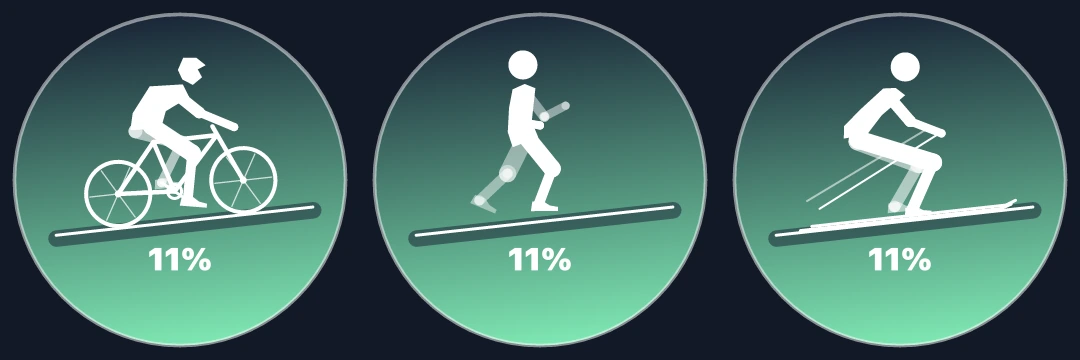
The new Slope Indicator shows the grade with a cyclist, runner or skier above a shaded slope. The figure and ground tilt with the recorded grade while the percentage stays upright, making climbs and descents easier to read at a glance.
Turn on animation to see the cyclist pedal, the runner stride or the skier shift with the slope. The figures move during playback when the activity data indicates movement, and the cyclist can follow recorded cadence. Static figures are included in Free; animation is available on Creator, Studio and Founder.
Color controls now offer Solid or Gradient. Choose two colors, adjust their transparency and set the direction of the blend across supported text, shapes, gauges, icons and other overlay elements. A fading background can help text stand out, while a filled elevation profile makes the terrain’s shape easier to follow.
New sport and metric icons give readings a visual label. Standalone semi-arcs add another shape to work with, and finer controls for arc rotation, sweep, thickness and ends help you fit a design around the footage.
Start with clearer timing
Project creation now follows four steps: Videos, Activity, Details and Summary. Movaro inspects the footage, shows which videos match the selected activity, and flags recordings without timestamps before you create the project. When footage doesn’t match automatically, the guidance explains where sync needs attention.
You can now correct selected videos without moving the timing of the whole project. In Sync video and route, match a recognizable video moment to the activity, then apply the offset to either the project or the checked videos. This helps when one recording has a different camera time from the others.
Saved corrections are easier to find and reset in Time offsets, and they now survive timeline undo and redo.
Smoother review and more reliable exports
Windows exports are faster, including multitrack video and transparent overlays. On Mac, timeline exports use up to 4.5× lower peak memory. Editing and rendering stay on your device.
There are also fixes throughout the editing workflow:
- More precise selection, dragging and trimming for short clips, Cutaways and synchronized cameras, including edits that shift related tracks.
- More consistent seeking, playback and audio when scrubbing, switching views or using picture in picture, including timelines with gaps.
- Previews that stay current after regeneration and reopening a project, with less flicker in progress indicators. Race-position corrections, gradients, partial fills and rotated arcs also display more consistently between previews and exports.
- Timeline exports that use the current settings and preserve fractional frame rates, with more reliable recovery when a Windows export encounters a problem.
Missing or temporarily unavailable source files remain available to relink. Relinking and rescanning preserve their timing, and Windows handles different forms of the same file path without duplicating or losing the source.
Smaller workspace fixes make switching project windows more reliable and keep feedback previews visible. Deleting an active layout selects a replacement for the same aspect ratio, while timeline, race-position and source-trim edits now keep projects in the correct gallery order. Menus, settings and dialogs also make controls and plan access clearer.
Find the right Community layout
Community layout pages now show the minimum Movaro version a design needs. Installation and update screens make the available formats, your installed version and the latest version clearer, with confirmation when the work is complete.
Layouts using the new 1.3 features need a compatible app version. Movaro’s updated install flow can open the updater when a newer version is required. Layouts that remain compatible with older releases can still be used there.
What’s included, and how to update
Free includes basic timeline editing and exports, gradients, icons, arc controls, elevation fills and static Slope Indicator figures.
Creator adds two additional camera tracks, animated figures, race-position tools and overlays, highlights, Cutaways, intros and outros. Studio includes these features without a plan-imposed camera-track limit. Founder includes Studio features on two devices. The number of videos you can show at once still depends on the additional-video setting and your computer. The plan comparison has the full details.
Existing projects upgrade automatically when opened in 1.3. If you may need to return to Movaro 1.2.1, back up the project first: once an upgraded project has been saved, it cannot reopen in 1.2.1.
Read the complete release notes, or start with a quick introduction to Movaro. Bring your footage and its matching activity, then choose the moments and views you want to share.
Your footage is waiting.
Put your last ride, run or ski day on the video tonight. Free.
Georgi Kostadinov
Founder at Movaro. Building tools for adventurers who want to share their stories.