Movaro 1.7: Recut, Structure, route flyovers and photos
Movaro 1.7 adds Recut and Structure for finishing a video you already made, route flyovers on every plan, Activity timelines that need no footage, photos with picture frames, new layouts, custom metrics and exports you can pause.
 Georgi Kostadinov Founder
Movaro 1.7 is now available for macOS, Windows and Linux. It adds a second way to finish an activity video: start a Recut from a video you already made, lay it out from a template with Structure, and cut it to length with Trim suggestions. It also makes videos without footage: a Route flyover flies over your route in 30 to 60 seconds, now on every plan, and an Activity timeline turns the recording alone into an editable video with music, titles and photos.
The release adds photos and picture frames over the footage, Community layouts inside your project, six new built-in layouts that follow your units, and custom metrics for any number your recording holds. You can pause an export and pick up where it stopped, and choose a video format. New project now asks what you want to make first, and shows only the steps that type needs.

Recut a video you already made
A long activity video rarely stays one video. The recap for the group chat, the highlights reel for the club and the Short for your channel all come from the same edit. In 1.7, each of them is a Recut: choose New project → Recut, pick a template and the project to start from, and the original's edit arrives in Main edit as one block, with its intro and outro on the Intro & outro track and its highlights reel where it played. Movaro keeps playing the footage from the original's folders, so nothing is copied, and the data overlay stays live.
A new recut opens its template in a Set up your recut window, which takes you through the intro, outro, highlights, cards and music one step at a time and applies them together. Then split the block, trim and reorder its pieces and add transitions where you cut; Expand into clips gives back the original's own clips. When you later fix the sync or re-trim the original, the recut shows Original changed, and Review update lists only what changed so you can bring over the parts you want while your own edits stay.
A recut can also start from one of the original's exports, or from a timeline file Movaro saved with an export. Every Timeline and Highlights export now carries a small ID, so a moved export can still find its project. The Recut guide walks through the whole flow.

Lay out the video from a template
Tools → Structure lays out a video in one step, on any project: an intro, your best moments, your edit, extras such as an interview, chapter cards from your climbs or laps, a stats card and an outro, shown as a storyboard with the running length. Apply adds it all in one step that Undo takes back, and running Structure again replaces what it added. Save as template keeps your layout for the next project.
Four templates are built in. Recap combines highlights with your edit. Highlights reel gathers your chosen moments. Race report can include a standings card and a stats card. Short teaser makes a 9:16 Short from your chosen moments and an end card. All four templates are on every plan; on Free, templates use the highlights you mark.
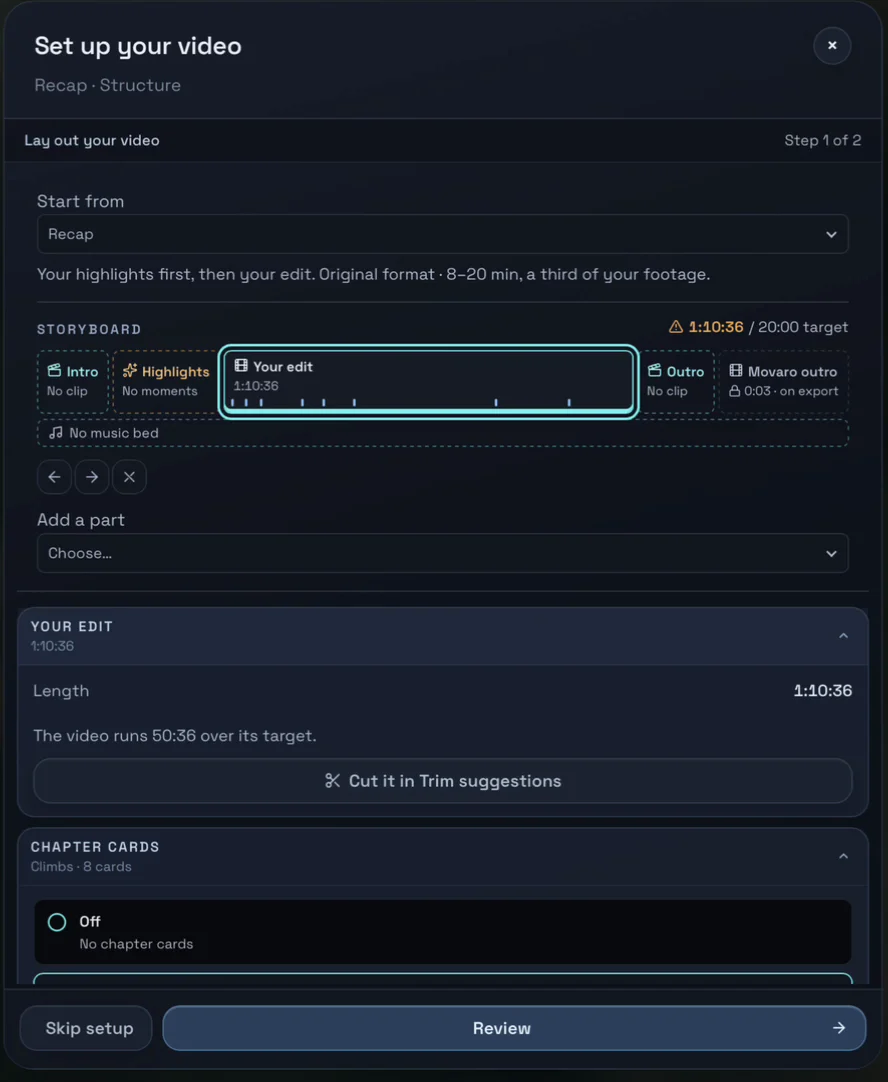
Structure also sets what plays around your edit in a Timeline export: Add a part puts a Movaro bumper, Frame or Rev, at the start or the end, and a Route flyover before your edit, picked from the flyovers you've exported. Both are on every plan.
To trim your edit itself, Tools → Trim suggestions finds long stops, flat stretches and footage without activity data on every plan. Aiming for a length needs Creator, Studio or Founder and removes the least interesting parts first, keeping your highlights, the start and the finish. Whatever it removes waits in Removed parts, where Restore brings it back on every plan.
Fly over your route
Exports → Route flyover turns any project with an activity into a 30, 45 or 60 second flight over your route, with your readings on screen, played hundreds of times faster than real time. It now exports on every plan at 30 FPS, in 16:9, 9:16 or 1:1, so the same activity can open a YouTube video or fill a Short. Or choose Flyover in New project, pick the length, the frame rate and a background, and you get a flyover you edit like any timeline: split and reorder the route, add music and titles, and export it at the flyover's length.
Two switches under Output → Motion, both on by default, keep long activities watchable. Skip pauses spreads the flight over moving time, leaving out stops and auto-pauses. Smooth animation draws the map from a smoothed GPS track, so the route line, your arrow and the following camera no longer shake with GPS scatter, and speed and elevation readings ease instead of flickering.
Eight built-in flyover layout families, such as chase and first-person views, are made for the job, and Canvas settings → Made for marks your own. On Free a flyover uses the free flyover layouts and a colour background; 60 FPS, image backgrounds and the Creator flyover layouts need Creator, Studio or Founder. The flyover guide has the details.
Edit an activity without footage
An Activity timeline is the longer form. A project without videos opens with its trimmed activity as one clip in Main edit, and you edit it like footage: split, trim and reorder it, add music, voice, titles, stickers and photos, and join the cuts with transitions, which now dissolve, wipe or push the data overlay like video.
Clip → Activity timing plays a segment over 30, 45 or 60 seconds instead of its original speed, on Creator and above, so an hour-long climb can pass in half a minute while the rest keeps its pace. Footage can join later: adding videos turns the project into a Video timeline. The activity timeline guide covers the whole flow.
Photos and picture frames
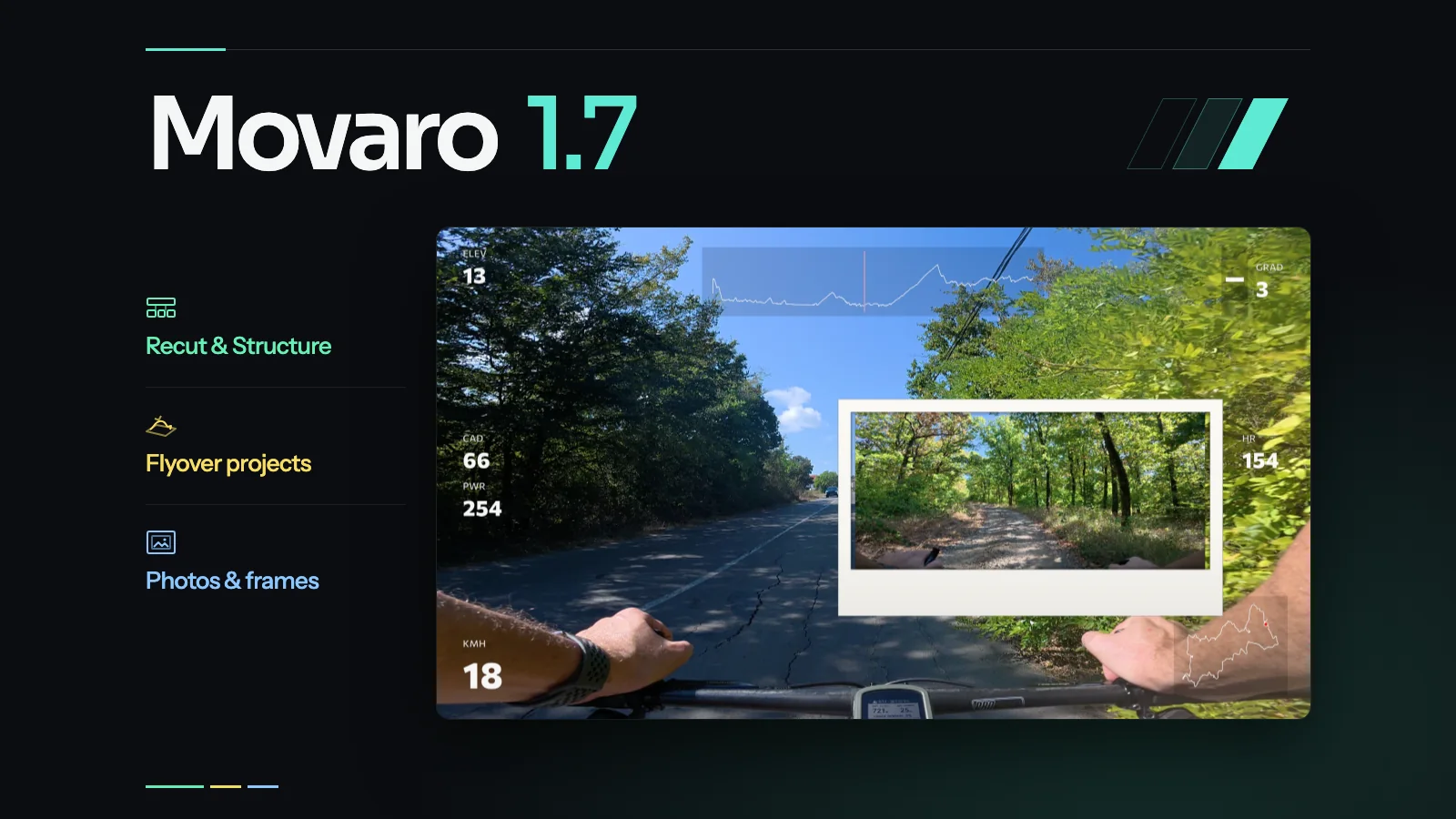
Library → Images brings photos into the edit: import PNG, JPEG or WebP files, or choose one of twelve Picture frames, from a Polaroid and a film strip to a postage stamp and a neon border. A frame fills the canvas when you add it and keeps its proportions at any size; Frame color recolours it. Picture frames are on every plan; importing your own photos and adding freeze scenes needs Creator, Studio or Founder.
A photo takes the same Color grading as a video clip, including filters and imported LUTs, and the Snowflake button on a photo adds it as a freeze scene: a five-second pause with the photo over it, after which the video continues from the same frame. Imported images join your library, so the next project's Images tab offers them too.

New layouts and Community picks in your project
The project's Overlays tab now has a Community layouts section: featured and popular layouts for your project's format, with a demo on hover, Install, and Use layout to set one for that ratio without leaving the edit.
Six new built-in layouts come with 1.7: Cycling Col, Training Pulse and Cycling Radar on every plan, and Racing Criterium, Running Splits and Trail Vista on Creator and above, from a climb profile banded by category and time in heart-rate zones to lap panels and a tilted 3D relief. The other built-ins gain rounded panels, glowing dials, zone colours and maps that mark the part already covered. The new Movaro Default keeps the top of the frame clear and uses only GPS readings and heart rate, so a phone's GPX or a Strava file fills it.
Built-in layouts, and readings set to Auto, now follow Settings → Units: imperial shows mph, miles and feet. And on Free, you can try any built-in Creator layout on your footage. Its Creator elements, such as graphs and lap panels, are marked in the preview and left out of exports, and the export review says how many.
Show any number your recording holds
A watch or bike computer often records more than speed and heart rate, such as a Connect IQ data field or a core temperature sensor. Fields in this file, under Project → Sources and in the layout editor, lists everything your activity recorded, with its unit, coverage and range, and says why a field can't be used. It's on every plan.
On Creator and above, Create metric turns a field into a custom metric with a name, a unit, decimals and, if needed, a multiplier and offset. Bind it to a text reading, a gauge, a meter or a graph like any built-in reading. Your metric library keeps it for the next layout, and a shared layout carries the metrics it uses.
Exports you can pause
Pause export holds a running export without losing its progress, and Resume export continues from there. Paused time doesn't count towards the export's duration, and closing and reopening the project keeps the export. Settings → General → Boost exports while idle lets a long export use more of the computer after a minute without keyboard or pointer input. Both are for macOS and Windows.
Video format offers H.264, H.265 and AV1, listing only the formats your computer can encode, and ProRes 422 HQ for opaque overlays on Creator and above. For a cut you want to finish in DaVinci Resolve, turn on Also save timeline file with a Timeline or Highlights export: Movaro writes the cuts, speed changes and dissolves beside the movie, with separate tracks linked to your camera files. Recreate picture-in-picture framing in Resolve; titles, effects and the data overlay stay in the movie.
Also in 1.7
- New project types. New project opens on four cards, Video timeline, Activity timeline, Flyover and Recut, and each type shows only the steps it needs. The gallery marks every project's type.
- Canvas shapes on every plan. Canvas & framing offers a 16:9 or 9:16 canvas, Crop or Fit, and a Blur background fill on any plan. Custom dimensions stay on Studio and Founder.
- Reusable clips and imports. Intros, outros, sponsor clips, and the music, sounds, images and stickers you import stay in your library for every project.
- Smoother overlays. Overlays export at up to 10 FPS on every plan, with 24, 30 and 60 FPS on Creator, and the preview plays them at your Overlay FPS, up to 30.
- Smoother playback from network drives. On a Mac, the preview no longer stalls at cuts when your footage is on a NAS.
- Timeline zoom. Pinch on a trackpad or Cmd/Ctrl + scroll to zoom around the pointer, and Zoom to selection (Shift+Z) frames the selected clips.
- Easier audio editing. Audio trims stop at the next clip, dropped audio finds a free place, and clicking a volume keyframe selects it.
- Where new tracks go. Settings → Timeline → New tracks can add new audio, text and video layer tracks above the existing ones.
- Corner resizing. Dragging a corner of a title or sticker in the preview keeps the opposite corner still; hold Shift to resize in place.
- Reset to original length. Right-click a clip to bring back what you trimmed off it, even after reopening the project.
- Copy and paste layout elements. Cut, copy and paste elements and groups, also between layouts, with Cmd/Ctrl+X, C and V; pastes land under your pointer.
- Calmer panels. Exports splits its settings across Output and Format & destination pages, and Tools, Clip, Library, Settings and the layout editor trade explanations for short statuses and tooltips.
- AI reviews. Running the Highlights explorer's AI review on the same activity in a copy, such as a recut, isn't charged again.
What's on each plan
Every plan, including Free, has the new project types, Recut with Review update, Structure with its bumpers and flyover slot, one saved template, suggested cuts, Removed parts, all twelve picture frames and activity timelines at their original speed. It also has Route flyovers at 30 FPS in 16:9, 9:16 and 1:1, canvas shapes and framing, overlays at up to 10 FPS, pausing and the idle boost, the video format choice, timeline files, Fields in this file, Community layouts and the three free new layouts. Free can try Creator layouts too, with their Creator elements left out of exports.
Creator, Studio and Founder add target length, any number of saved templates, Highlights explorer suggestions, standings cards, your own photos and freeze scenes, timed activity segments, 60 FPS flyovers and image backgrounds, custom metrics, ProRes 422 HQ and the three Creator layouts. The plans page has the full comparison.
Recuts, editable activity timelines, image layers, projects created in 1.7, projects changed by Structure or Trim suggestions, and layouts using Auto units open only in Movaro 1.7 or later. Check which version a collaborator has before sharing a project or a layout.
See the complete release notes for the fixes in this release. To try it, open a video you finished this season and make a Recut from it: pick Highlights reel, let Structure lay it out, and export the result.
Your footage is waiting.
Put your last ride, run or ski day on the video tonight. Free.
Georgi Kostadinov
Founder at Movaro. Building tools for adventurers who want to share their stories.