Recut a video you've already made: recaps, reels and Shorts
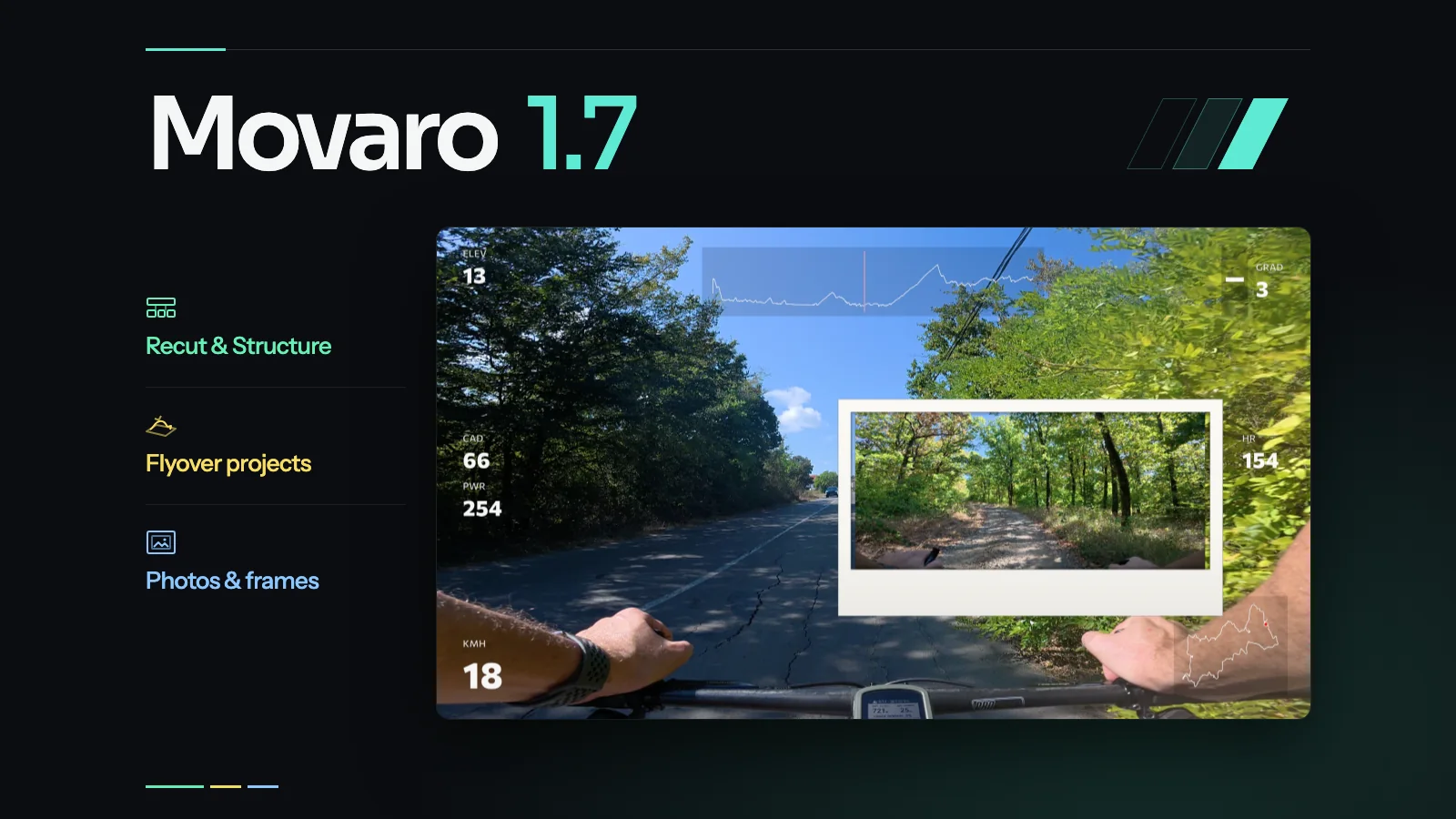
Movaro 1.7's Recut starts a new project from a finished video: keep its edit or an export, pick a recap, highlights or Short template, lay it out with Structure, and cut it to length with Trim suggestions.
 Georgi Kostadinov Founder
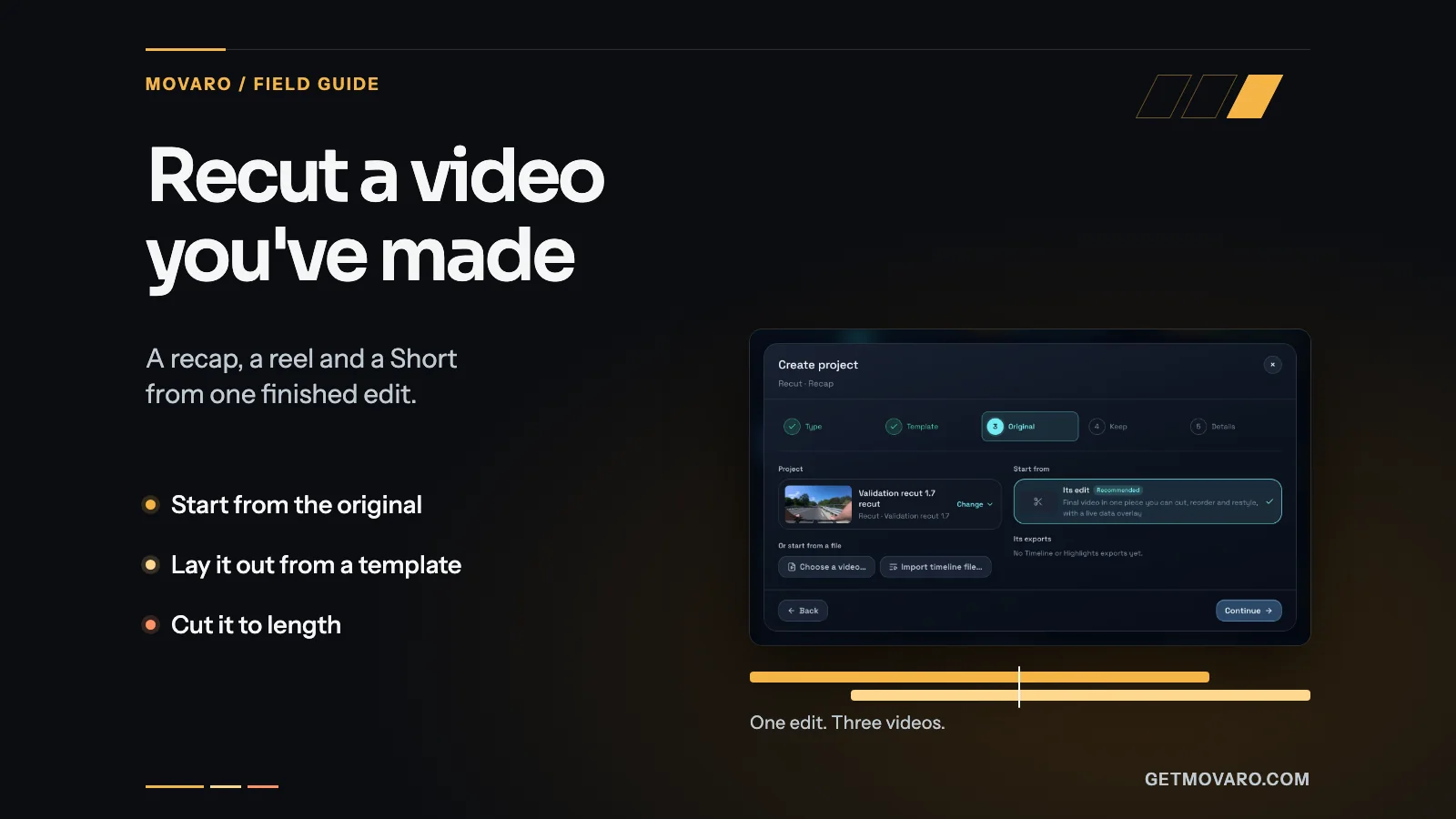
You finished the long version of your activity video, and now you want a three-minute recap for the group chat, a highlights reel for the club and a Short for your channel. In Movaro 1.7, each of those is a Recut: a new project that starts from the video you already made, lays it out from a template and cuts it to length, without copying a single video file.
This guide goes from a finished project to an exported recut. Recut, Structure, and the Pick parts and Removed parts sides of Trim suggestions are on every plan; the steps that need Creator, Studio or Founder say so.
What a recut is
A recut is a new project whose Main edit holds the original's edit as one block, with its intro and outro on an Intro & outro track. Movaro keeps playing the footage from the original project's folders, so a recut takes almost no space; it copies only small files such as the activity recording, LUTs and stickers. The data overlay stays live, so readings, maps and titles follow the activity as before, and you can change the format, for example to 9:16 for a Short.
Because the block is one item, you work in pieces rather than clips: split it, trim the pieces, reorder them and add transitions where you cut. If you need the original's own clips back, Expand into clips gives them to you.
The gallery marks each recut with its own tag and names the original beneath it, and deleting an original warns you about its recuts.

Start from the project, an export or a timeline file
Choose New project, then Recut. You can also open a project's … menu in the gallery and choose Recut… to start from that project directly.
After the template page, the Original page asks where the recut should come from:
- Its edit is the usual choice. The original's edit arrives as one block with its live data overlay, its intro and outro come along, and the format can change later.
- One of its exports starts from a movie the original exported. The overlay is already in that picture, so each piece starts with its data overlay hidden; the original's cuts, highlights and data titles still follow the activity through the export.
- Import timeline file… starts from a timeline file Movaro saved next to an export. Movaro looks for the movie among the original's exports, then next to the file, and asks you to locate it if needed.
If an export has moved, Choose a video… finds its project from the small ID Movaro 1.7 writes into every Timeline and Highlights export.
When the original has something worth keeping, a Keep page follows: its highlights reel, picture-in-picture, music and voice-over, titles and stickers, and inserted clips, all on by default. On Free, picture-in-picture stays off, and Make exportable on Free swaps or removes looks and effects that Free can't export and keeps one cutaway track inside your edit, so the recut is ready to render.
Pick a template
The template decides the shape of the video before you touch a clip:
- Recap: an intro, about 30 seconds of highlights, your edit, then an outro.
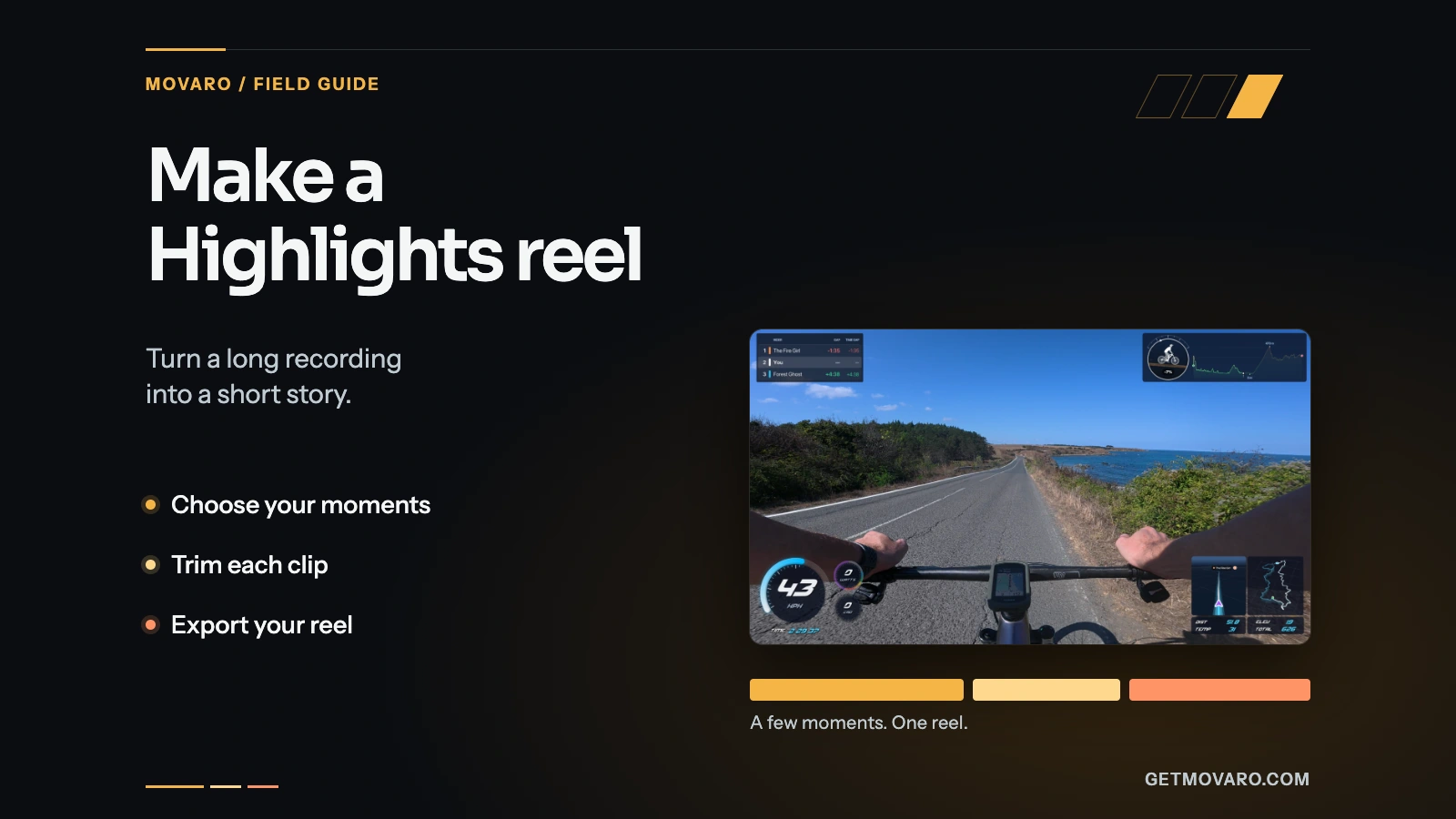
- Highlights reel: an intro, about three minutes of the best moments, an outro.
- Race report: an intro, highlights, the race, then a standings card and a stats card.
- Short teaser: a 9:16 Short of your best moments that ends with a "Full video on my channel" card. It's on every plan; on Free it uses the highlights you mark yourself.
- No template starts from your edit alone.
Templates you save from Structure appear here too. Free keeps one saved template; paid plans keep any number. The dialog's subtitle names the template on every page, so you can see what you picked before you create the project.
Lay it out with Structure
A new recut opens its template's Structure in a Set up your recut window once its edit is ready, with Trim suggestions in the same window, so you can lay out the video and cut it to length in one go. Skip setup, or closing the window, leaves that work to Tools → Structure and Tools → Trim suggestions. Structure works on any project at any time, not only on recuts.
Structure shows your video as a storyboard: an intro, the highlights, your edit, an outro and a music bed, with the running length beside it. Add or remove parts and choose which sections to fill. The highlights are the ones you mark on the timeline; on Creator and above, the Highlights explorer's moments appear as suggestions to tick, or Pick for me chooses them. A few parts take their content from the activity itself:
- Chapter cards open each section of the activity with a short title card, from your climbs, laps, distance or time.
- Extras such as an interview or the café stop go where they were recorded: before the activity, after it, or at their moment during it, on a cutaway track. On Free, they go on a cutaway track only while the project has none yet, and after your edit otherwise.
- Race report adds a standings card from your ghosts or race position, and a stats card.
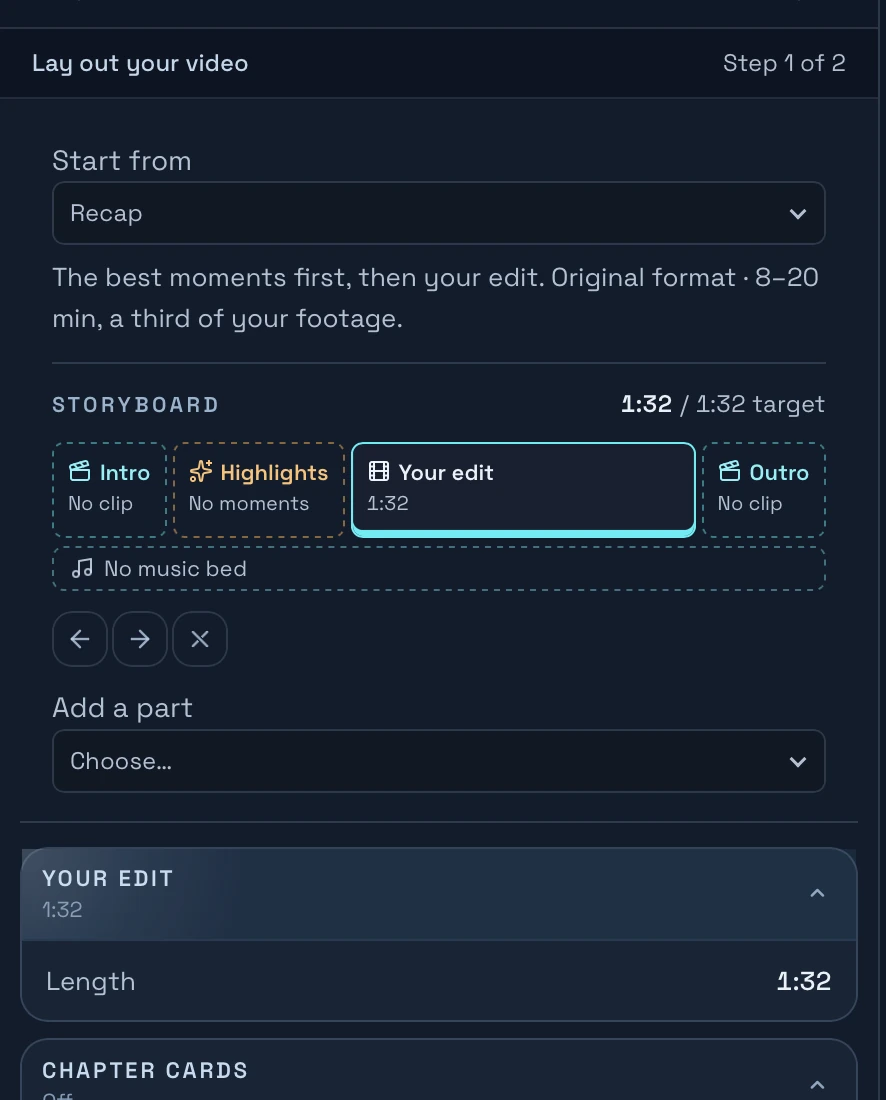
Review the plan and choose Apply. Structure adds everything in one step that Undo takes back, and running it again replaces what it added rather than stacking a second layout on top. On Free, a template keeps what Free can export, and the review says what it left out. Save as template keeps your own layout for the next project.
Cut it to length
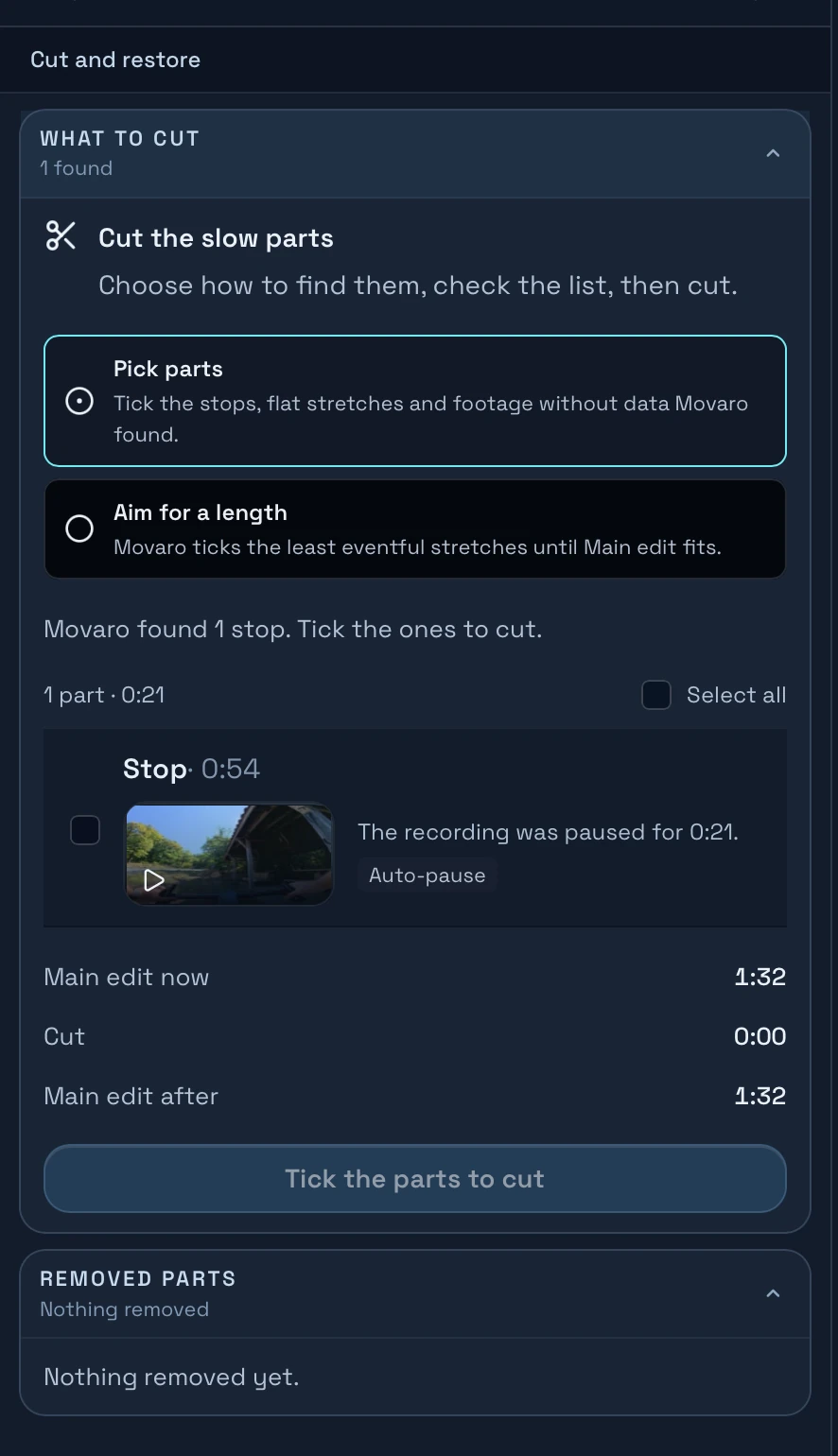
Structure never cuts your edit itself. That's Tools → Trim suggestions, which the setup window offers in its Trims step, with Trim all or I'll choose later. The tool cuts in two ways:
- Pick parts finds long stops, flat stretches and footage without activity data, and lets you choose which to remove.
- Aim for a length removes the least interesting parts first and keeps your highlights, the start and the finish.
Pick parts is on every plan; Aim for a length needs Creator, Studio or Founder. Everything they remove goes to Removed parts, where Restore and Restore all bring any of it back on every plan. Parts you delete by hand are not listed there; Undo brings those back. The panel's back arrow returns you to Structure.
Edit the block
The block behaves like a clip that remembers where it came from. Split it with the playhead, trim either edge of a piece, delete a piece, drag the pieces into a new order and press + at a cut to add a transition. Two pieces that were next to each other in the original can be joined back together with Join (Cmd/Ctrl+J).
Speed, look, data-overlay opacity and volume apply to a whole piece. While you trim a piece's edge, the titles, stickers, overlays and camera tracks linked to it move with it. A few tools don't work on pieces: turning a clip, effects, extracting audio and volume keyframes. When you need them, Expand into clips turns the block back into the original's own clips. From then on the recut is an ordinary edit, and it stops receiving updates from the original.
When the original changes
Fix the sync in the original, re-trim its activity or swap a clip, and the recut notices. Main edit shows Original changed with a Review update button, and the Tools tab keeps the notice until you deal with it. The review lists only the categories that changed, such as footage and cuts, look, highlights, music and voice-over, titles and stickers, inserted clips, or the activity and sync. Tick the parts to bring over and choose Update. Your own changes in the recut stay, and one Undo takes the update back, unless it replaced the activity file.
If the original project has moved, the notice offers Locate original…; if it is gone for good, Don't show again stops the reminder.
Export it
A recut exports like any project: Exports → Timeline for the whole video or Highlights for the reel. Turn on Also save timeline file under the Output page's options if you want to finish the cut in DaVinci Resolve; Movaro writes the cuts, speed changes, dissolves and picture-in-picture tracks beside the movie, linked to your camera files.
Recuts, and projects changed by Structure or Trim suggestions, open only in Movaro 1.7 or later. If you share a project with someone on an older version, send them the export instead.
If you have never made a Highlights reel, start with the Highlights guide; a recut takes those moments with it. For everything else in this release, read the Movaro 1.7 announcement.
Your footage is waiting.
Put your last ride, run or ski day on the video tonight. Free.
Georgi Kostadinov
Founder at Movaro. Building tools for adventurers who want to share their stories.