Add music to an action camera video without losing the camera sound
Put a song, a voice-over and sound effects on Audio tracks in Movaro 1.6, shape them with fades, keyframes and ducking, and keep or extract the camera's own sound.
 Georgi Kostadinov Founder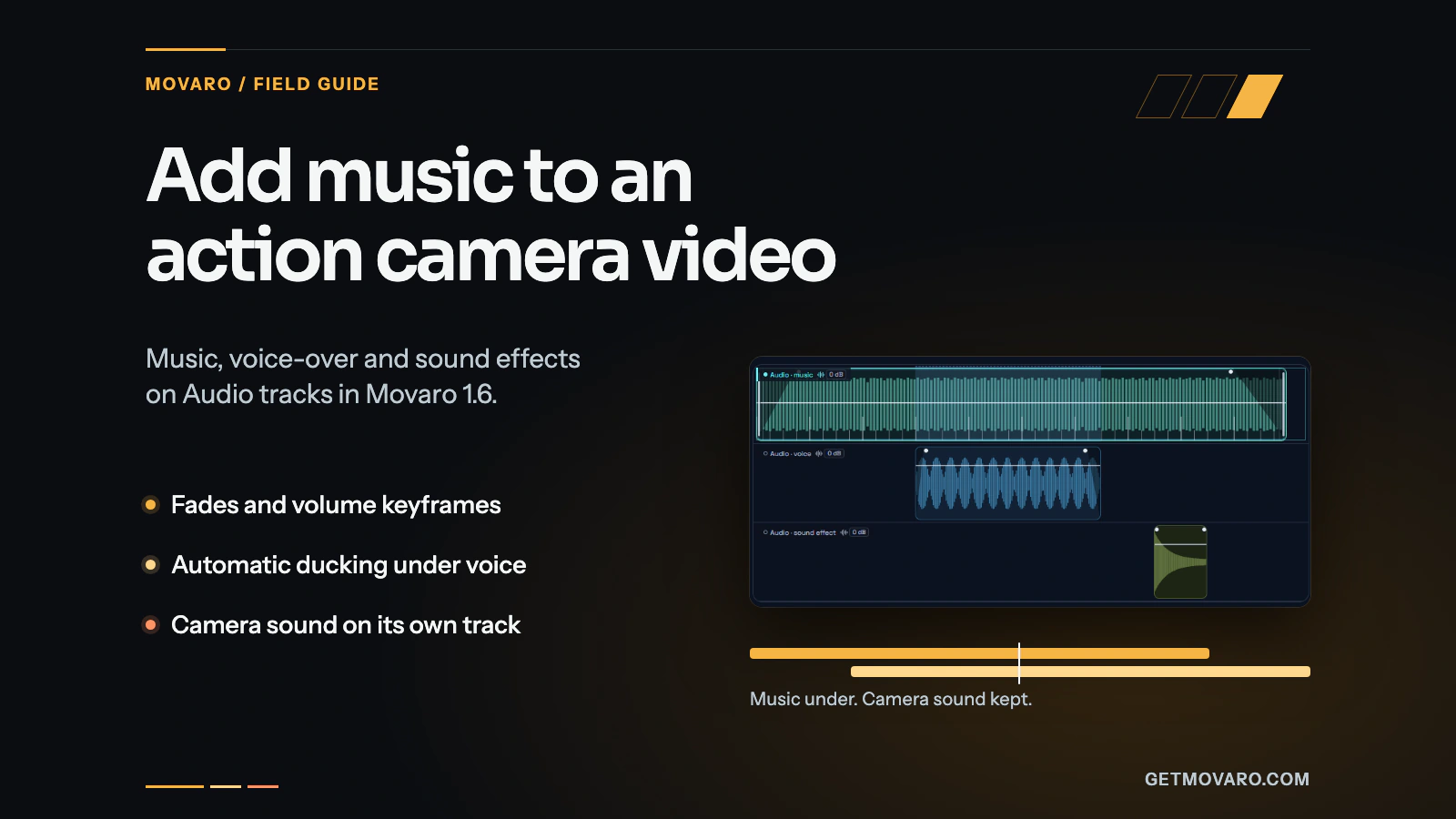
Music can replace the sound your action camera recorded, or sit underneath it. In Movaro 1.6 you decide clip by clip, so a song can carry the edit while wind, engine noise or a shout at the top of a climb stays audible where it matters. The steps below describe Movaro 1.6.2.
Audio clips, volume, fades, ducking and the twelve built-in sound effects are on every plan, including Free. The plan decides how many Audio tracks you get, and that matters as soon as two sounds need to play at once.
Where the sound comes from
Sound is added and edited in Main edit; Final video and Highlights play it but don't change it. Open Library and choose Audio. It has two groups:
- Imported lists the audio files in your project. Import audio… adds MP3, M4A, AAC, WAV, AIFF, CAF or FLAC files. Movaro doesn't include a music library, so a song or a recorded voice-over comes in here.
- Sound effects holds twelve sounds that Movaro generates itself: Soft whoosh, Fast whoosh, Riser, Impact, Click, Pop, Ding, Shutter, Glitch, Swipe, Chime and Bass drop. Press a row's play button to hear one.
To put a row on the timeline, drag it onto an Audio track, or press its + button to add it at the playhead. Since 1.6.1 you can also drop it on the preview. If you only want part of a file, press the scissors on its row first and mark that part on the waveform: drag its start and end, or click a spot and choose Set start or Set end. Whole file clears the trim. From the timeline, Shift+A opens a file picker and puts the chosen files at the playhead on the active Audio track.
The first 1.6 editing feature you use, music included, upgrades the project to a format that earlier versions of Movaro can't open. Movaro keeps a backup.
Give every clip a type
An imported file arrives as a Music clip and a built-in sound as a Sound effect. Select a clip and open the Clip tab. Under Sound, Type offers three choices, and each plays differently:
- Music plays straight through cutaways and dips under voice.
- Voice also plays straight through cutaways, and music dips under it.
- Sound effect stays with its moment in the footage. Move the picture clip under it and the sound moves along, which is what you want for a whoosh on a cut.
Set a voice-over to Voice as soon as you add it. It arrives as Music, and the type is what makes the music duck under it.

One clip at a time per track
Since 1.6.1, a track holds one clip at a time. A sound added with its + button goes on the first Audio track with room for all of it from the playhead on; if none has room, Movaro adds a track when your plan allows one, or else uses the next gap long enough for the whole sound. Drop a sound onto a particular track, or press Shift+A, and it goes into the next gap on that track. Either way the new clip is selected, so you can see where it landed. Moving a clip onto another one is refused rather than stacked. A project from 1.6.0 that still has overlapping clips keeps them, but Movaro asks you to move them apart before it exports.
Each track's header has a volume chip for the whole track and buttons to Mute track, Solo and Delete track. Solo is for listening while you edit, for example to hear only the voice-over; exports play every unmuted track whether anything is soloed or not. A track with music on it also gets Show beats, for snapping edits to the song, and a ducking button.
Fades, keyframes and volume
The rest is in the Clip tab. Under Volume, Level sets the clip anywhere from −60 dB to +12 dB. The boost is there for a quiet voice recording. Movaro softly limits the combined mix, and a clip boosted past full scale shows a warning on the timeline; lower it if you see one. Under Fades, Fade in and Fade out take a length in seconds, and Fade curve switches between Smooth and Linear. You can also drag the small fade handles at the clip's edges on the timeline.
To change the volume over time, put the playhead on the clip and choose Add keyframe. The keyframe holds the level heard there. Move the playhead, change Level at playhead, and the volume line bends between the two moments. Whole clip then raises or lowers every keyframe together, and Remove keyframes goes back to one level for the clip. On the timeline the keyframes are diamonds on the clip's volume line: drag one to move it, or select it and press Delete.
Let the music duck
Ducking lowers the music while something more important plays. It's on by default for every track with music: whenever a Voice clip plays, the music dips by 12 dB, sliding down over the quarter of a second before the voice starts and back up over half a second after it ends. A voice-over needs nothing beyond the Voice type.
Right-click a music track to choose Duck by 6 dB, Duck by 12 dB or Duck by 18 dB, or Stop ducking music under voice to turn it off; the ducking button in the track header flips the same switch. A sound effect or a Main clip can ask for the dip too: select it and turn on Lower music under this clip under Ducking in the Clip tab. That keeps a comment shouted into the camera audible, or lets an Impact land without fighting the song.
Keep the camera's sound, or move it
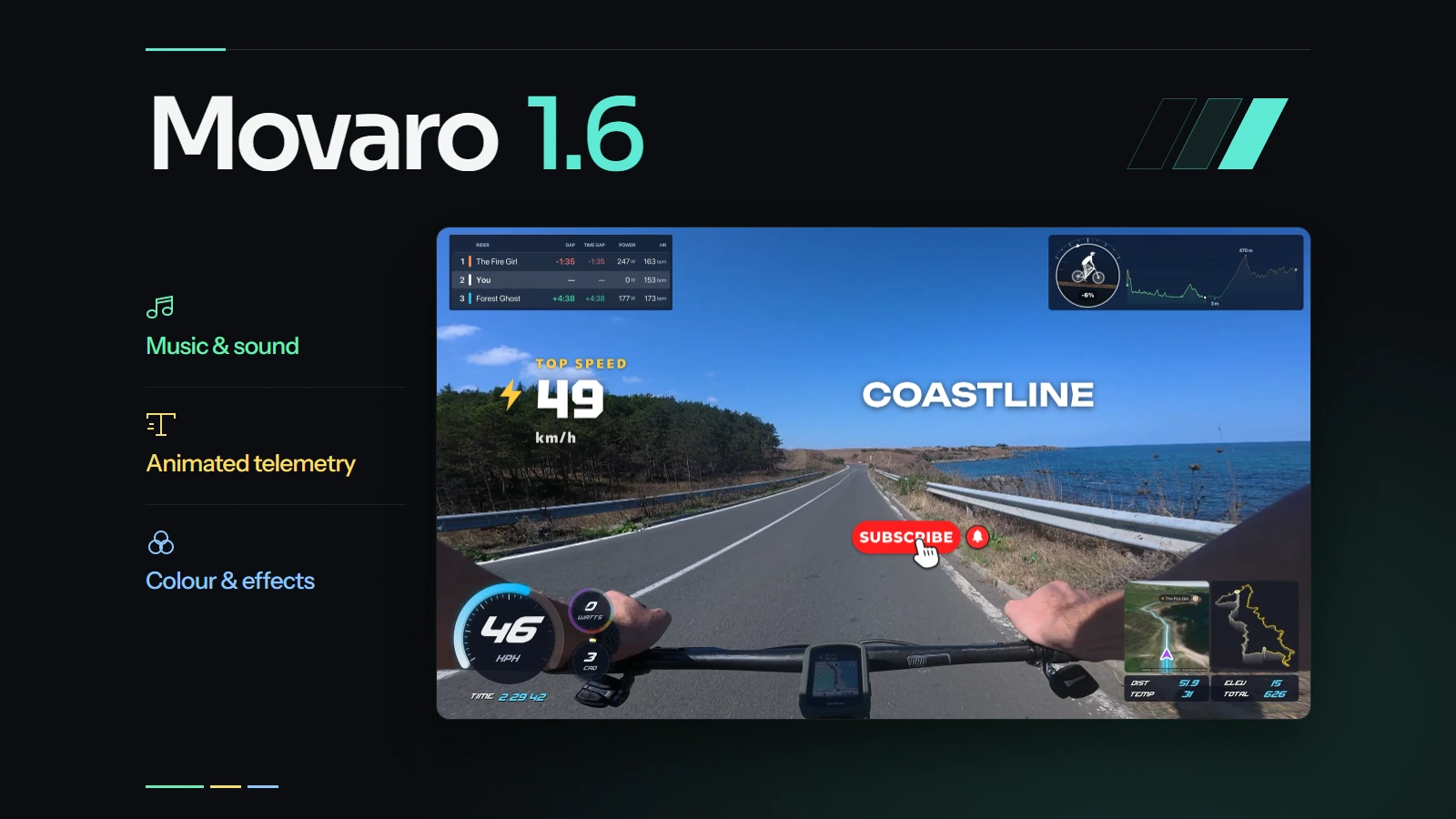
Your footage already has a soundtrack. Main, picture-in-picture, cutaway and Video layer clips show it as a waveform strip along the bottom of the clip, with a volume line and keyframe diamonds like an audio clip's. If you don't see the strip, set Timeline lane size in Settings to Comfortable or Large; Comfortable is the default since 1.6.
Select a video clip and the Clip tab's audio controls work on its sound: Mute, Level, fades and keyframes. One way to start a ride video is music at a lower level, the camera sound at 0 dB where the atmosphere matters, and muted or faded out where it's only wind. A Main clip you slow down or speed up keeps its pitch, so a slow-motion section doesn't drop into a low growl.
To cut the camera sound separately from the picture, choose Extract audio in the Clip tab or the clip's right-click menu. Movaro copies the clip's sound to an Audio track as a Sound effect clip, at the same moment and with the clip's volume settings, and mutes the picture clip's own sound. You can then split, trim, move and fade it like any other audio clip. Delete the last extracted copy and the picture clip gets its sound back, so nothing goes quiet by accident.
Extract audio needs the clip's sound switched on, and a Main clip has to play at 1× speed. Cutaways keep their sound with them, so they can't be extracted. The copy also needs an unmuted Audio track at 0 dB that's free at that moment, or room for a new track.
What the plans allow
The audio tools in this guide work on every plan. The difference is tracks: Free has one Audio track, and Creator, Studio and Founder have up to eight. One track holds a song under the ride, or sound effects where no music plays. It can't hold a voice-over or a whoosh on top of the music, because they play at the same time, and on Free that also rules out extracting camera sound from under a song. When a sound needs a second track and no gap on the first one fits it, Movaro offers the Creator plan instead of placing it, and Audio in the timeline's Add track menu carries a Creator badge. Picture-in-picture, cutaways and Video layers themselves need Creator or above.
Recipes, which can add sound effects at moments of the ride and turn on ducking for your music in one step, are on Creator, Studio and Founder. The plans page has the full comparison.
What reaches the export
Only the exports that render your Main edit carry the mix:
- Timeline, one movie from your edited sequence, includes the camera sound, your Audio tracks, fades, keyframes and ducking.
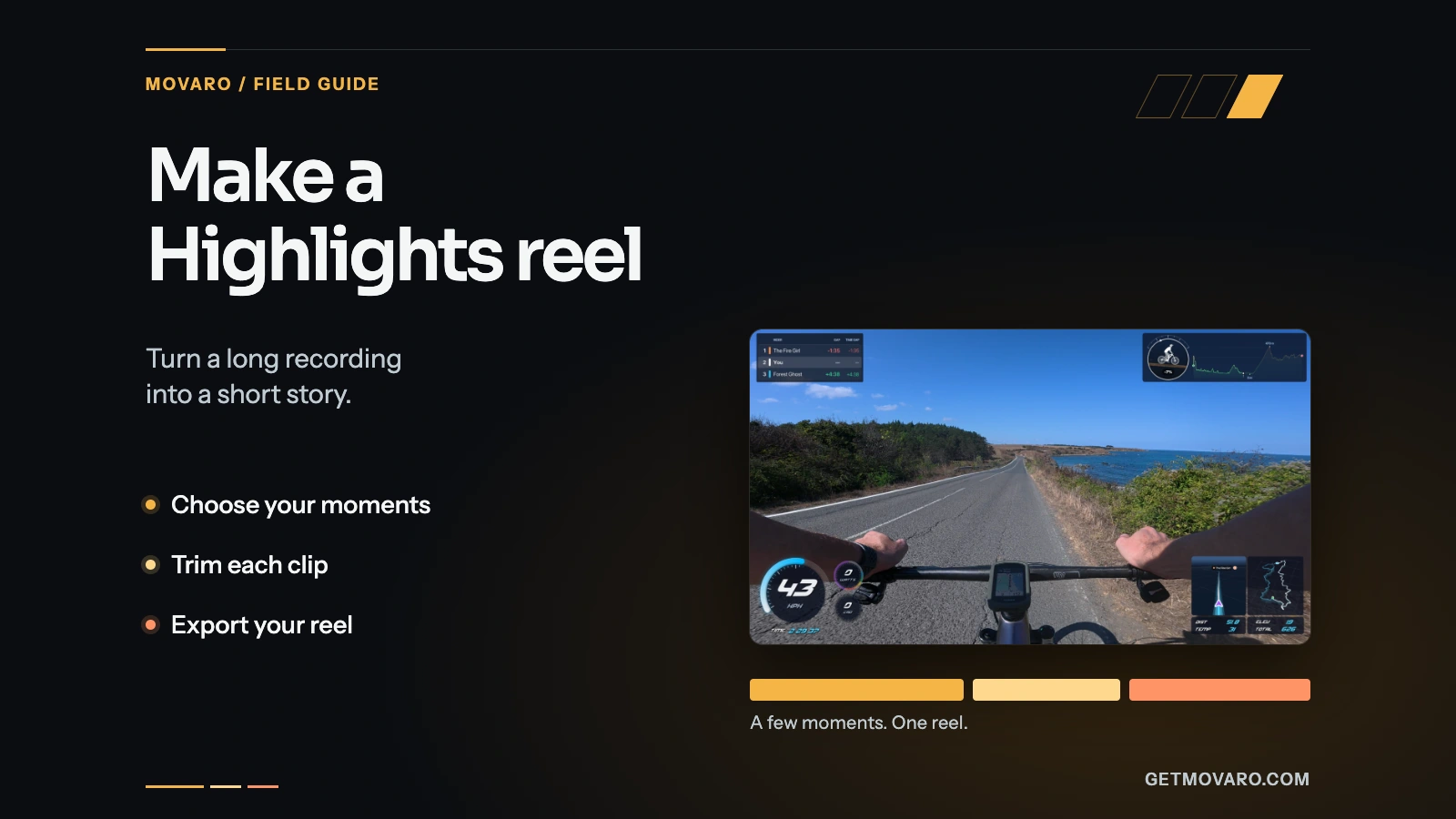
- Highlights, a reel of just your highlights, includes them too. Music and voice fade briefly at each join, so a cut between highlights doesn't click.
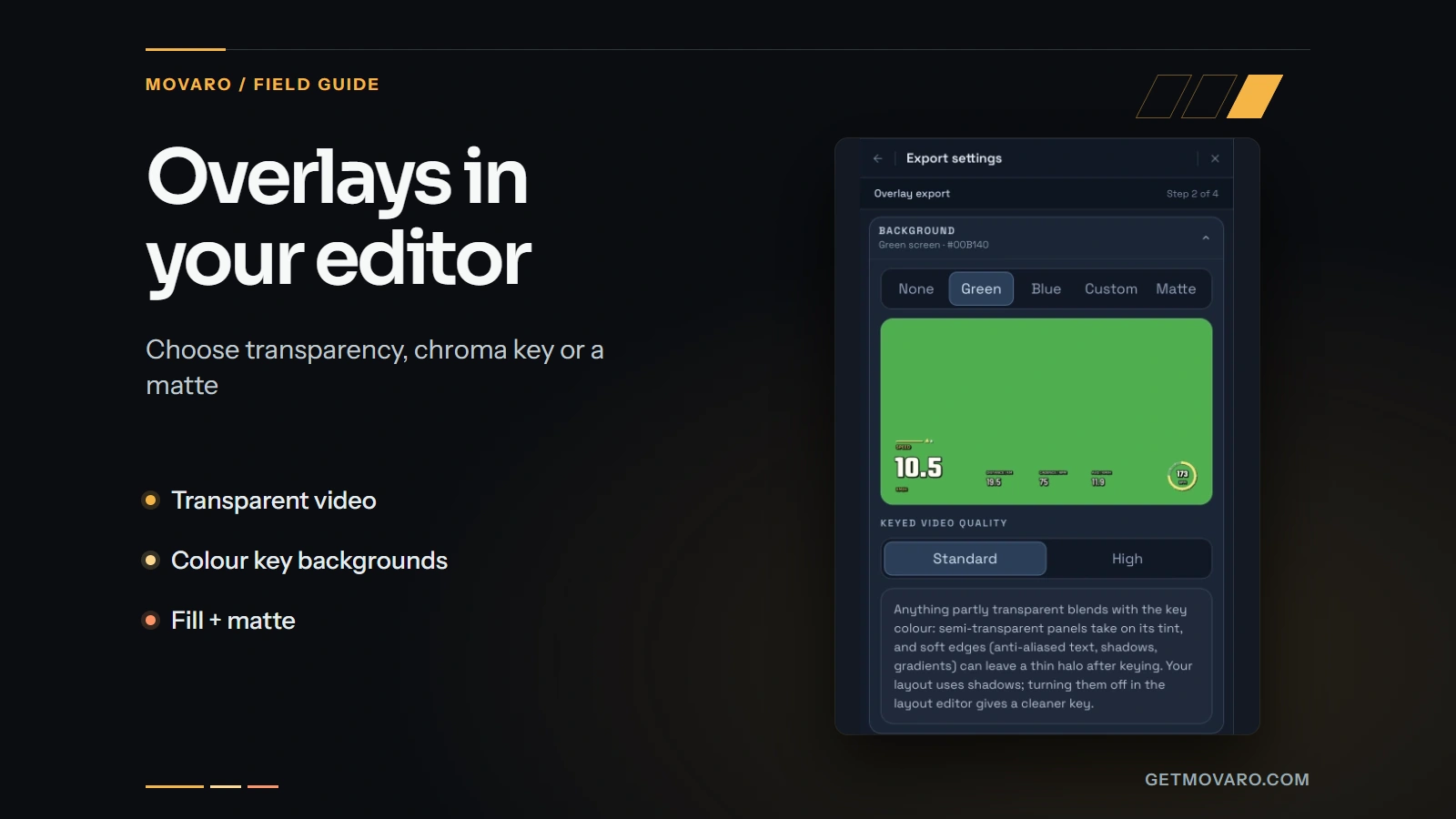
- Overlays, the data layer for another video editor, carry none of your Audio tracks, and transparent overlays have no sound track at all. Add the music in the other editor.
- Clips, your videos with the telemetry baked in, keep the camera's original sound without your Audio tracks.
If you add the Movaro intro or outro to an export, it has its own Sound switch, on every plan.
If you're building the whole video in Premiere Pro, DaVinci Resolve or Final Cut Pro, the overlay guide covers that route, and the music belongs on that editor's timeline.
For the rest of the editing tools, see the Movaro 1.6 release article. The Highlights reel guide is a good place to put your first soundtrack to work.
Your footage is waiting.
Put your last ride, run or ski day on the video tonight. Free.
Georgi Kostadinov
Founder at Movaro. Building tools for adventurers who want to share their stories.