Export your activity for a video: Garmin, Strava, Wahoo, COROS or Apple Watch
Find the export in Garmin Connect, Strava, Wahoo, COROS, Apple Watch and more, choose the file that keeps your sensor readings, and bring it into a Movaro project.
 Georgi Kostadinov Founder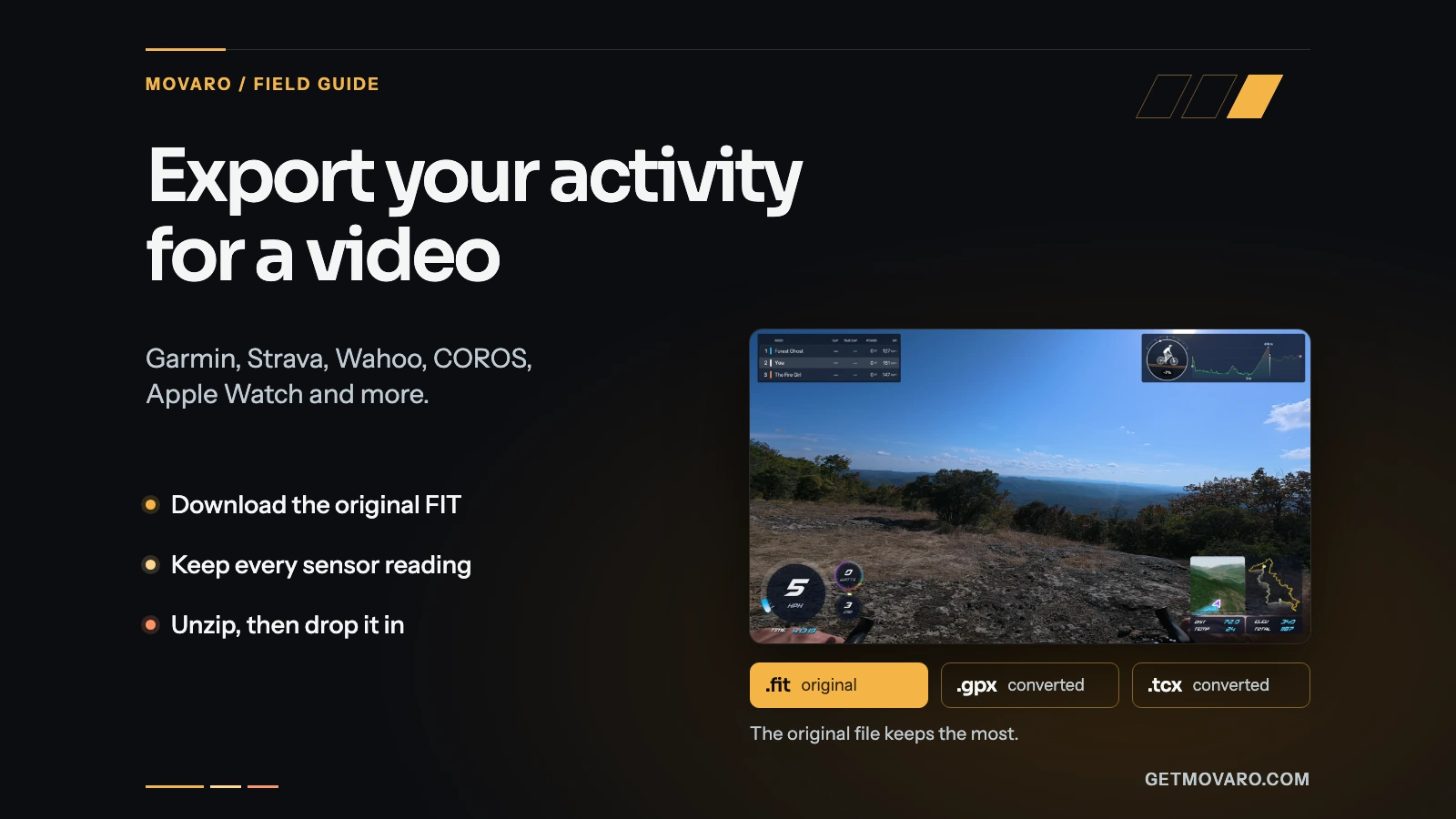
Your watch or bike computer recorded the ride, and your camera recorded the video. To put your speed, heart rate or route on that video, Movaro needs the recording itself: a GPX, FIT or TCX file, or the activity from your connected Strava account.
This guide shows where each platform keeps that file, and which download keeps the readings you want on screen. Apps move their menus around, so every step below was checked against the company's own help pages in October 2026.
Download the original FIT file when you can
Most watches and bike computers record a FIT file. It's the most complete copy of your activity: the route, every connected sensor, laps, pauses and the device's own speed and distance. GPX and TCX downloads are usually converted from it, and a conversion can leave readings out.
| File | What it usually keeps | Use it when |
|---|---|---|
| FIT | Route, elevation, heart rate, cadence, power, temperature, laps and pauses, plus extras such as power balance and respiration rate | You can get it. It also works for indoor rides without GPS. |
| GPX | Route, elevation and time. Heart rate, cadence, power and temperature only when the exporting app adds them. | FIT isn't offered, or you only need the route. |
| TCX | Route, heart rate, cadence and laps, with power when the exporter includes it | A service offers TCX but not FIT. |
Some Movaro readings depend on the file type. Laps come from FIT and TCX recordings. Power Balance needs the original FIT, or a GPX or TCX file that carries left and right balance. Respiration Rate, Grit and Flow come from FIT files only.
On Strava? You may not need a file
If the activity is on Strava and has GPS, you can skip the export. In New project, choose Strava under Connected activity on the Activity step, connect your account and pick the ride. Movaro reads its route, elevation and time, plus temperature, heart rate, cadence and power when Strava has them.
Export a file instead when:
- The activity has no GPS, such as an indoor ride. Movaro's Strava import needs GPS data.
- You want laps, power balance, respiration rate, Grit or Flow. Strava imports don't include them.
- You want AI review in Highlights explorer. It works with recordings you add as a file; for a Strava import, add your own recording of the same activity. Highlights explorer is available on Creator, Studio and Founder.
- You're adding a friend's ride as a Ghost. Ask them to export it with the steps below and send you the file. Ghosts are available on Creator, Studio and Founder.
Garmin Connect
Garmin's export lives on the Garmin Connect website:
- Sign in at connect.garmin.com, then choose Activities → All Activities in the menu on the left.
- Select the activity's name to open it.
- Select the gear icon at the top right and choose Export File. Older Garmin help pages call it Export Original.
You get the device's original FIT file, packed in a zip. The same menu offers Export to GPX and Export to TCX, but Garmin's GPX format has no field for power, an indoor activity without GPS exports as an empty GPX, and a long activity can export as an incomplete GPX or TCX. The FIT file avoids all three.
You can also copy the file straight from the device. Connect it by USB and open the Garmin → Activity folder, where files are named by date and time. Many recent Edge, Forerunner, fēnix, epix, Enduro, Venu, vívoactive and Instinct models connect as MTP devices instead of drives; Garmin supports that on Windows only, so on a Mac use the website.
Strava
Strava exports files from its website, not the phone app:
- Open the activity on strava.com.
- Open the activity's ••• (more) menu.
- Choose Export Original or Export GPX.
Export Original downloads the file in the format it was uploaded in. For a ride synced from a Garmin, Wahoo or similar device, that is usually its FIT file; check the file's extension. Export GPX includes heart rate, cadence, temperature and power from a power meter when the activity has them. It's the dependable choice for activities recorded with the Strava app or synced from an Apple Watch. An activity without GPS gives an empty GPX, so for an indoor ride recorded on a device, use Export Original. A manually entered activity has no recording to export.
You can export only your own recordings this way. Strava's GPX Download on someone else's activity is stripped of performance data, so for a friend's ride, ask them for their own export.
To download every activity at once, hover over your name and choose Settings → My Account. Select Get Started under Download your account, then Request download. Strava emails you a link to the archive. Some activity files in it end in .gz and need extracting.
Wahoo ELEMNT
On an ELEMNT ACE, BOLT 3 or ROAM 3, use the Wahoo app:
- Open History and pull down from the top of the screen to sync your latest ride.
- Tap the three dots on the activity, then Share activity.
- Tap Download .fit activity, then save the file to Files or send it to your computer.
Older ELEMNT, BOLT and ROAM units use the ELEMNT app. Open the ride in History, tap the upload icon at the top right on iPhone, or the three dots and Upload workout on Android, then choose Share file to.... Wahoo exports activities as FIT files, which is the format you want.
Hammerhead Karoo
- Sign in to the Hammerhead dashboard at dashboard.hammerhead.io with your SRAM account.
- Open your rides from the sidebar.
- Click ... next to the ride, choose Download FIT, then Save.
The dashboard exports rides as FIT only. The Hammerhead companion app doesn't export files.
COROS
- In the COROS app, open Activities and tap the activity.
- Tap the three dots at the top right, then Export Data.
- Choose .fit, then send the file to your computer by email, AirDrop or Save to Files.
COROS describes the FIT file as the complete activity data. Its watches don't show workouts as files over USB, so the app is the way to get them.
Polar
Polar exports files from the Polar Flow website, not the phone app. On flow.polar.com, open Diary, click the training session, then choose FIT from the Export menu. GPX and TCX are there too. If you choose the zip package, unzip it before importing.
Suunto
In the Suunto app, open the workout and tap the three dots at the top right. Choose Export as FIT file on iPhone or Download FIT file on Android. Export GPX workout is also there, but a workout recorded without GPS exports as FIT only.
Apple Watch
Apple's Fitness and Health apps can't export a single workout as a file. There are two good ways to get one:
- Through Strava. In the Strava app, connect Health under Manage Apps and Devices in your settings and allow Workouts & Routes. Workouts recorded in Apple's Workout app sync to Strava, going back up to 30 days. You can also record with Strava's own Apple Watch app. Then connect Strava in Movaro, or use Export GPX on the Strava website.
- With an export app. Apps such as HealthFit export an Apple Watch workout as a FIT or GPX file.
The Health app's Export All Health Data saves everything in Health as one large archive rather than a single workout file, so either route above is simpler.
Zwift and other indoor rides
Zwift saves a FIT file for every ride:
- Mac: Finder → Documents → Zwift → Activities.
- Windows: since February 2026, new rides are in
C:\Users\<your name>\AppData\Local\Zwift\Activities. Turn on Hidden items in File Explorer's View menu if you can't see AppData. Earlier rides stay in Documents → Zwift → Activities. - iPhone, iPad or Android: on Zwift's title screen, tap the file icon at the top right, select your activity files and email them to yourself.
- Any device: on zwift.com/feed, choose Just me, open the activity, select the cog icon and choose Download FIT file.
An indoor recording from a watch or bike computer works the same way: download its FIT file. Without real GPS, build the overlay from power, heart rate, cadence and speed. Movaro tells you when a recording has no GPS and keeps every sensor reading available. On a virtual course, readings also make a better overlay than a map.
Unzip the file, then add it to Movaro
Movaro opens .fit, .gpx and .tcx files. Downloads that arrive compressed, such as Garmin's Export File zip, Polar's zip package and .gz files from a Strava archive, need extracting first. Drop a zip file on the Activity step and Movaro reports that there's no GPX, FIT or TCX activity in it.
Copy the activity file into the folder with your ride's videos. In New project, drop that folder on Drop your activity here. Movaro finds the activity file and offers the videos beside it. You can also drop the file on its own, or click to browse.
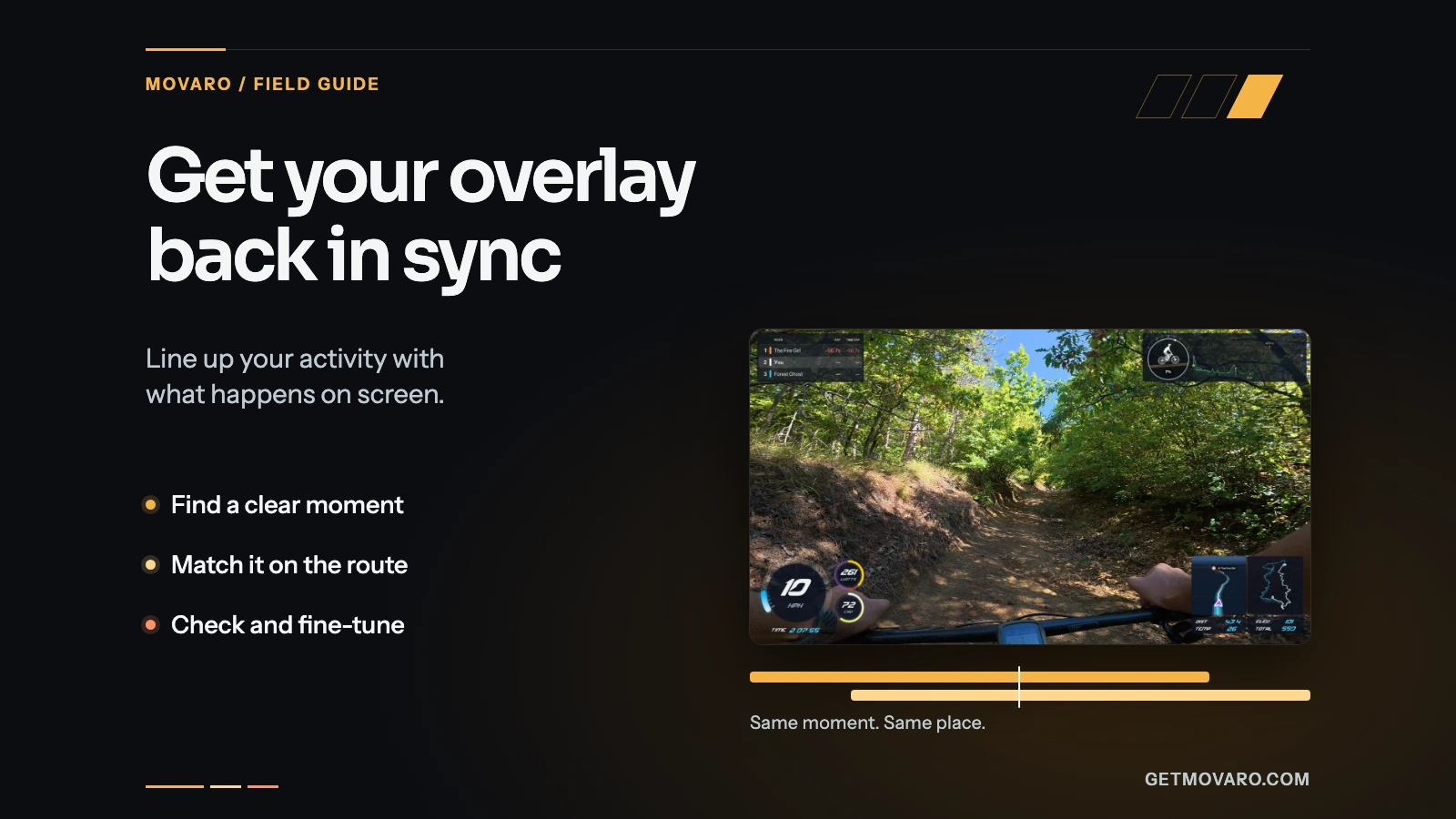
If the recording contains several sessions, choose the one that matches your footage and check its date and duration. Movaro then checks your videos' recording times against the activity. If an overlay still runs early or late, line up your activity and video with one clear moment. For help choosing between recordings, read choosing an activity recording for your video.
Your footage is waiting.
Put your last ride, run or ski day on the video tonight. Free.
Georgi Kostadinov
Founder at Movaro. Building tools for adventurers who want to share their stories.