GPS overlay out of sync? Line up your activity and video
Find out why activity overlays run early or late, then match one clear moment in the video and on the route to fix the timing for every clip.
 Georgi Kostadinov Founder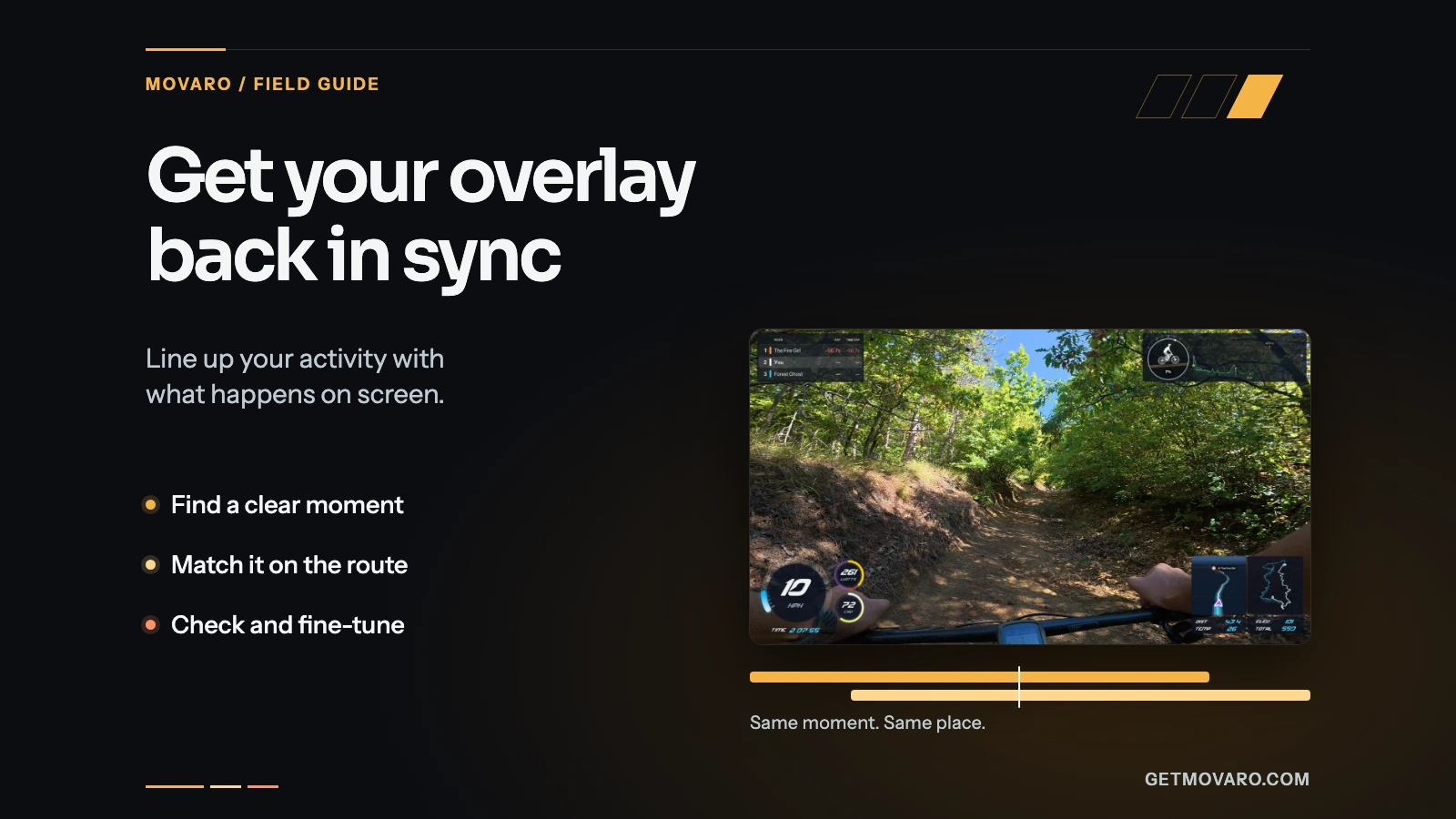
Your speed climbs while the video still shows a climb, or the map marker reaches a bridge a few seconds before you do. When an overlay looks out of sync, the activity data is usually fine. The video and the activity disagree about when each moment happened.
This guide explains where that disagreement comes from and how to fix it with Sync video and route in Movaro 1.5. Syncing is available on every plan, including Free.
Why an overlay drifts away from the footage
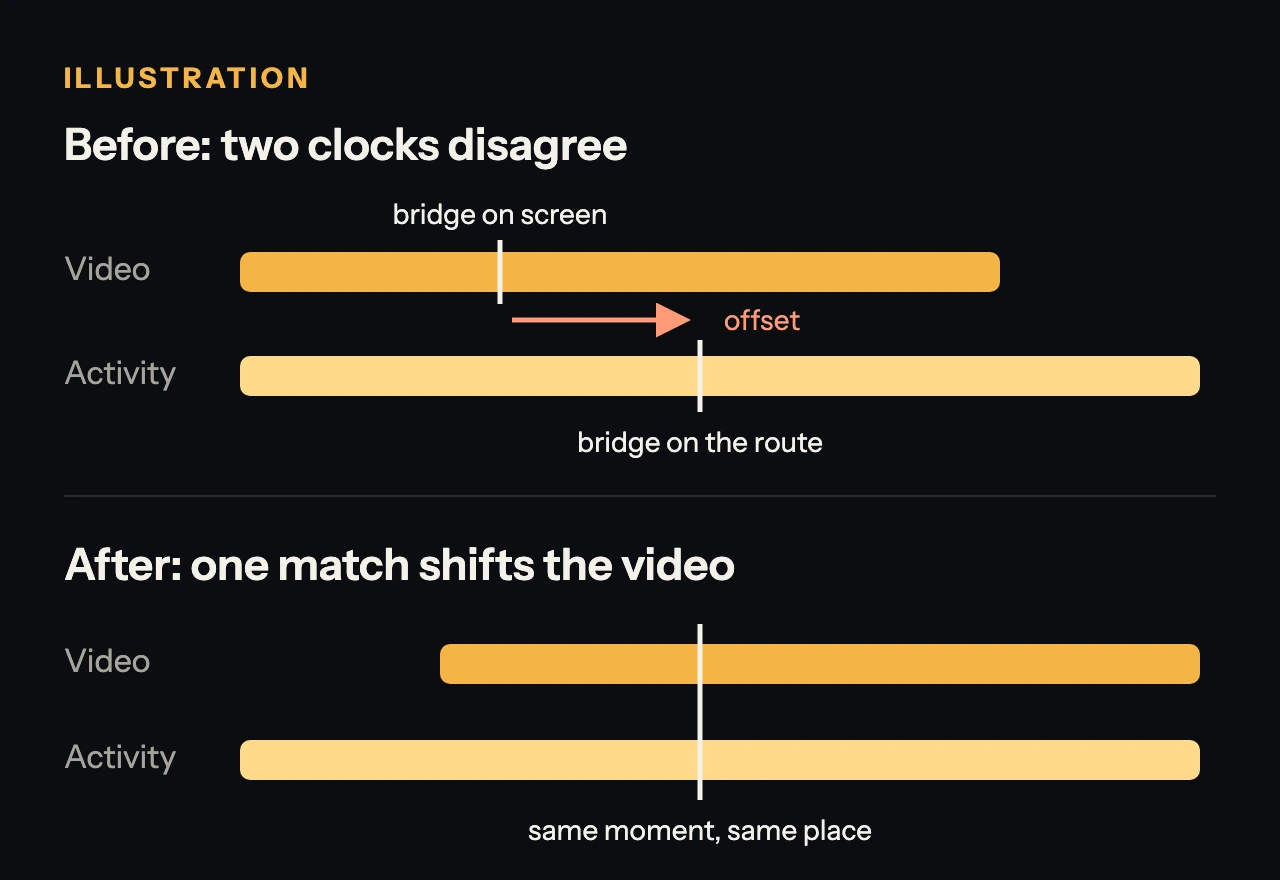
Your camera and your GPS recorder each keep their own clock. Movaro places a video on the activity using the recording time stored in the video file, then reads the activity at that moment. If the two clocks disagree, every reading is shifted by the same amount: the overlay is early or late from the first frame to the last.
The usual causes are:
- The camera clock is wrong. It was never set, reset after the battery ran flat, or runs on another time zone. GPS recorders take their time from satellites, so the camera is almost always the one that is off.
- Daylight saving time. A clock set before the change can be off by exactly an hour.
- The file lost its recording time. Some transfers, exports and converters write a new file without the original time. Movaro can't place a video automatically without it.
- Several cameras. A helmet camera and a handlebar camera rarely agree to the second, even when both are set correctly.
When you create a project, Movaro shows how many videos it matched, how many are unmatched, and how many have no recording time or fall outside the activity trim. You can still choose Create with unmatched videos and line them up afterwards. If several clips are all off by the same whole or half hour, as happens with a wrong time zone, Movaro can often detect that while creating the project.
Check the sync before you change anything
Pick a moment you can place on the map with confidence: a sharp bend, a junction, a bridge or a building. Avoid long, steady sections; a few seconds of the same straight road look identical on the map.
Play the video beside the map and pause as you reach that place. Watch where the route marker is. Then check a second moment later in the clip. If both are off by about the same amount, one sync will fix it. Judge the timing by the map marker rather than the numbers: speed and heart rate respond a moment after the effort, so they make a poor reference.
Line up an activity video
Open Tools → Sync video and route. Under What do you want to sync?, choose Activity videos for footage you filmed while recording the activity, or Video at the timeline marker to start from the frame under the marker in Main edit.
- Find a recognizable moment. Pause exactly on it in the video and choose Use this moment.
- Match the moment on the map. Drag the track timeline until the map marker reaches the place shown in your paused video. Turn on Fine control when you are close. Then choose Use this route moment.
- Pick the right pass. On a loop or an out-and-back route, the same spot can appear more than once. Movaro lists each pass with its time; choose the one your video shows, using what happens just before or after.
- Review and apply. Movaro calculates the correction from your two marks. Use −0.1s and +0.1s if it needs a nudge. Under Where to apply the offset, choose Project for every video, or apply it only to the videos checked in the list, then choose Apply offset and confirm.
The overlays refresh automatically. Replay the moment you used and the second one later in the clip. When they match, you're done; when Video timing saved appears, the correction stays with the project.
Videos from the same camera share one clock, so one good match can fix all of them. A video that has no recording time needs its own match.
Sync a second camera
A picture-in-picture camera needs its own timing. In What do you want to sync?, choose its track, then pick what to compare it with:
- Match visually with the Main edit works for any camera. Use a gesture, a rider passing a landmark or another brief event both cameras saw. This is the safest choice when you're not sure.
- Match with your GPS works when the camera was with you, such as on your helmet.
- Match with another rider's GPS is for a camera on someone else's bike. Add their recording in Ghosts as Same event first; Ghosts is available on Creator, Studio and Founder.
Apply the result to This video, a selection, or the Whole track. Picture-in-picture tracks are available on Creator and higher plans. When you add a picture-in-picture video, Fine-tune timing also lets you adjust it before it goes into the timeline.
Undo or adjust a saved correction
Saved timing lives in the Overlays tab under Time offsets. Saved video corrections lists the videos you have synced, and Reset selected video offsets removes their corrections. Project-wide offset (seconds) shifts every video by the same amount; choose Apply to use it, or Reset project offset to return to zero. Inside the sync tool, Reset saved timing clears the correction for the footage you are working on.
If the activity itself starts too early or too late for your project, change the Activity trim in the Project tab instead. Trimming chooses which part of the activity the project uses; it doesn't move the video.
When one offset is not enough
A sync shifts a video's clock by a fixed amount. That fixes almost every real-world case, because a wrong clock is wrong by the same amount all day. It cannot stretch time. Timelapse, hyperlapse and speed-ramped clips play faster than the ride happened, so they can't match the activity all the way through. Use real-time footage for the parts where the overlay matters.
If a second check point is still off after syncing, go back and check the pass you chose on the route, and make sure the moment you marked is really the same one in both places.
Avoid the problem next time
Before your next ride, set the camera's date, time and time zone, or let its phone app set them. Start your GPS recording before you start filming, and stop it after you finish. Copy the original video files from the camera to your computer rather than files exported or converted by another app. A few seconds of preparation can save the sync step entirely.
New to Movaro? The first-video guide walks through a whole project, and choosing an activity recording helps you pick the file that matches your footage.
Your footage is waiting.
Put your last ride, run or ski day on the video tonight. Free.
Georgi Kostadinov
Founder at Movaro. Building tools for adventurers who want to share their stories.