H.264, H.265 or AV1? Choosing an export format for your action video
What Movaro's Video format menu means in practice: when H.264 is the safe choice, what H.265 and AV1 add, why a format can be unavailable on your computer, and why file size comes from Video quality.
 Georgi Kostadinov Founder
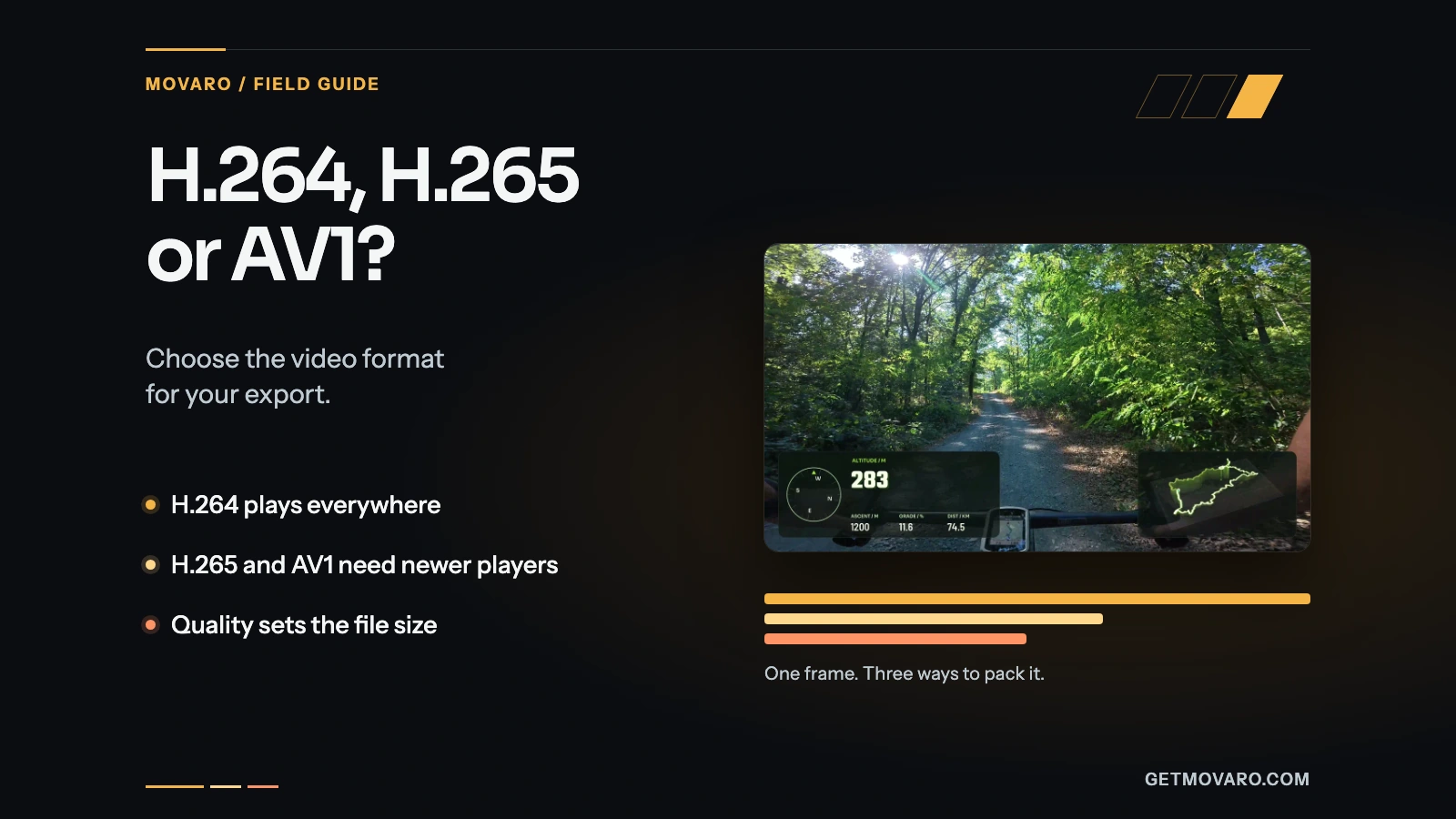
Near the end of every export there's a setting that's easy to leave alone: Video format. Since Movaro 1.7 it offers H.264, H.265 and AV1 for a finished video. The one you pick decides who can play the file and how good it looks for its size, and not every computer can make all three.
The short version: choose H.264 when the file is going to other people or to a device you can't check. Choose H.265 for your own recent devices and for videos you keep. Choose AV1 only when you know the place it's going can play it. The rest of this guide explains why, and what the menu is telling you when a format is missing or unavailable. The choice between the three is on every plan.
Why the format matters for action footage
A video format, or codec, is the method that packs the picture into a file. Most of the saving comes from describing only what changed since the previous frame, and that's where footage from a moving camera is hard work: the whole picture shifts at once, and leaves, gravel, water or snow look different in every frame. Detail that doesn't fit into the file's data rate gets smoothed away, and you see blocky or smeared patches in the busiest parts of the picture.
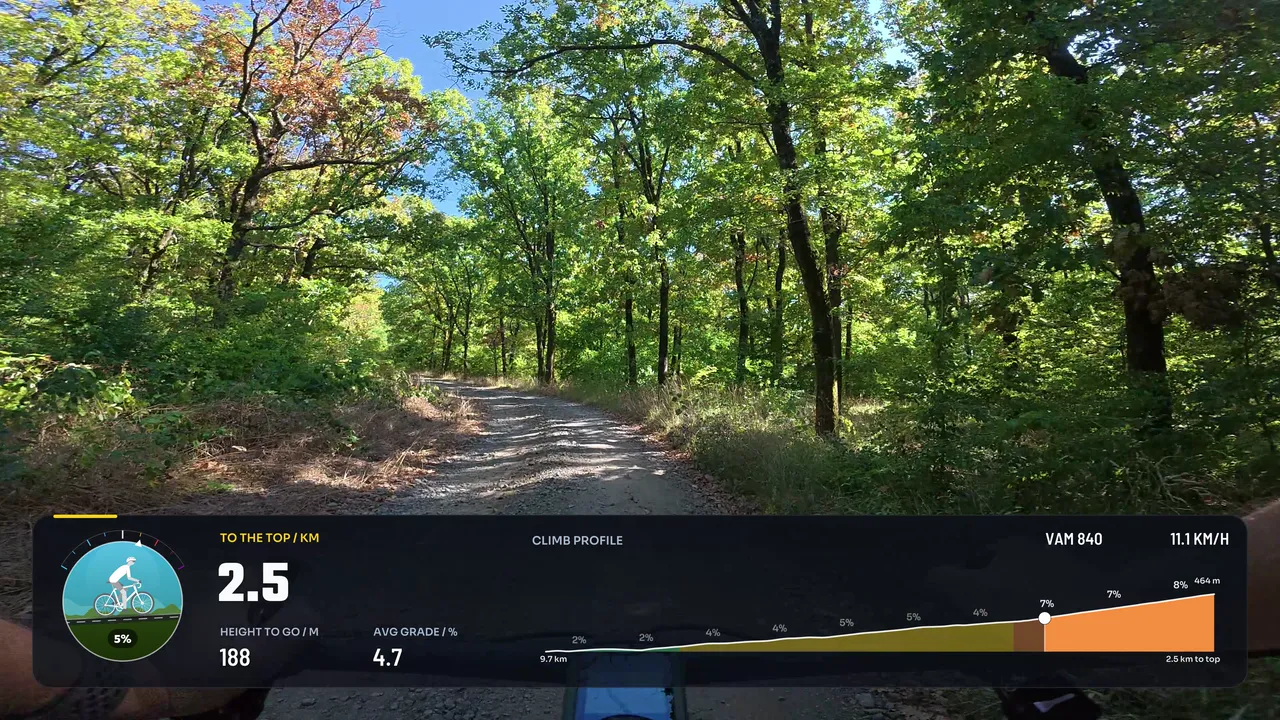
Overlays add a second demand. Numbers, map lines and gauge edges are sharp shapes on top of that moving background, and softened text is easy to notice. Newer formats describe the same picture with less data. They pay for it with more work to encode and to play, which is why they ask for newer hardware at both ends.
What each format is good for
The menu is in Exports: pick an export type, continue to Format & destination, and open Video format & quality. Each format shows a one-line summary there.
| Format | What the menu says | Use it for |
|---|---|---|
| H.264.mp4 file | Plays everywhere | Sharing with other people, older devices and most editors |
| H.265 / HEVC.mp4 file | Smaller files, newer players | Your own recent devices and the videos you keep |
| AV1.mp4 file | Smallest files, limited editor support | Places you know can play it |
| ProRes 422 HQ.mov file | Editing-grade, very large files | Overlays with a background, on their way to an editor (Creator and above) |
H.264 is the oldest of the three and the one to send when you can't check what's at the other end: a relative's TV, a club group chat, a work laptop. Nearly anything that plays video plays it, and most editors import it.
H.265, also called HEVC, needs noticeably less data than H.264 for the same picture. Recent phones, computers and TVs play it. Older ones may not, and some Windows PCs need Microsoft's HEVC Video Extensions before the built-in player will open it.
AV1 is the newest and the most efficient of the three. Support for playing it is still spreading, and Movaro's own label warns about editors, so if the file is going into another editing app, check that app first.
ProRes 422 HQ is a different kind of format: made for editing rather than sharing, lightly compressed and very large, about 220 megabits per second at 1080p and 30 frames per second, or roughly 1.6 GB a minute. In Movaro it's offered only for overlay exports that have a background, such as a green-screen overlay for an editor that can't import transparency, and it needs Creator, Studio or Founder. Finished videos use H.264, H.265 or AV1.
Timeline, Clips and Highlights exports have one more choice, Auto, labelled "Chosen for this computer". It's what a project uses until you pick a format, and it keeps the behaviour from before 1.7: normally H.265 on a Mac and H.264 on Windows and Linux, saved as a .mov file. Picking a format by name gives you an .mp4 instead. If an Auto export from a Mac won't play somewhere, it's probably H.265 meeting an older player; export it again as H.264.
When a format is missing or unavailable
Movaro doesn't list a format just because the software knows about it. When you open Exports it runs a short test encode of each format on your computer, and it checks again when the export starts. While the test runs, the menu reads "Checking this computer…". What it finds depends on the system:
- Mac. H.264 and H.265 use macOS's own encoder. AV1 isn't in the menu, because Movaro's Mac export doesn't write it.
- Windows. H.264 doesn't need anything special. H.265 and AV1 need a graphics card with an encoder for that format, from NVIDIA, AMD or Intel. Without one, the format stays in the menu marked as unavailable, with the reason: for AV1, that means a card from the NVIDIA RTX 40, Intel Arc or AMD RX 7000 series or newer.
- Linux. H.265 and AV1 are encoded with the FFmpeg your distribution installs, so the menu shows what that build can do.
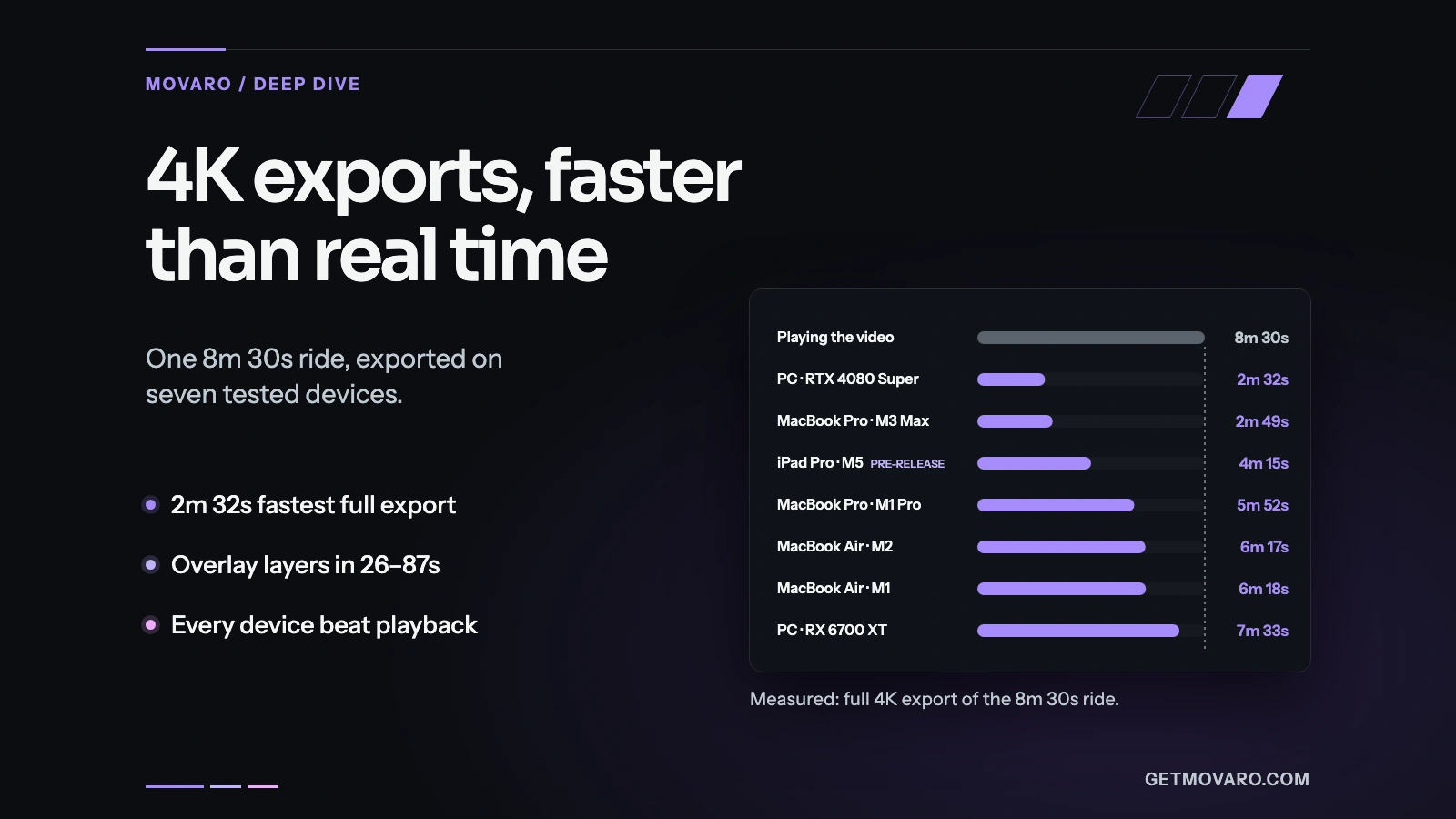
The Windows rule is about waiting time. In a short test we ran on a Windows PC with an NVIDIA RTX 4080 Super, at 4K and 60 frames per second, a software AV1 encoder ran at about half of real time on the processor, while the graphics card's encoder ran at about twice real time. With a graphics encoder the three formats are close: a 4K 60 fps timeline exported at 2.5 times real time in H.264, 2.0 times in H.265 and 2.4 times in AV1 on that PC.
Movaro also never swaps the format without telling you. Ask for H.265 and you won't get H.264 back. A saved choice that this computer can't make, for instance in a project you last exported on another machine, shows Unavailable · choose another, and you can't continue to Review export until you pick one that works.
File size comes from Video quality
This is the part that's easy to get wrong. In Movaro the format doesn't set the size of the file. Video quality, the menu below it, does: it decides how much data the video gets, and that amount is the same whichever format you choose.
So H.265 at Standard comes out at about the same size as H.264 at Standard. What you gain is picture: the more efficient format has more of that data left for the leaves and the gravel. For a smaller file, lower Video quality, and pick H.265 or AV1 so the picture gives up less when you do. That's how to read "Smaller files" in the menu: these are the formats that cope better with less data.
Finished videos have four levels: Low ("Smallest files"), Standard ("Balanced detail and size"), High ("More detail, larger files") and Ultra ("Most detail, largest files"). Low and Standard are on every plan, High needs Creator or above, and Ultra needs Studio or Founder.
Neither menu changes anything else about the export. Resolution, frame rate and how often the overlay updates stay as you set them.
Overlays for another editor
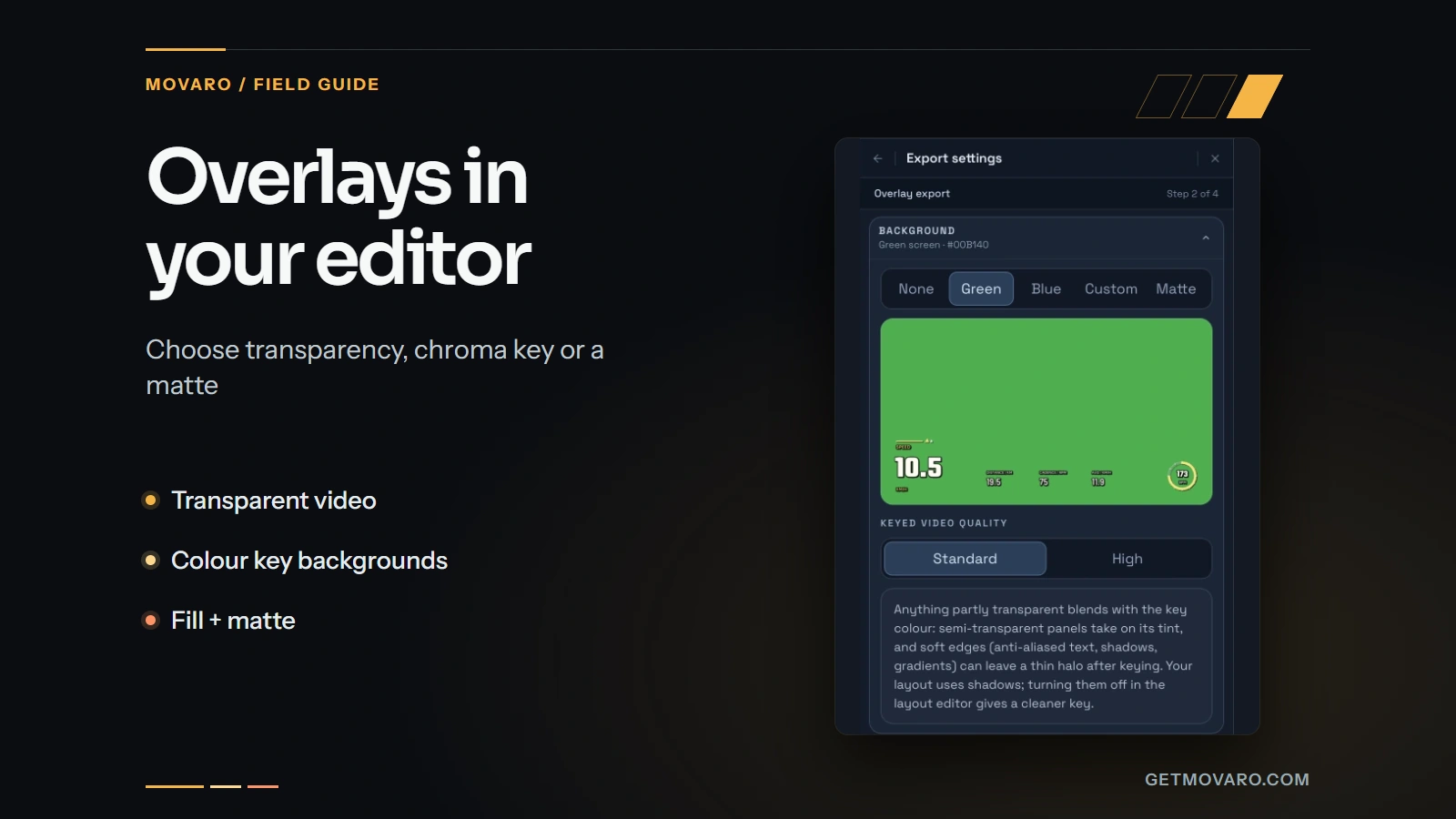
Transparent overlays don't use this menu, because their file has to carry transparency. They're saved as HEVC with alpha on a Mac and as WebM on Windows and Linux, with ProRes 4444 as the other choice on Creator and above. The guide to using Movaro overlays in your video editor explains which to use with which editor.
Picking one
- Sending the video to people, or not sure where it will be played: H.264.
- Uploading to a video site: these sites re-encode what you send, so a clean source matters more than a small one. H.264 is the safe upload; check the site's help pages before you send H.265 or AV1.
- Keeping the video for yourself on recent devices: H.265.
- AV1: when you've confirmed the destination plays it and you won't edit the file again.
If you're not sure a format will play where it's going, test it before a long export: Shift-drag on the timeline ruler to mark a short range, export that, and open the file on the device or site in question. For how long full exports take, the 4K export timings cover seven tested devices.
Your footage is waiting.
Put your last ride, run or ski day on the video tonight. Free.
Georgi Kostadinov
Founder at Movaro. Building tools for adventurers who want to share their stories.