Race a friend or your past self on video with Ghosts
Add a friend's GPX or FIT file or one of your earlier attempts, let Movaro line the recordings up, and show places, gaps and the finish order on your video.
 Georgi Kostadinov Founder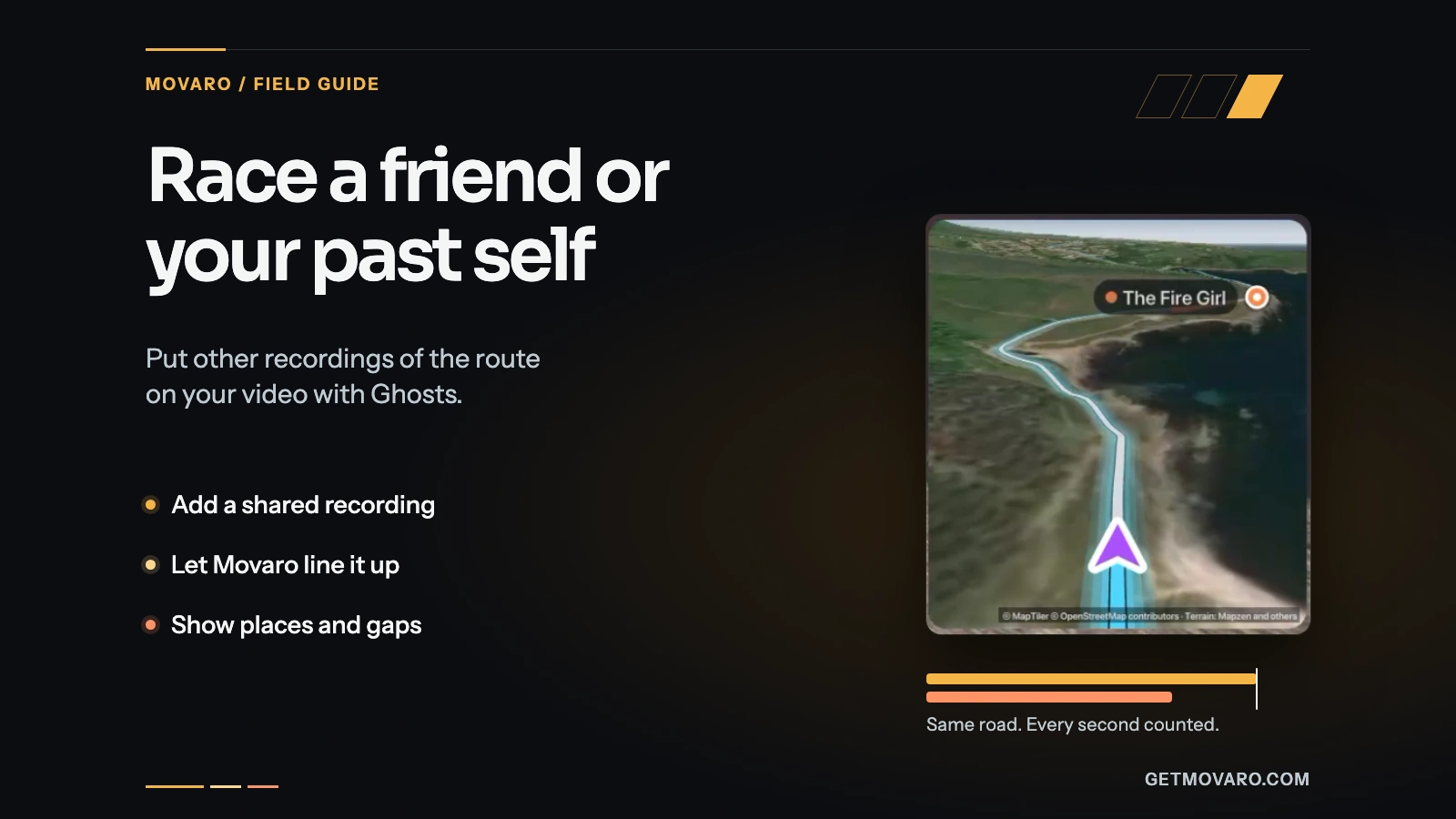
Movaro's Ghosts puts other recordings of the route you filmed onto your video: a friend's ride from the same event, a few riders from your group, or your own earlier attempt. Each one becomes a coloured marker on your maps and elevation profile and a row in a comparison panel, so viewers can see who was ahead at each moment and by how much.
This guide goes from a shared GPX, FIT or TCX file to a leaderboard on screen, for Movaro 1.6.2. Ghosts are available on Creator, Studio and Founder; the plans page has the full comparison.
What a ghost is
A ghost is another recording of the course you filmed, and a project takes up to five. Movaro matches each one to your route by position and direction of travel, then compares it with your activity at every frame: who is ahead, by how much, and the rider's speed, power or heart rate when their recording has them. The comparison follows the original moment through cuts, reordered highlights and exports.
The labels talk about riders, but the comparison only needs GPS positions along the same course, so a trail run against a friend's recording of the same trail works the same way. What a ghost can't do without is GPS: a recording with sensor readings but no positions can't be matched to the course, so it gets no marker, gap or place.
Get the recordings
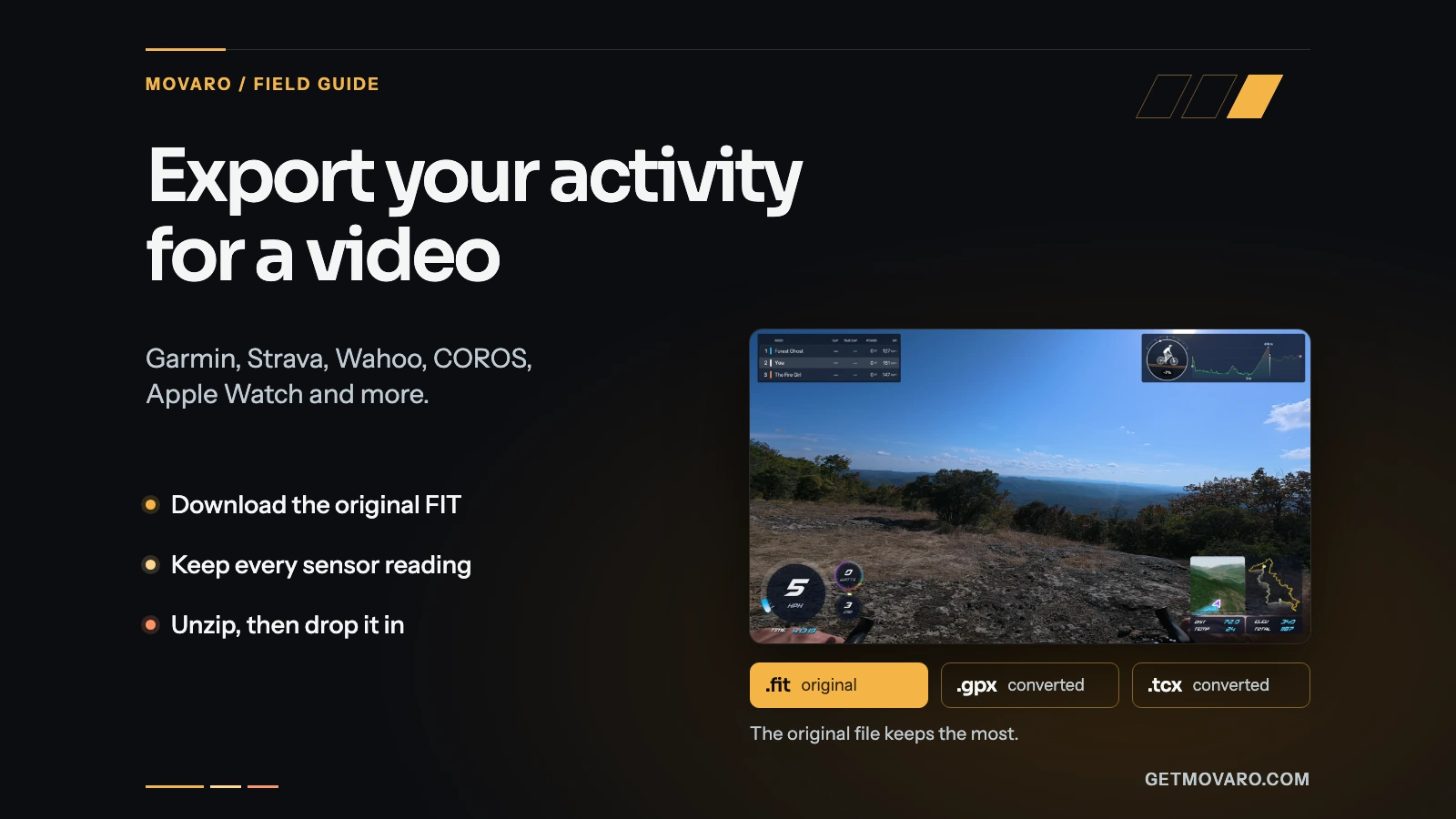
A ghost comes from a GPX, FIT or TCX file, or from one of your own activities on your connected Strava account. From Strava lists your own recent activities only, so a friend's ride arrives as a file. Ask them to export it themselves: the activity export guide shows where Garmin Connect, Strava, Wahoo, COROS and others keep it, and their own export keeps the heart rate, power and cadence a comparison can show. Use only recordings people have shared with you, and check with them before you publish a video that shows their name and data.
If a FIT file holds several sessions, Movaro asks Which session? before adding it.
Add the ghosts
- Open your project and choose Tools → Ghosts. The first step, Add ghosts, has Choose file and From Strava, and shows how many of the five places you've used.
- Add each recording. A ghost from a file is named after the file, and one from Strava after the activity; to rename it, open its More actions menu and choose Rename. The first row is you, called Me until you rename it with the pencil. That name appears on panels and beside your marker.
- Pick each ghost's colour with its swatch. The colour follows it onto maps, profiles and panels. The switch beside a ghost hides it from the video without removing it; a hidden ghost keeps its number and colour and is left out of the gaps.
- Choose Align ghosts.
Movaro checks each ghost against your recording as soon as you add it, so most riders are already lined up when you reach the next step.
How Movaro lines them up
In Align timing, step through riders with Previous and Next rider, or apply every clear match with Auto align all riders. For each rider, Automatic alignment says what it found, such as Aligned automatically or Check this rider’s alignment, and why.
The setting that matters most is Compare as:
- Same event uses both recordings' clock times, so a later start shows as a later start. Choose it for a ride or race you did together, including a staggered start: if your friend set off minutes after you, the real gap stays in the standings.
- Past effort starts both efforts together where your routes first meet, whatever day each was recorded. Choose it for your own earlier attempt, or a friend's ride of the route on another day. A recording that began on the way to the start still starts level with you at the first shared point.
In both modes, stops count as elapsed time. A rider who waits at a junction keeps racing from that spot while the others ride on.

Movaro chooses the mode from whether the two recordings overlap in time, then checks the GPS. A friend's device set to another time zone makes their file look as if it was recorded hours apart. Since 1.6, Movaro catches that: if their movement follows your route once their clock is shifted by a whole number of quarter-hours, it corrects the clock, keeps Same event and shows the Recording clock difference with its GPS evidence. It shifts the clock, not the rider, so a real gap survives.
When the automatic match needs you
Repeated laps, a warm-up on the course or thin GPS can leave more than one plausible answer. Movaro then asks you to check the rider rather than guessing. Two sections settle it:
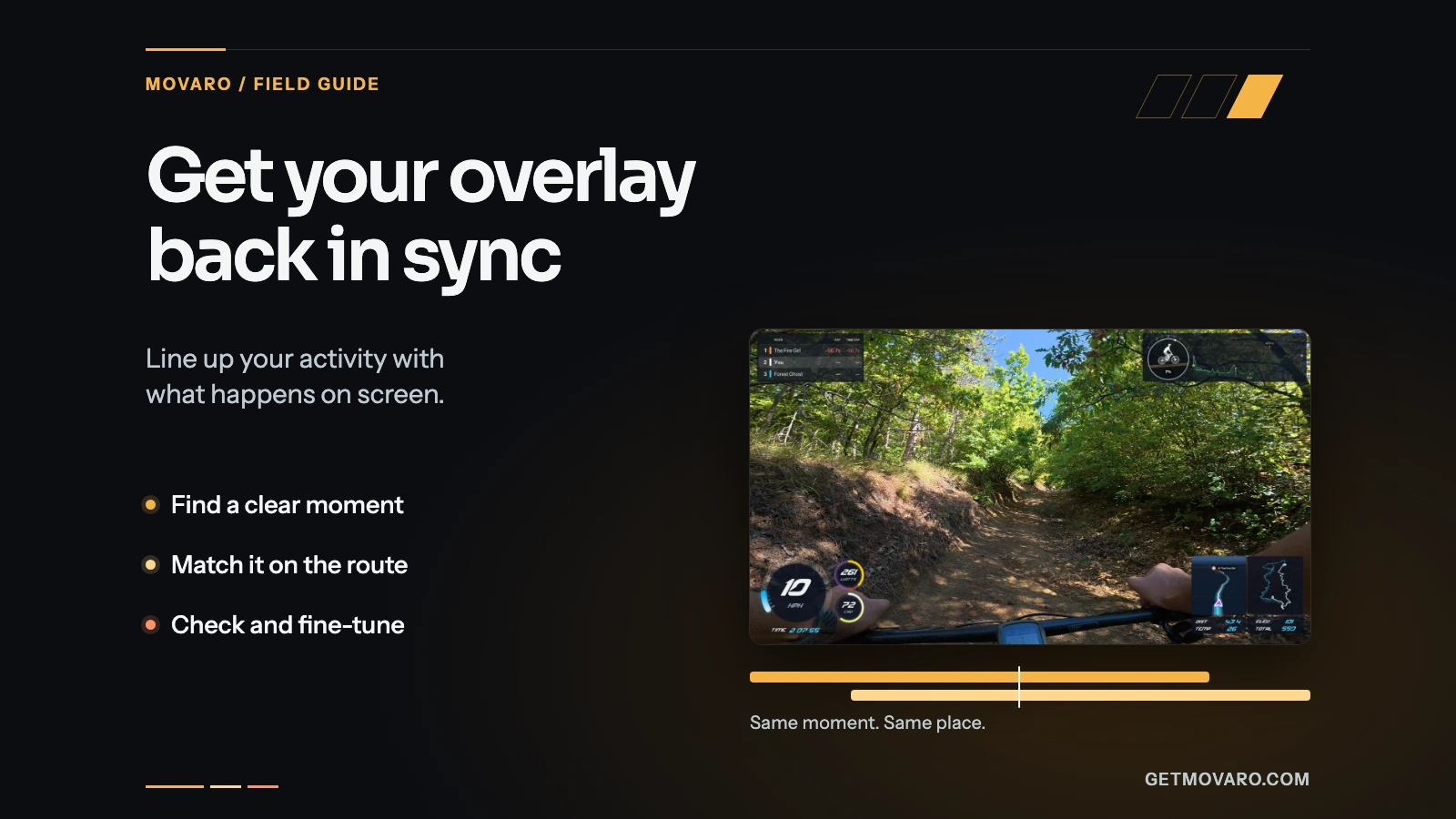
- Match a place manually opens a map of both routes. Click a spot you both passed, such as a summit, a turn or the start line, and Movaro finds when each of you was there. Same place or lap tells Movaro which pass you mean and keeps the timing, which is what a loop or an out-and-back needs. Start together here makes the two moments the same instant; use it only when you know you were side by side there, because it removes the gap at that spot. The same section has a Timing adjustment field for typing an offset in seconds.
- Change timing (optional) is for a recording clock that is simply wrong. Pause the preview on a frame where the ghost is beside you and choose Line up [name] here, then nudge by one or five seconds while you watch both markers on the map.
To confirm a match, check a second spot: Check the gap shows every ghost's time gap at the preview's frame, and once the routes have loaded it becomes Live gap and follows playback as you scrub. Reset timing clears your manual matches and adjustment, and Recheck alignment runs the automatic match again. Switching Compare as also clears manual line-ups and nudges.
Decide where the race ends
The finish is the end of your activity trim, or the end of your recording if you haven't trimmed it. To finish somewhere else, pause the preview at the line and choose Set finish here under Race finish; the frame needs a GPS position. Use activity end goes back to the default. Everyone finishes on that one line. In a leaderboard, a finished rider gets a FINISHED badge with their elapsed time from the shared start, and their place is fixed from then on, even after their recording ends. A recording that stops before the line doesn't count as a finish.
Show them on the video
The last step, Show on the video, lists the maps and elevation profiles in your layout. Switch on Ghost markers for each one you want, turn on Names next to markers, and turn on the Ghost Comparison panel to add standings to the preview. Drag the panel where you want it and drag a corner to resize it. These changes go into the project's own copy of the layout, so the original stays as it is.

For more control, choose Open the Layout Editor when the guide finishes. The Ghost Comparison element, in the Racing family, has four styles: Leaderboard for the live race order, Head-to-head for you against one ghost, Gap bar for everyone on one line, and Table for up to eight statistics side by side. Choose whether to Measure gaps to you, the Leader or the Rider ahead, show the Gap in time or distance, and add statistics such as power or heart rate, which fill in only when a rider's recording has them. Gaps read like a timing screen: plus is behind, minus is ahead. Trend arrows, Gap history and, on a leaderboard, Animate overtakes show the race changing.
On a route map or 3D map, the Ghosts section sets the Marker (Dot, Ring or Place badge), what its label says (Name, Name and gap, Gap or Initials) and a Trail behind each marker. A gauge, text or graph can show a ghost's data instead of yours: under Participant, set Read telemetry from to that ghost's slot. A picture-in-picture camera's telemetry tag can carry a ghost's readings too, including Time gap and Place. To start from a finished design, the layout guide shows how to find and adapt one.
Turn the standings into text
Titles can also show the result in words. Add a title from the Leaderboard results template, move the playhead to the moment you want, such as the finish, and choose Use Ghosts at playhead. Movaro fills the results box with each rider's place, name and gap to the leader as ordinary text, which you can edit, restyle and animate like any other title. In any other title, Insert data → Ghost standings → Replace text with standings at playhead does the same. The text doesn't update by itself: move the playhead and use it again to refresh it. A rider without a gap at that moment shows a dash. Like Ghosts, this needs Creator, Studio or Founder.

What leaves a gap blank
A gap needs both recordings on the same course at that moment. When a ghost takes a different road, cuts a corner or loses GPS, its gap is unavailable until its route meets yours again; a rider who loses coverage briefly keeps their place for a few seconds so the leaderboard doesn't flicker. Before a ghost's recording starts and after it ends, its readings are unavailable rather than invented. Sensors are separate from GPS: a friend's heart rate column stays empty if their file never had heart rate, while their marker still moves along the map.
Two more uses for a ghost
A camera on a friend's bike can be timed from their recording. In Sync video and route, choose the picture-in-picture track, then Match with [name]'s GPS. The ghost has to be set to Same event and shown on the map. The sync guide covers the rest of that tool.
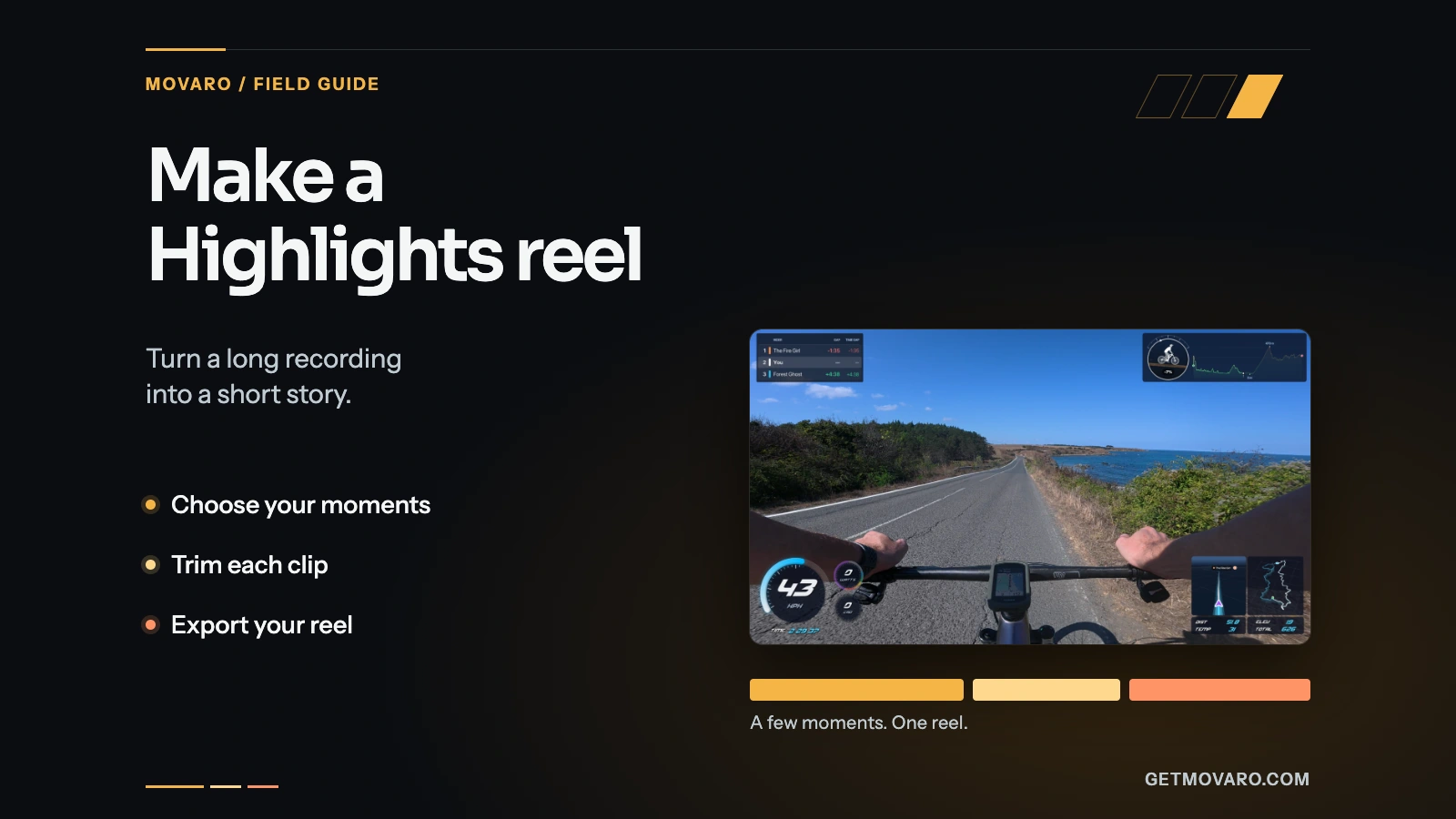
With aligned ghosts in the project, Highlights explorer also lists Ghost race moments: overtakes, times you were passed and finishes that your footage covers, so the clips where the race changed are easy to find. The Highlights reel guide shows how to turn moments into a reel.
Ghosts stay with the project. A layout you share carries the ghost slots and their styling but not the recordings, and exports, including transparent overlays for another editor, draw the same markers and panels as the preview.
Your footage is waiting.
Put your last ride, run or ski day on the video tonight. Free.
Georgi Kostadinov
Founder at Movaro. Building tools for adventurers who want to share their stories.