Heart rate, power and cadence on your video: what the recording needs
Sensor readings reach your video only if the recording has them. Which sensors to pair, which file to export (the FIT file keeps the most), and how to show heart rate, power and cadence in Movaro without covering the footage.
 Georgi Kostadinov Founder
Speed and the route come from GPS, so almost every activity file has them. Heart rate, cadence and power come from sensors, and they reach your video only if the recording your watch or bike computer saved contains them. This guide covers what to check before the ride, which file to export afterwards, and how to show those readings in Movaro so they add to the footage instead of covering it. Nothing here depends on a particular Movaro version; the controls are those of Movaro 1.6 and later.
Where the readings come from
Movaro reads every value it shows from the activity recording you add to the project. It never estimates a missing one: an element bound to a reading the file doesn't have shows a dash or stays empty, and the layout palette can be filtered to the readings your recording actually contains, so you see at once what you have to work with.
That means the question "can I show my power on the video?" is answered before you open Movaro. A heart-rate strap, a cadence sensor or a power meter has to be paired with the device that records the activity, and the device has to be recording when the camera is. The camera itself records none of this, and GPS alone gives you speed, distance, elevation and grade, nothing more.
Check the device's own screen during the ride. If it shows a heart rate, the file will have one. If a sensor dropped out for ten minutes, that stretch will be blank in the video too.

Export the file that keeps the sensors
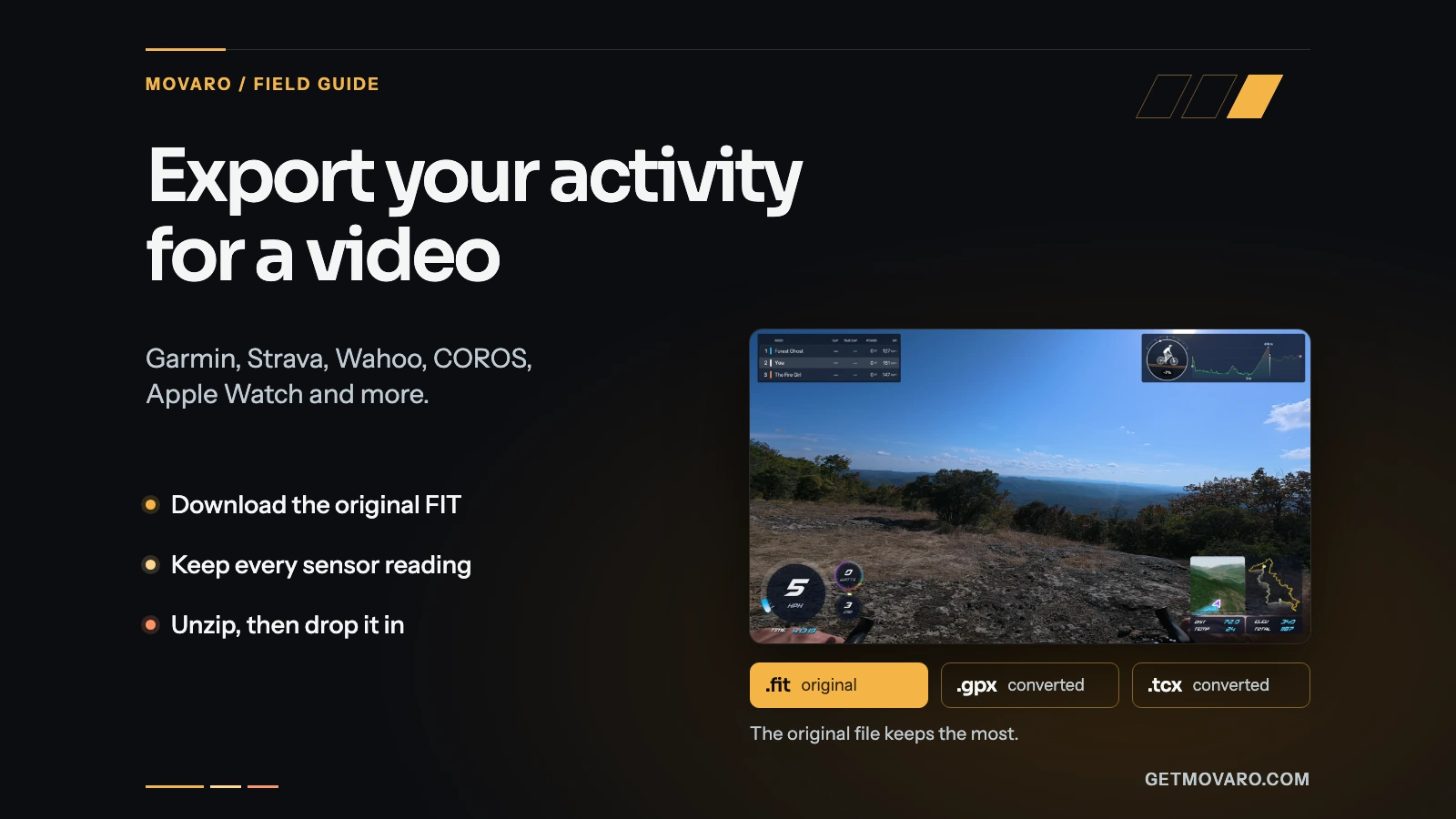
The same ride can produce files with different contents. A FIT file, which most watches and bike computers record, keeps the route, every paired sensor, laps and pauses, and extras such as left/right power balance. GPX keeps the route, elevation and time; heart rate, cadence and power are in it only when the exporting app adds them, and many don't. TCX keeps heart rate, cadence and laps, with power when the exporter includes it.
So download the FIT file when you can. The export guide shows where Garmin Connect, Wahoo, COROS, Polar, Suunto, Apple Watch and the others keep it. If you import from your connected Strava account instead, heart rate, cadence and power come through when Strava supplies them, but power balance doesn't, and an activity without GPS can't be imported that way at all. For an indoor ride, use the FIT or TCX file.
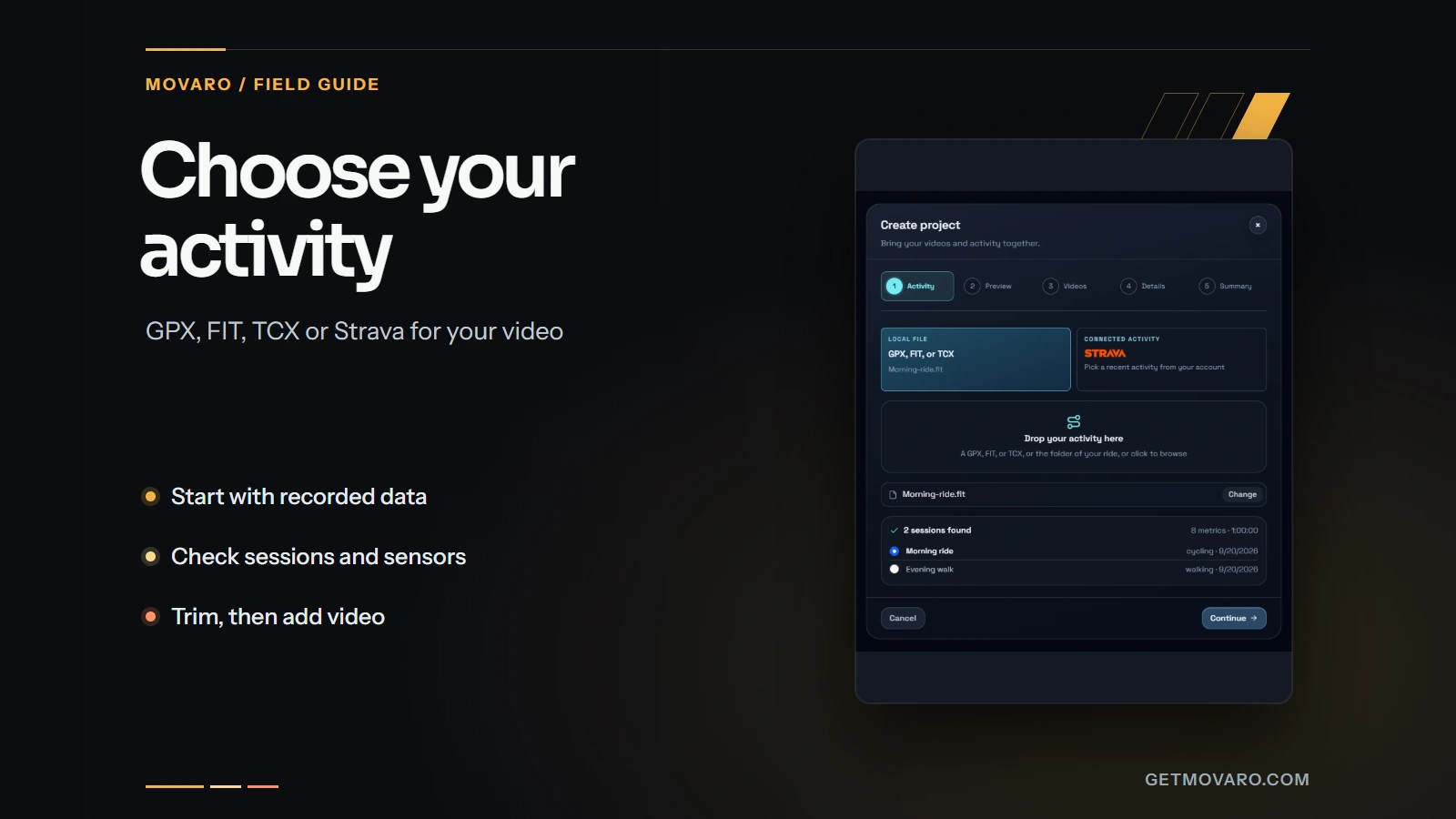
When a file contains several sessions, as a multisport recording does, pick the session you filmed; the recording guide covers that choice and the trim.
Show the readings
With the recording in the project, open Overlays and pick a layout, or open Edit layout to change one. Sensor readings can appear in several forms:
- A text reading or a gauge. A Semi-arc gauge, a Metric ring or a Meter suits a value that changes all the time, such as power or heart rate; a plain reading suits cadence. Each element chooses its channel, label, units and decimals.
- Zones. Colour a reading by its heart-rate or power zone, or show how long you spent in each zone with Time in Zones and the Effort Zones panel. Zones follow the bands you set, so a heart rate that reads "zone 4" means your zone 4.
- Graphs. A graph shows a reading over time and can compare two channels, such as heart rate against power on a climb. Telemetry graphs need Creator, Studio or Founder.
- Power Balance shows left and right power as bars, needles, rings or arcs, when the recording contains balance data.
- Laps. Lap numbers, times, distance and averages are readings on every plan; the Lap Panel, which lists the running time and the change from the previous lap, needs Creator and above. Laps come from FIT and TCX files.
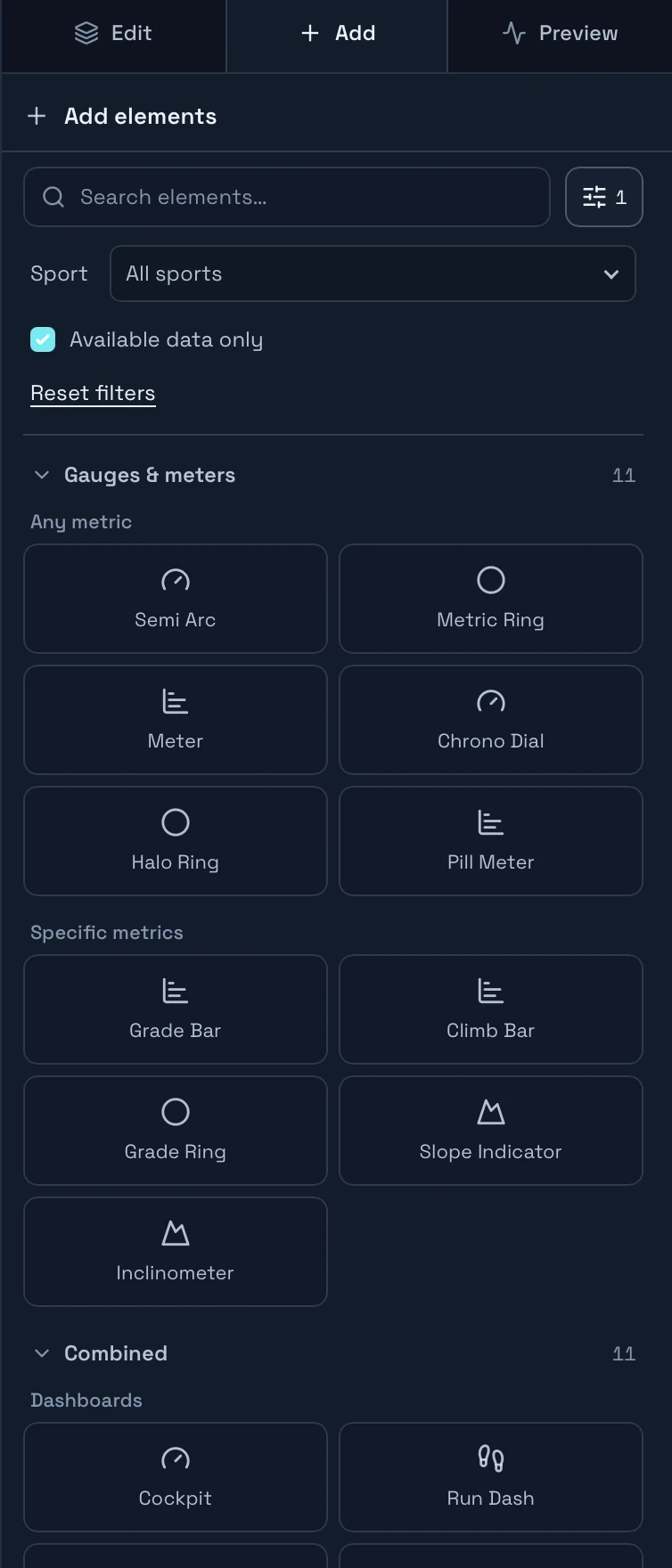
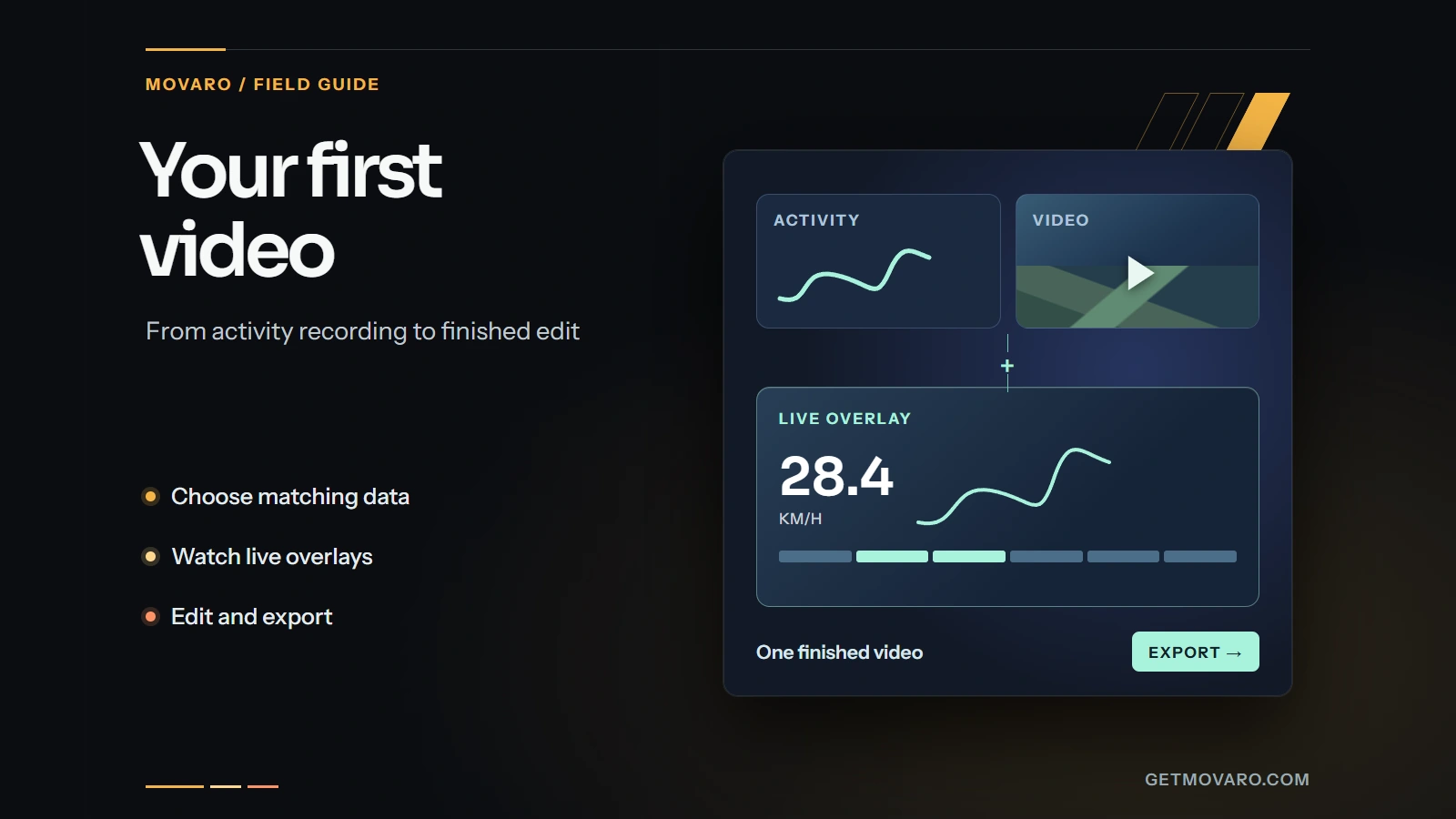
Keep the number of readings small. Two or three that tell the story of the section you're showing, say heart rate and power on a climb, or speed and cadence on a descent, read better than a dashboard. The first-video guide shows how a layout is built, and the Community has layouts made around specific readings that you can install and adapt.
A reading can also be a title. Library → Text has templates that read from the activity, and Insert data puts a live value, or a total or a peak over a range you choose, into your own words: "max 412 W" over the sprint, or the average heart rate over the whole ride at the end. Live readings change with the footage; totals and peaks hold their value.
Check that the readings match the picture
Sensor readings respond a moment after the effort: heart rate climbs for several seconds after you start a sprint and stays high after you stop. That is the body, not a sync problem. Judge the timing by the map marker or the speed, and use Tools → Sync video and route if the overlay is early or late. The sync guide explains how to pick a moment and line it up.
Once the timing is right, play a hard section with the readings showing. A heart rate that rises through a climb, a cadence that drops when you stand up and a power figure that spikes on the sprint make the footage legible in a way the picture alone can't. If a reading sits at zero or shows a dash, the recording doesn't have it for that stretch; hide that element for the section, or choose a layout without it, rather than leaving an empty gauge on screen.
Your footage is waiting.
Put your last ride, run or ski day on the video tonight. Free.
Georgi Kostadinov
Founder at Movaro. Building tools for adventurers who want to share their stories.